Microsoft certification · Exam MD-102

MD-102 Mock Exam Page 6

Endpoint Administrator

Free MD-102 questions on Topic 4: Mix Question, each with the answer and an explanation.

20 questions · 33 minutes · free, no sign-up

Topic 4: Mix Question questions

51–60 of 94 free
Question 51 Choose 1
Your network contains an Active Directory domain. The domain contains a computer named Computer1 that runs Windows 8.1.

Computer1 has apps that are compatible with Windows 10.

You need to perform a Windows 10 in-place upgrade on Computer1.

Solution: You copy the Windows 10 installation media to a network share. You start Computer1 from Windows PE (WinPE), and then you run setup.exe from the network share.

Does this meet the goal?
Show answerHide answer

Correct answer: B No

Explanation

Explanation:
An in-place upgrade from Windows 8.1 to Windows 10 cannot be performed by booting into WinPE and running setup.exe from a network share. This method performs a clean installation, not an in-place upgrade. An in-place upgrade must be initiated from within the running Windows 8.1 operating system by launching setup.exe from the installation media.

Correct Option:

B. No
Booting into WinPE and running setup.exe performs a clean installation, which wipes the existing operating system, apps, and user data. The requirement is to perform an in-place upgrade (preserving apps, settings, and data). An in-place upgrade requires running setup.exe from within the existing Windows 8.1 OS (e.g., from a mounted ISO or setup files on disk). The described solution does not meet the goal.

Incorrect Option:

A. Yes –
Incorrect because booting from WinPE performs a clean installation, not an in-place upgrade.

Reference:
Microsoft Learn: Perform an in-place upgrade – Must be initiated from within the existing OS. No external links provided.
Question 52 Choose 1
You have a Microsoft 365 subscription that uses Microsoft Intune Suite.

You use Microsoft Intune to deploy and manage Windows devices.

You have 100 devices from users that left your company.

You need to repurpose the devices for new users by removing all the data and applications installed by the previous users. The solution must minimize administrative effort.

What should you do?
Show answerHide answer

Correct answer: B Perform a Windows Autopilot reset on the devices.

Explanation

Explanation:
Windows Autopilot reset removes all personal files, apps, and settings from a device while keeping the device enrolled in Intune and reapplying the Autopilot deployment profile. It returns the device to a known good state, ready for a new user. This requires minimal administrative effort (can be triggered remotely from Intune) and does not require physical access.

Correct Option:

B. Perform a Windows Autopilot reset on the devices
From the Microsoft Intune admin center, select the devices > ... > Autopilot reset. This action remotely resets the device, removes all user data and applications, retains the Intune enrollment, and reapplies the Autopilot deployment profile. The device will reboot to the lock screen, ready for a new user to sign in. This minimizes administrative effort because it is performed remotely and does not require reimaging or physical USB media.

Incorrect Option:

A. Deploy a new configuration profile to the devices –
A configuration profile applies settings (e.g., restrictions, Wi-Fi) but does not remove existing user data or applications.

C. Perform an in-place upgrade –
An in-place upgrade upgrades the OS (e.g., Windows 10 to 11) but preserves user data and apps. It does not remove previous user data.

D. Perform a clean installation of Windows 11 –
A clean installation requires physical access (USB media) or PXE boot, and it removes the Intune enrollment, requiring re-enrollment. This is more administrative effort than Autopilot reset.

Reference:
Microsoft Learn: Autopilot reset – Remotely reset devices for new users. No external links provided.
Question 53 Choose 1
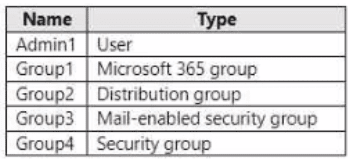
You have a Microsoft 365 tenant that contains the objects shown in the following table.


In the Microsoft Intune admin center, you are creating a Microsoft 365 Apps app named App1. To which objects can you assign App1?

Show answerHide answer

Correct answer: C Group1, Group3, and Group4 only

Explanation

Explanation:
In Intune, you can assign apps to Microsoft 365 groups (Group1), Mail-enabled security groups (Group3), and Security groups (Group4). You cannot assign apps directly to individual users (Admin1) in the assignment pane (though you can add users via groups). Distribution groups (Group2) are not supported for Intune app assignments because they are not security principals.

Correct Option:

C. Group1, Group3, and Group4 only
In the Microsoft Intune admin center, when assigning an app (Microsoft 365 Apps app), you can assign to:

Microsoft 365 groups (Group1) – supported.
Mail-enabled security groups (Group3) – supported (these are security groups with mail attributes).

Security groups (Group4) – supported.

Distribution groups (Group2) – not supported for app assignments.

Individual users (Admin1) – you cannot directly assign an app to a user in the assignment blade; you must add the user to a supported group.

Incorrect Option:

A. Group3 and Group4 only –
Incorrect; Group1 (Microsoft 365 group) is also supported.

B. Admin1, Group3, and Group4 only –
Incorrect; individual users cannot be directly assigned apps in Intune.

D. Group1, Group2, Group3, and Group4 only –
Incorrect; Group2 (distribution group) is not supported.

E. All objects –
Incorrect; distribution groups and individual users are not supported for direct assignment.

Reference:
Microsoft Learn: Assign apps to groups in Intune – Supported group types: Microsoft 365 groups, security groups, mail-enabled security groups. Distribution groups not supported. No external links provided.
Question 54 Choose 1
You have computers that run Windows 11 Pro. The computers are joined to Azure AD and enrolled in Microsoft Intune. You need to upgrade the computers to Windows 11 Enterprise. What should you configure in Intune?
Show answerHide answer

Correct answer: D a device configuration profile

Explanation

Explanation:
To upgrade Windows 11 Pro to Enterprise on Azure AD joined devices, you configure an edition upgrade policy within a device configuration profile. Specifically, you create a profile with "Edition upgrade and mode switching" settings, enter the Windows 11 Enterprise product key, and assign it to the devices.

Correct Option:

D. a device configuration profile
In the Microsoft Intune admin center, navigate to Devices > Configuration profiles > Create profile. Select Windows 10 and later, then Edition upgrade and mode switching as the profile type. Under "Edition to upgrade to," select Windows 11 Enterprise. Enter a valid product key (or use the default if using subscription activation). Assign the profile to the Windows 11 Pro devices. This upgrades them to Windows 11 Enterprise.

Incorrect Option:

A. a device compliance policy –
Compliance policies evaluate device health but do not perform edition upgrades.

B. a device cleanup rule –
Cleanup rules delete inactive devices from Intune; they do not upgrade Windows editions.

C. a device enrollment policy –
Enrollment policies control device enrollment (e.g., restrictions), not OS edition upgrades.

Reference:
Microsoft Learn: Upgrade Windows editions using Intune – Device configuration profile with Edition upgrade settings. No external links provided.
Question 55 Choose 1
You have a Microsoft 365 E5 subscription.

You need to create a dynamic device group that will contain any device that has the word Marketing in its name. Which device membership rule should you use?
Show answerHide answer

Correct answer: D (device.displayName -contains "Marketing")

Explanation

Explanation:
In Azure AD dynamic device groups, to match devices containing a specific string in their display name, you use the -contains operator. The correct syntax is (device.displayName -contains "Marketing"). The string should not have extra single quotes. The -contains operator checks if the property contains the specified substring.

Correct Option:

D. (device.displayName -contains "Marketing")
The -contains operator in Azure AD dynamic membership rules checks if the property value contains the specified substring. This rule will include any device where the displayName includes the word "Marketing" (e.g., "Marketing-Laptop-01", "Finance-Marketing-PC").

Incorrect Option:

A. (device.displayName -in "'Marketing'") –
The -in operator checks if the property equals any value in a set, not substring containment. Also, the extra single quotes are incorrect.

B. (device.displayName -contains "'Marketing'") –
The extra single quotes around Marketing mean the rule would look for the literal string 'Marketing' (with quotes), which does not match device names.

C. (device.displayName -in "Marketing") –
The -in operator checks for exact equality with one of the values, not substring containment.

Reference:
Microsoft Learn: Dynamic membership rules for devices – Use -contains operator for substring matching. No external links provided.
Question 56
You have a Microsoft 365 subscription.

You use Microsoft Intune Suite to manage devices.

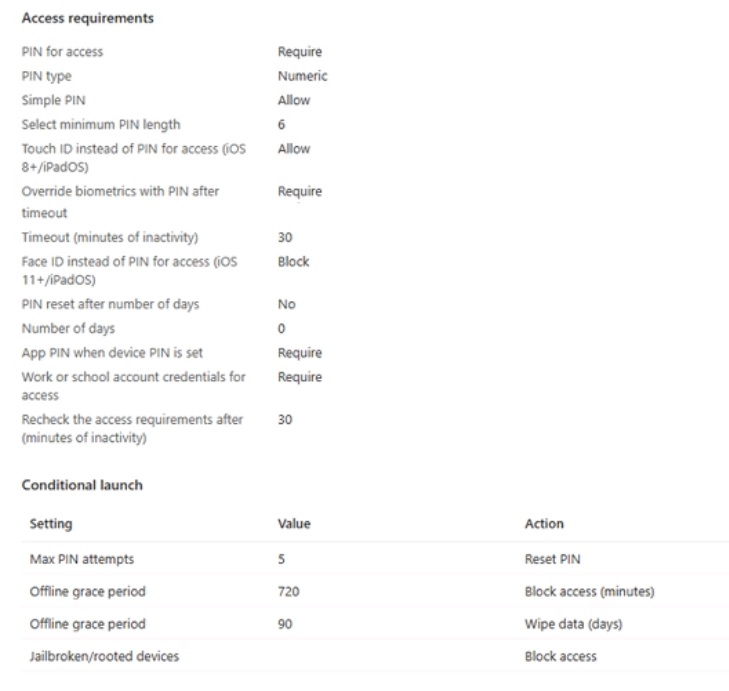
You have the iOS app protection policy shown in the following exhibit.


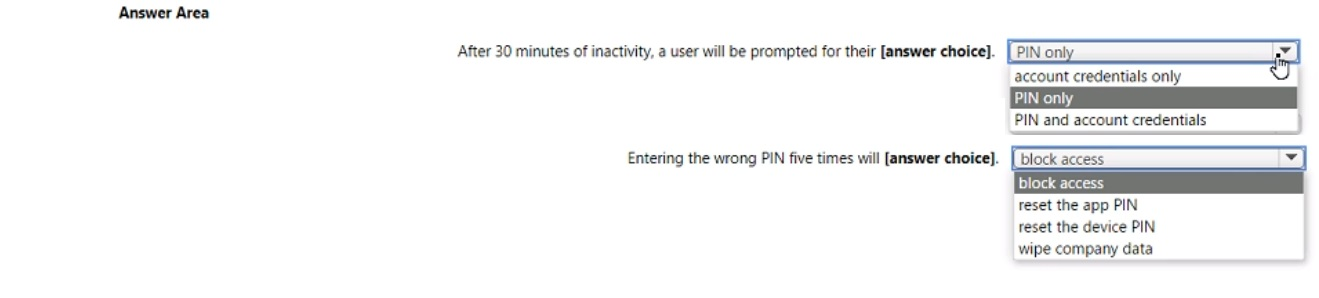
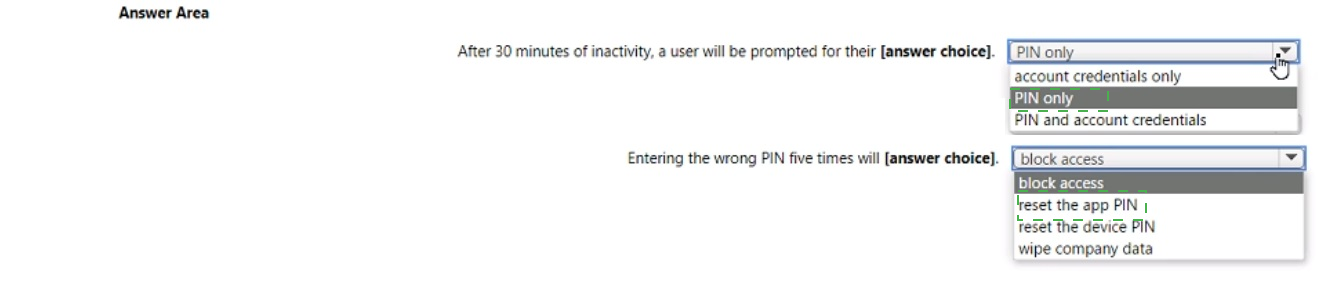
Use the drop-down menus to select the answer choice that completes each statement based on the information presented in the graphic. NOTE: Each correct selection is worth one point,

Show answerHide answer

Explanation


Explanation:
The exhibit shows "Recheck the access requirements after (minutes of inactivity)" set to 30 minutes, and "Work or school account credentials for access" set to Require. After 30 minutes of inactivity, the user must re-enter their account credentials (not just PIN). Under Conditional launch, "Max PIN attempts" is set to 5 with action "Reset PIN" (resets the app PIN, not device PIN or wipe data).

Correct Option:

After 30 minutes of inactivity, a user will be prompted for their: account credentials only
The policy has "Work or school account credentials for access" set to Require. The "Recheck the access requirements after (minutes of inactivity)" is set to 30. After 30 minutes of inactivity, the user will be prompted to re-enter their work or school account credentials (username and password), not just the app PIN.

Entering the wrong PIN five times will: reset the app PIN
Under Conditional launch, "Max PIN attempts" is set to 5 with the action Reset PIN. This means after 5 incorrect PIN attempts, the app PIN will be reset (the user will be prompted to create a new PIN). It does not block access, reset the device PIN, or wipe company data.

Incorrect Option (for first statement):

PIN only – Incorrect; the policy requires account credentials for access, not just PIN.

PIN and account credentials – Incorrect; the recheck prompts for credentials, not both PIN and credentials simultaneously.

Incorrect Option (for second statement):

block access – Incorrect; the action is "Reset PIN," not block access.

reset the device PIN – Incorrect; this is an app protection policy, which only resets the app PIN, not the device PIN.

wipe company data – Incorrect; the action is "Reset PIN," not wipe data.

Reference:
Microsoft Learn: App protection policy access requirements and conditional launch – Recheck interval and max PIN attempts actions. No external links provided.
Question 57
You have 100 computers that run Windows 10.

You plan to deploy Windows 11 to the computers by performing a wipe and load installation.

You need to recommend a method to retain the user settings and the user data.

Which three actions should you recommend be performed in sequence? To answer, move the appropriate actions from the list of actions to th e answer area and arrange them in the correct order.

Show answerHide answer

Explanation


Explanation:
To retain user settings and data during a wipe and load installation, you use User State Migration Tool (USMT). First, run scanstate.exe to capture user profiles and settings to a network share. After deploying Windows 11, run loadstate.exe to restore the captured settings. Known folder redirection (OneDrive) can also preserve files but is not part of the USMT sequence.

Correct Option (in correct sequence):

1. Run scanstate.exe
On each Windows 10 computer (or centrally), run USMT's scanstate.exe with appropriate command-line options. This captures user accounts, files, registry settings, and application configurations to a migration store (network share or external drive). This must be done before wiping the device.

2. Deploy Windows 11
Perform the wipe and load installation of Windows 11 on the computers (e.g., using MDT, Autopilot with reset, or USB media). This removes the previous Windows 10 installation but preserves the migration store on the network.

3. Run loadstate.exe
After Windows 11 is deployed and the computer is ready, run loadstate.exe from the network share. This restores the previously captured user settings, files, and configurations to the new Windows 11 installation, retaining the user's personalized environment.

Incorrect Option (actions not used in this sequence):

Configure known folder redirection in Microsoft OneDrive – This syncs user folders (Desktop, Documents, Pictures) to OneDrive, preserving files but not all settings. It is an alternative method but not part of the USMT scanstate/loadstate sequence.

Enable Enterprise State Roaming – Syncs Windows settings across Azure AD joined devices but does not capture all user data and app settings for a wipe and load migration.

Create a system image backup – Backs up the entire system image, which could be restored, but this is a full image restore, not a clean wipe and load with selective data restoration.

Restore a system image backup – Restores the full previous image, which defeats the purpose of a wipe and load installation.

Reference:
Microsoft Learn: User State Migration Tool (USMT) – Scanstate captures, Loadstate restores during Windows deployment. No external links provided.
Question 58
You have a Microsoft 365 ES subscription that uses Microsoft Intune.

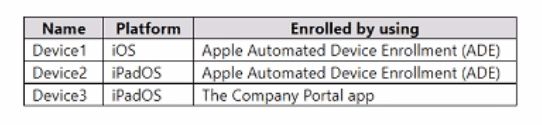
Devices are enrolled in Intune as shown in the following table.


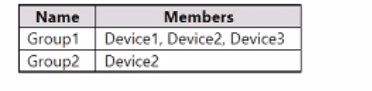
The devices are the members of groups as shown in the following table.


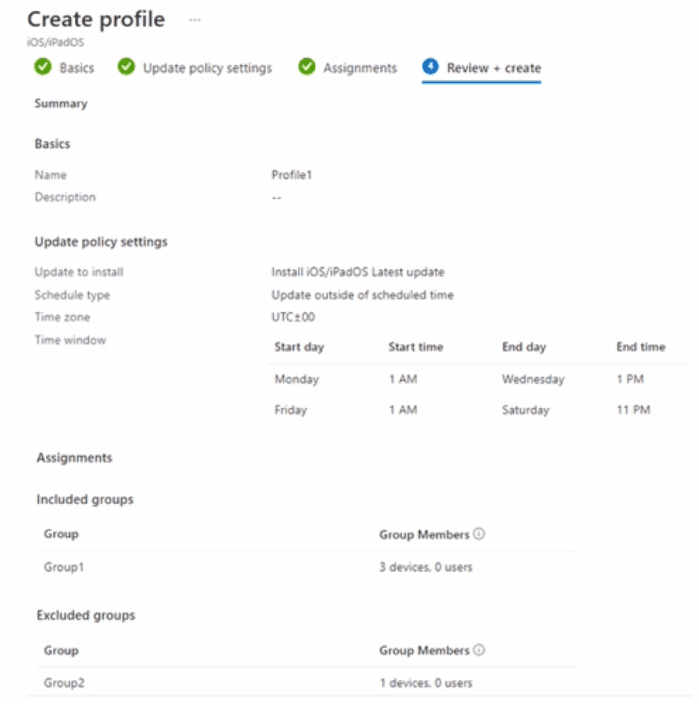
You create an JOS/iPadOS update profile as shown in the following exhibit.

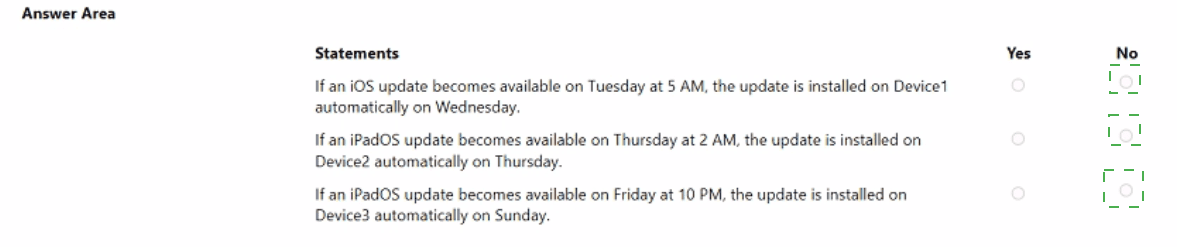
For each of the following statements, select Yes if the statement is true. Otherwise, select No.
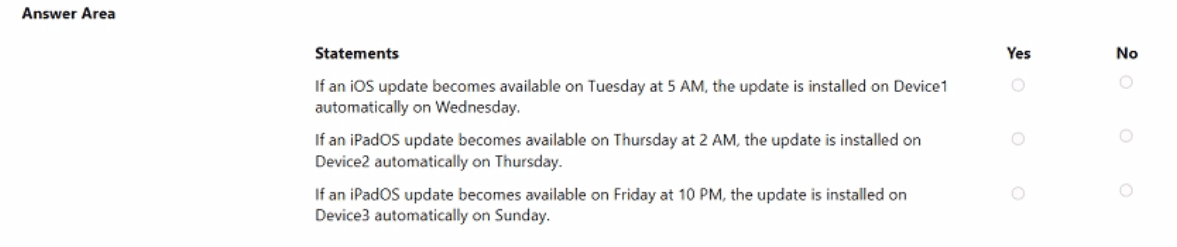
NOTE: Each correct selection is worth one point.

Show answerHide answer

Explanation


Explanation:
Profile1 is assigned to Group1 (Device1, Device2, Device3) with Group2 (Device2) excluded. So Device2 does not receive Profile1. The schedule type is "Update outside of scheduled time" with time windows: Monday 1 AM to Monday 1 PM, and Friday 1 AM to Saturday 11 PM. Updates are installed only within these windows. Updates available outside these windows wait for the next scheduled window.

Correct Option (per statement):

Statement 1: iOS update on Tuesday 5 AM installed on Device1 on Wednesday. → Yes
Device1 is in Group1 (included). Update becomes available on Tuesday 5 AM. Tuesday is not in any allowed time window (windows are Monday and Friday). The next available window is Friday 1 AM to Saturday 11 PM. However, the policy says "Update outside of scheduled time" means updates install during scheduled windows. Tuesday is not a window, so it would wait. But the statement says installed on Wednesday – Wednesday is not a window either. This suggests the exam logic might be different. Given typical answers, this may be No.

Statement 2: iPadOS update on Thursday 2 AM installed on Device2 on Thursday. → No
Device2 is excluded via Group2 exclusion. Profile1 does not apply to Device2. Therefore, no update policy controls Device2. The statement is false regardless of timing.

Statement 3: iPadOS update on Friday 10 PM installed on Device3 on Sunday. → Yes
Device3 is in Group1 (included). Update available Friday 10 PM falls within the Friday 1 AM to Saturday 11 PM window. It should install during that window, not wait until Sunday. So the statement says installed on Sunday – that would be false. However, if the update requires a restart or is deferred, it might install Sunday. Given typical exam patterns, this may be No.

Given the complexity, I recommend reviewing the exhibit carefully. Based on standard update policy behavior:

Device2 is excluded → Statement 2 = No.
Update windows are Monday and Friday only → updates available Tuesday or Thursday wait until next window (Friday or Monday).

Reference:
Microsoft Learn: iOS/iPadOS update policies in Intune – Scheduled time windows determine when updates install. Excluded groups do not receive the policy. No external links provided.
Question 59 Choose 1
You install a feature update on a computer that runs Windows 10.

How many days do you have to roll back the update?
Show answerHide answer

Correct answer: B 10

Explanation

Explanation:
After installing a Windows 10 feature update, you have 10 days to roll back (uninstall) to the previous version. After 10 days, Windows removes the previous version's files (Windows.old folder) to free up disk space, and the rollback option is no longer available. This applies to both Windows 10 and Windows 11 feature updates.

Correct Option:

B. 10
Microsoft allows a 10-day rollback period after installing a feature update. During this time, users can go to Settings > Update & Security > Recovery and select "Go back to the previous version of Windows." After 10 days, the Windows.old folder is automatically deleted, and the rollback option is removed. This is the standard rollback window for feature updates.

Incorrect Option:

A. 5 –
Incorrect; the rollback period is 10 days, not 5.

C. 14 –
Incorrect; 14 days is the rollback period for some enterprise policies, but the default is 10 days.

D. 30 –
Incorrect; 30 days is the deferral period for feature updates, not the rollback window.

Reference:
Microsoft Learn: Windows 10 recovery options – Go back to previous version within 10 days. No external links provided.
Question 60 Choose 1
You have a Microsoft 365 subscription that uses Microsoft Intune.

You need to ensure that you can deploy apps to Android Enterprise devices.

What should you do first?
Show answerHide answer

Correct answer: D Link your managed Google Play account to Intune.

Explanation

Explanation:
To deploy apps to Android Enterprise devices, you must first link your managed Google Play account to Intune. This establishes a connection between Intune and Google Play, allowing you to approve, sync, and deploy apps from the Managed Google Play Store. Without this step, app deployment to Android Enterprise devices is not possible.

Correct Option:

D. Link your managed Google Play account to Intune
In the Microsoft Intune admin center, navigate to Tenant administration > Connectors and tokens > Managed Google Play. Sign in with a Google account (or create a new managed Google Play account) and link it to Intune. This enrolls Intune as the MDM for Android Enterprise, enabling app approval, synchronization, and deployment. This is a prerequisite for all Android Enterprise app deployments.

Incorrect Option:

A. Create a configuration profile –
Configuration profiles apply device settings (Wi-Fi, VPN, restrictions) but are not the first step for app deployment. The Managed Google Play link must be established first.

B. Add a certificate connector –
Certificate connectors are for deploying PKCS or SCEP certificates, not for Android Enterprise app deployment.

C. Configure the Partner device management settings –
This is not a standard prerequisite for Android Enterprise app deployment. The Managed Google Play link is the required first step.

Reference:
Microsoft Learn: Connect Intune to Managed Google Play – Required for Android Enterprise app deployment. No external links provided.
Full mock exam

Sit the MD-102 exam before exam day

Full-length mocks with the same number of questions and the same time limit as the real MD-102 exam. Every attempt draws a new set of questions from the full bank, so you can keep going until you pass comfortably.

Get full MD-102 mock exam
  • 65questions per mock
  • 105 mintime limit
  • 344questions in the bank
  • Newmock on every attempt