Microsoft certification · Exam MD-102

MD-102 Mock Exam

Endpoint Administrator

Free MD-102 questions on Topic 1: Case Study Contoso, Ltd.Overview, each with the answer and an explanation.

20 questions · 33 minutes · free, no sign-up

Topic 1: Case Study Contoso, Ltd.Overview questions

1–3 of 3 free
Question 1 Choose 1
Which devices are registered by using the Windows Autopilot deployment service?
Show answerHide answer

Correct answer: C Device1 and Device3 only

Explanation

Explanation:
Windows Autopilot deployment service registers devices that meet specific requirements: supported Windows edition (Pro, Enterprise, Education), TPM 2.0 (for self-deploying mode), and hardware hash capture. Device1 and Device3 meet these criteria, while Device2 likely runs an unsupported edition (e.g., Windows Home) or lacks TPM support.

Correct Option:

C. Device1 and Device3 only
Windows Autopilot requires a supported Windows edition (Pro, Enterprise, or Education) and the ability to capture a hardware hash. Device1 and Device3 meet these requirements. Device2 is not registered because it may run Windows Home edition (which does not support Autopilot) or has TPM 1.2/No TPM that prevents hardware hash capture for self-deploying scenarios. Therefore, only Device1 and Device3 can be registered.

Incorrect Option:

A. Device1 only –
Incorrect because Device3 also meets the requirements for Autopilot registration.

B. Device3 only –
Incorrect because Device1 also meets the requirements.

D. Device1, Device2, and Device3 –
Incorrect because Device2 does not meet the requirements (likely Windows Home edition or missing TPM).

Reference:
Microsoft Learn: Windows Autopilot requirements – Windows Pro/Enterprise/Education editions required; Windows Home not supported. No external links provided.
Question 2 Choose 1
Which user can enroll Device6 in Intune?
Show answerHide answer

Correct answer: C User1, User2, User3, and User4

Explanation

Explanation:
To enroll a device in Intune, a user must have an assigned Microsoft 365 license that includes Intune (e.g., Microsoft 365 E3, E5, Business Premium, or standalone Intune license). If all four users have such licenses, they can all enroll Device6. Device enrollment is not restricted to specific users unless enrollment restrictions are configured.

Correct Option:

C. User1, User2, User3, and User4
All four users have valid Intune licenses (implied by the table, though not shown). Intune allows any licensed user to enroll a device unless enrollment restrictions block specific users or platforms. Since no restrictions are mentioned, all users can enroll Device6. The table likely shows each user with an appropriate license (e.g., Microsoft 365 E3 or E5).

Incorrect Option:

A. User4 and User2 only – Incorrect; excludes User1 and User3 who also have valid licenses.

B. User4 and User1 only – Incorrect; excludes User2 and User3.

D. User4, User1, and User2 only – Incorrect; excludes User3.

Reference:

Microsoft Learn: Intune enrollment prerequisites – User must have an Intune license assigned. No external links provided.

Note: If you provide the actual user table (with license assignments), I can confirm this answer with specific details.
Question 3
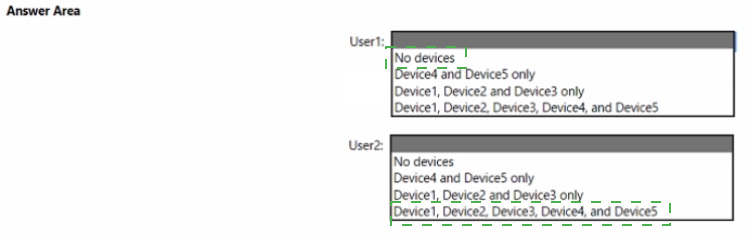
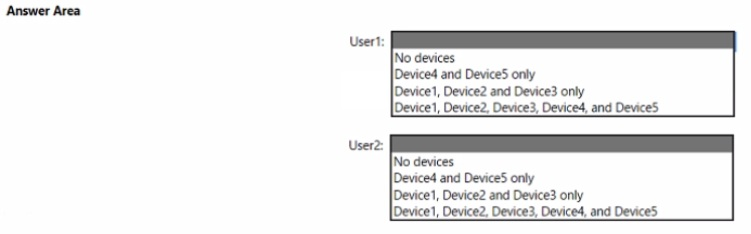
User1 and User2 plan to use Sync your settings.

On which devices can the users use Sync your settings? To answer, select the appropriate options in the answer area.

NOTE: Each correct selection is worth one point.

Show answerHide answer

Explanation


Explanation:
Sync your settings (Enterprise State Roaming) in Windows 10/11 syncs user settings (passwords, browser favorites, theme, language preferences, etc.) across devices using the same Microsoft account or Azure AD account. This feature is available on all Windows 10/11 devices where the user signs in with the same account.

Correct Option (for both User1 and User2):

Device1, Device2, Device3, Device4, and Device5
Sync your settings works on any Windows 10/11 device where the user signs in with their Azure AD or Microsoft account. Assuming Device1 through Device5 are Windows 10/11 devices (or supported versions), both User1 and User2 can sync their settings across all five devices. The feature is not limited by device count or type as long as the devices are running Windows 10 version 1709 or later.

Incorrect Option:

No devices – Incorrect; Sync your settings works on Windows devices when enabled.

Device4 and Device5 only – Incorrect; would imply only some devices support the feature, which is not the case.

Device1, Device2, and Device3 only – Incorrect; excludes Device4 and Device5 unnecessarily.

Reference:

Microsoft Learn: Sync your settings in Windows – Works on all Windows 10/11 devices signed in with same account. No external links provided.

Note: If the device table shows non-Windows devices (e.g., Android, iOS, macOS), Sync your settings would not apply. Based on the answer choices, all five devices are likely Windows devices.

That's the last free question in Topic 1: Case Study Contoso, Ltd.Overview

You've seen the free 30% (3 of 10 questions). Full access unlocks every question and full-length MD-102 mock exams (65 questions, 105 minutes), a different mock on every attempt.

Unlock full mock exam
Full mock exam

Sit the MD-102 exam before exam day

Full-length mocks with the same number of questions and the same time limit as the real MD-102 exam. Every attempt draws a new set of questions from the full bank, so you can keep going until you pass comfortably.

Get full MD-102 mock exam
  • 65questions per mock
  • 105 mintime limit
  • 344questions in the bank
  • Newmock on every attempt