Microsoft certification · Exam MD-102

MD-102 Mock Exam Page 10

Endpoint Administrator

Free MD-102 questions on Topic 4: Mix Question, each with the answer and an explanation.

20 questions · 33 minutes · free, no sign-up

Topic 4: Mix Question questions

91–94 of 94 free
Question 91 Choose 1
Your network contains an on-premises Active Directory domain and an Azure AD tenant.

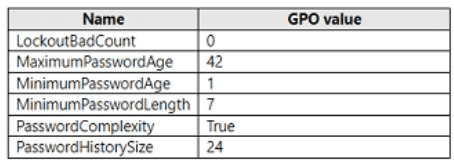
The Default Domain Policy Group Policy Object (GPO) contains the settings shown in the following table.


Which device configuration profile type template should you use?
Show answerHide answer

Correct answer: A Administrative Templates

Explanation

Explanation:
The question shows password-related settings (LockoutBadCount, MaximumPasswordAge, MinimumPasswordAge, MinimumPasswordLength, PasswordComplexity, PasswordHistorySize) from the Default Domain Policy GPO. These are classic account policy settings that were traditionally configured via Group Policy. In Microsoft Intune, to replicate these exact password and account lockout settings on Windows 10/11 devices enrolled in Intune (hybrid or cloud-only scenarios), you must use the Administrative Templates template in a device configuration profile. This template supports ADMX-backed policies, including Account Policies.

Correct Option:
A. Administrative Templates – This is the correct template to use. It allows you to configure hundreds of ADMX-backed policy settings, including the exact password policies shown in the table (such as MaximumPasswordAge, MinimumPasswordLength, PasswordComplexity, etc.). These settings are delivered to Windows devices through the Policy CSP, closely mirroring on-premises GPO behavior. Administrative Templates is the standard and most accurate way to apply these password requirements in Intune.

Incorrect Option:
B. Endpoint protection – This template is used for security features such as Microsoft Defender Antivirus, firewall rules, attack surface reduction, and BitLocker settings. It does not contain password policy or account lockout settings like LockoutBadCount or PasswordHistorySize. Using Endpoint protection would not allow you to configure the required GPO password settings.

Incorrect Option:
C. Device restrictions – Device restrictions profiles control features like camera, microphone, app installation, or browser settings. They do not include account policy settings such as password age, length, or complexity requirements. This template is not suitable for replicating the password policies from the Default Domain Policy.

Incorrect Option:
D. Custom – Custom profiles (OMA-URI) are used when a specific setting is not available in built-in templates. However, password and account lockout policies are already fully supported in the Administrative Templates template via ADMX ingestion. Using Custom is unnecessary and more complex for these standard settings.

Reference:
Microsoft Learn documentation on Intune Administrative Templates and password policy settings.
Question 92 Choose 1
You have a Microsoft 365 subscription that uses Microsoft Intune Suite.

You use Microsoft Intune to manage devices. All devices are in the same time zone.

You create an update rings policy and assign the policy to all Windows devices.

On the November 1, you pause the update rings policy.

All devices remain online.

Without further modification to the policy, on which date will the devices next attempt to update?
Show answerHide answer

Correct answer: C November 15

Explanation

Explanation:
When you pause an update ring policy in Microsoft Intune, devices stop receiving feature and quality updates for a maximum of 35 days from the pause date. After 35 days, the pause automatically expires, and devices resume checking for and installing applicable updates according to the ring settings. All devices remain online, so no additional delays occur.

Correct Option:

C. November 15 –
You paused the policy on November 1. Adding the maximum 35-day pause period gives November 15 (or November 36 in calendar terms, but it lands on the 15th in standard counting). On this date, the pause automatically expires, and devices will next scan for and attempt to install updates from Windows Update without any further policy changes.

Incorrect Option:

A. December 1 –
This would represent a 30-day period, which is the maximum deferral period for quality updates in some configurations, not the pause duration. The pause in update rings is specifically limited to 35 days, not 30.

Incorrect Option:

B. December 6 –
This date is approximately 35 days after November 1, but Intune’s pause behavior uses a 35-day maximum from the exact pause timestamp, resulting in resumption around mid-November, not early December. Devices check in regularly while online.

Incorrect Option:

D. November 22 –
This represents only about 21 days after the pause. The pause does not expire after 21 days; it lasts the full allowed 35 days before automatically lifting.

Reference:
Microsoft Learn documentation on managing Windows Update ring policies in Intune.
Question 93 Choose 1
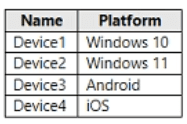
You have devices enrolled in Microsoft Intune as shown in the following table.


On which devices can you apply app configuration policies?
Show answerHide answer

Correct answer: C Device3 and Device4 only

Explanation

Explanation:
App configuration policies in Microsoft Intune deliver custom settings to specific apps. There are two main types: Managed devices (using the OS channel) and Managed apps (using the Intune App SDK / MAM channel). Both types are officially supported only on Android and iOS/iPadOS platforms. Windows devices primarily use device configuration profiles (Administrative Templates or Settings Catalog) for app and browser settings such as Microsoft Edge.

Correct Option:
C. Device3 and Device4 only – Device3 (Android) and Device4 (iOS) fully support app configuration policies. You can create a policy for managed devices or managed apps and deliver key-value pairs or managed configuration settings directly to apps on these mobile platforms. This is the standard and recommended method for configuring mobile apps in Intune.

Incorrect Option:
A. Device2 only – Device2 is Windows 11. While limited support exists for certain apps (e.g., Microsoft Edge via MAM), the general app configuration policy feature is not primarily designed or fully available for Windows in the same way as for mobile platforms. Windows uses other profile types for most configurations.

Incorrect Option:
B. Device1 and Device2 only – Both Device1 (Windows 10) and Device2 (Windows 11) are Windows platforms. App configuration policies are not the recommended or broadly supported method for Windows devices. Password policies or Edge settings on Windows are handled through device configuration profiles instead.

Incorrect Option:
D. Device2, Device3, and Device4 only – This incorrectly includes Device2 (Windows 11). App configuration policies are designed for Android and iOS. Including a Windows device here would not work as expected for standard app configuration scenarios.

Incorrect Option:
E. Device1, Device2, Device3, and Device4 – This option includes both Windows devices (Device1 and Device2), which do not support traditional app configuration policies. Only the mobile platforms (Android and iOS) are fully compatible.

Reference:
Microsoft Learn documentation on App Configuration Policies.
Question 94
You have a server named Server1 and computers that run Windows 8.1. Server1 has the Microsoft Deployment Toolkit (MDT) installed.

You plan to upgrade the Windows 8.1 computers to Windows 10 by using the MDT deployment wizard.

You need to create a deployment share on Server1.

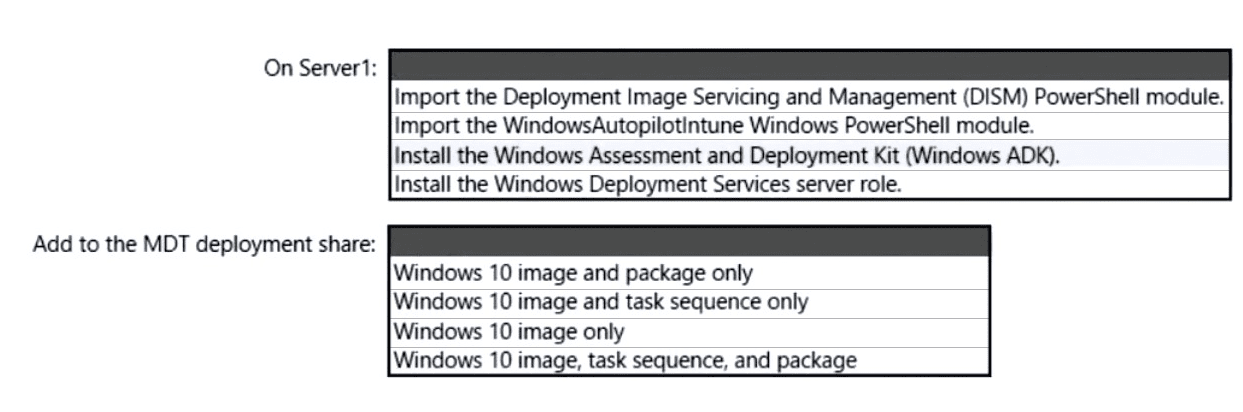
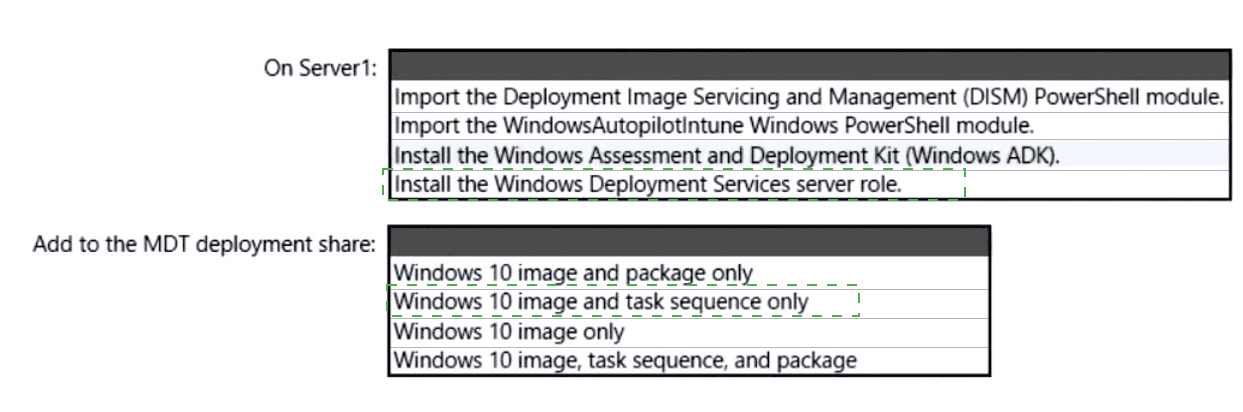
What should you do on Server1, and what are the minimum components you should add to the MDT deployment share? To answer, select the appropriate options in the answer area.

NOTE: Each correct selection is worth one point.

Show answerHide answer

Explanation


Explanation:
To upgrade Windows 8.1 computers to Windows 10 using the MDT Deployment Wizard (Lite Touch Installation), you first need proper tools on Server1 to create and manage the deployment share. The Windows Assessment and Deployment Kit (ADK) is required because it provides the Windows PE environment and tools needed for MDT to generate boot images and handle deployments. After creating the deployment share, you must add the minimum components: a Windows 10 operating system image plus a task sequence (specifically an Upgrade task sequence template) so the wizard can perform the in-place upgrade while preserving user data, settings, and applications.

Correct Option:

On Server1: Install the Windows Assessment and Deployment Kit (Windows ADK).
This is the essential step. The Windows ADK installs the Deployment Tools, Windows PE, and other components that MDT relies on to create bootable media and support Windows 10 deployments/upgrades. Without the ADK, you cannot properly update the deployment share or generate LiteTouchPE boot images. Other options like importing PowerShell modules or installing WDS are optional or not required for basic MDT upgrade scenarios.

Correct Option:

Add to the MDT deployment share: Windows 10 image and task sequence only
This is the minimum required. You import the Windows 10 installation source (WIM file) under Operating Systems, then create an Upgrade task sequence that references the Windows 10 image. The task sequence drives the upgrade process in the Deployment Wizard. Adding only an image is insufficient because no task sequence means nothing to execute. Packages are optional and not needed for a basic upgrade.

Incorrect Option:
Import the Deployment Image Servicing and Management (DISM) PowerShell module / Import the WindowsAutopilotIntune Windows PowerShell module – These modules are not required for standard MDT upgrade deployments. DISM is already available via the ADK, and Windows Autopilot is a separate cloud-based deployment method, not used with the MDT Deployment Wizard for on-premises upgrades.

Incorrect Option:
Install the Windows Deployment Services server role – WDS is optional for PXE booting. The question specifies using the MDT Deployment Wizard (which can run from boot media, USB, or network share), so WDS is not mandatory for creating the deployment share or performing upgrades.

Incorrect Option:
Windows 10 image and package only / Windows 10 image only / Windows 10 image, task sequence, and package – These are incomplete or excessive. A task sequence is required to define the upgrade steps. Packages (e.g., language packs or updates) are optional and not minimum requirements for a basic Windows 10 upgrade from 8.1.

Reference:
Microsoft Learn documentation on Microsoft Deployment Toolkit and upgrading to Windows 10 with MDT.

That's the last free question in Topic 4: Mix Question

You've seen the free 30% (94 of 315 questions). Full access unlocks every question and full-length MD-102 mock exams (65 questions, 105 minutes), a different mock on every attempt.

Unlock full mock exam
Full mock exam

Sit the MD-102 exam before exam day

Full-length mocks with the same number of questions and the same time limit as the real MD-102 exam. Every attempt draws a new set of questions from the full bank, so you can keep going until you pass comfortably.

Get full MD-102 mock exam
  • 65questions per mock
  • 105 mintime limit
  • 344questions in the bank
  • Newmock on every attempt