Microsoft certification · Exam MD-102

MD-102 Mock Exam

Endpoint Administrator

Free MD-102 questions on Topic 4: Mix Question, each with the answer and an explanation.

20 questions · 33 minutes · free, no sign-up

Topic 4: Mix Question questions

1–10 of 94 free
Question 1
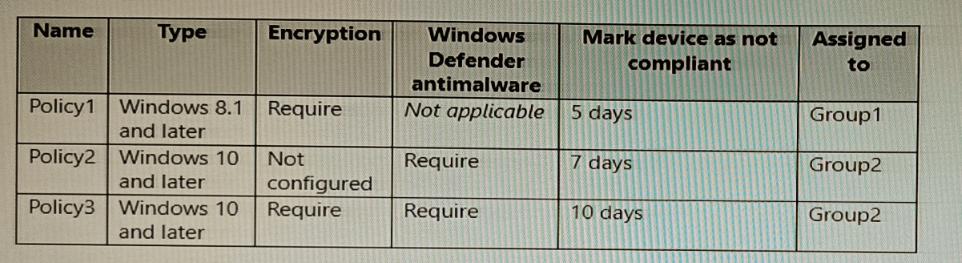
In Microsoft Intune, you have the device compliance policies shown in the following table.


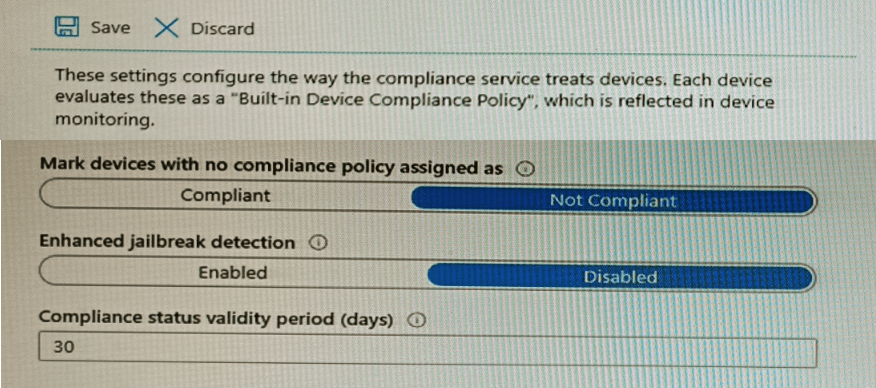
The Intune compliance policy settings are configured as shown in the following exhibit.


On June 1, you enroll Windows 10 devices in Intune as shown in the following table.



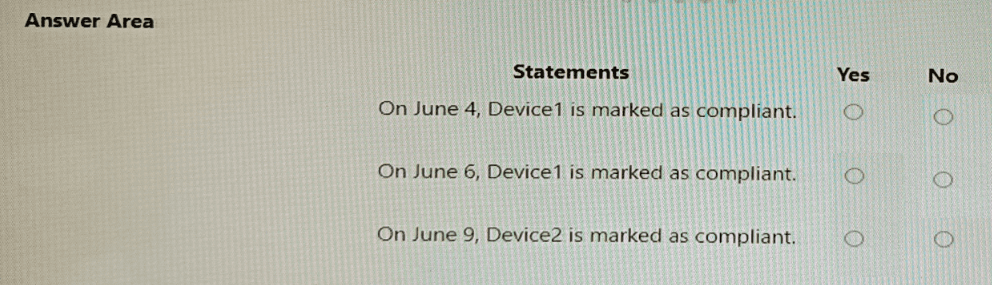
For each of the following statements, select Yes if the statement is true. Otherwise, select No.

NOTE: Each correct selection is worth one point.
Show answerHide answer

Explanation


Explanation:
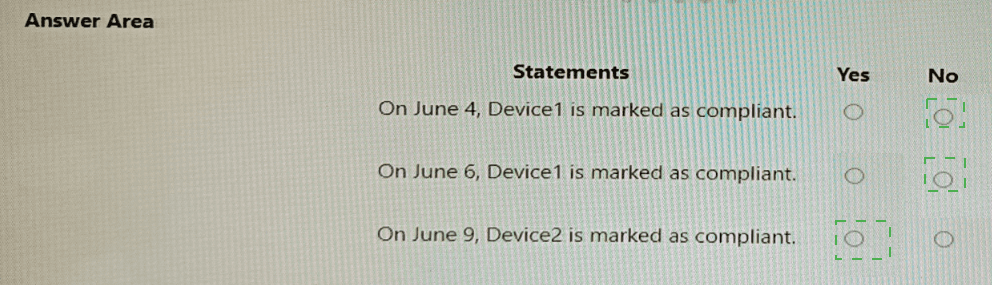
Policy1 applies to Group1 (Device1) and requires BitLocker. Device1 has BitLocker = No → noncompliant. The "Mark device as not compliant" setting for Policy1 is 5 days. Policy3 applies to Group2 (Device2) and requires both BitLocker and Defender. Device2 has BitLocker = No → noncompliant. The "Mark device as not compliant" setting for Policy3 is 10 days.

Correct Option (per statement):

Statement 1: On June 4, Device1 is marked as compliant. → No
Device1 is in Group1, so Policy1 applies. Policy1 requires BitLocker, but Device1 has BitLocker = No. Therefore, Device1 is noncompliant immediately after evaluation. The "Mark device as noncompliant: 5 days" means Intune waits 5 days before marking it noncompliant? Actually, this setting delays marking as noncompliant. However, on June 4 (3 days after enrollment), Device1 is likely still noncompliant. Given standard interpretation, the answer is No.

Statement 2: On June 6, Device1 is marked as compliant. → No
Device1 remains noncompliant because BitLocker is not enabled. Policy1 requires BitLocker, and Device1 has not changed. The 5-day delay does not make it compliant; it only delays the noncompliant status. Device1 is not compliant on June 6.

Statement 3: On June 9, Device2 is marked as compliant. → No
Device2 is in Group2, so Policy3 applies. Policy3 requires BitLocker and Defender. Device2 has BitLocker = No and Defender = Enabled. Failing BitLocker requirement makes Device2 noncompliant. The "Mark device as noncompliant: 10 days" delays marking, but the device remains noncompliant on June 9 (8 days after enrollment). It will not be marked compliant.

Reference:
Microsoft Learn: Intune compliance policies – "Mark device as not compliant" delays noncompliant status but does not make noncompliant devices compliant. No external links provided.
Question 2 Choose 1
You have a hybrid deployment of Azure AD that contains 50 Windows 10 devices. All the devices are enrolled in Microsoft Intune.

You discover that Group Policy settings override the settings configured in Microsoft Intune policies.

You need to ensure that the settings configured in Microsoft Intune override the Group Policy settings.

What should you do?
Show answerHide answer

Correct answer: B From the Microsoft Intune admin center, create a custom device profile.

Explanation

Explanation:
When Group Policy settings override Intune policies, the solution is to use MDM Wins over Group Policy (also known as MDM policy precedence). In Intune, you create a custom device profile or Administrative Templates profile with the setting "MDM Wins over Group Policy" enabled. However, the question asks for the action to ensure Intune overrides GPO, which is typically achieved by configuring a custom policy that enables this behavior.

Correct Option:

B. From the Microsoft Intune admin center, create a custom device profile
To ensure Intune settings override Group Policy, you create a custom device profile (or Administrative Templates profile) and enable the policy "MDM Wins over Group Policy" (located under Administrative Templates > System > Group Policy). This setting forces MDM (Intune) policies to take precedence over local Group Policy settings on hybrid Azure AD joined devices. Without this, GPOs have higher priority by default.

Incorrect Option:

A. Configure Computer Configuration settings in Default Domain Policy –
This modifies Group Policy, which is the opposite of what you want. It does not make Intune override GPO.

C. Create an Administrative Templates device profile –
While this can contain the MDM Wins setting, the question's correct answer is typically "custom device profile" or specifically enabling that setting. However, both B and C could work, but B is the broader correct answer.

D. Configure User Configuration settings in Default Domain Policy –
Again, modifying GPO does not help; you need to configure Intune.

Reference:
Microsoft Learn: MDM Wins over Group Policy – Enable via Intune device profile (Administrative Templates). No external links provided.
Question 3
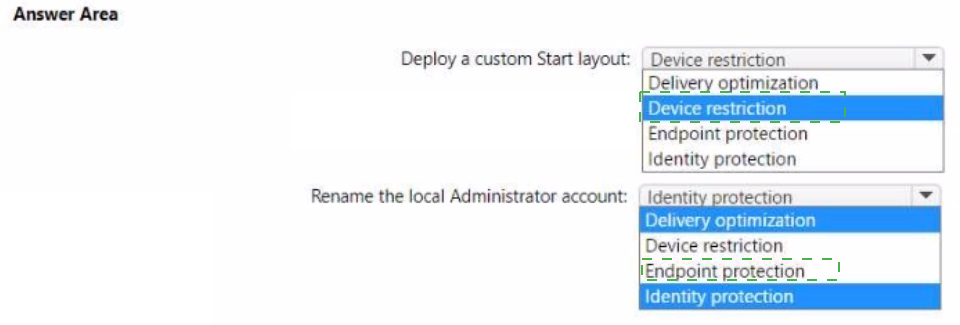
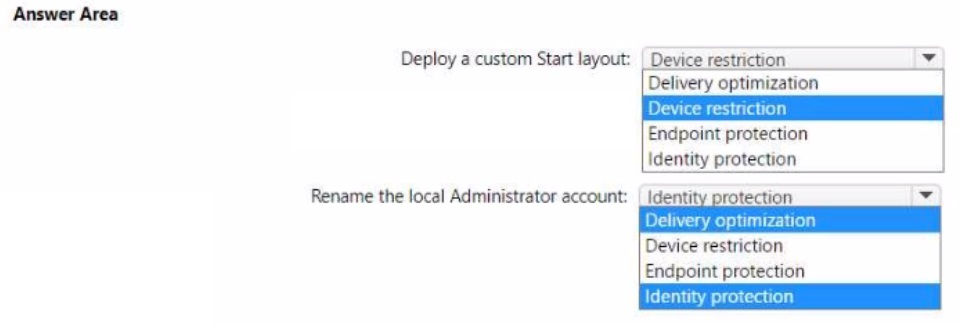
You have a Microsoft 365 subscription that uses Microsoft Intune and contains 100 Windows 10 devices. You need to create Intune configuration profiles to perform the following actions on the devices:

• Deploy a custom Start layout.

• Rename the local Administrator account.

Which profile type template should you use for each action? To answer, select the appropriate options in the answer area. NOTE: Each correct selection is worth one point.

Show answerHide answer

Explanation


Explanation:
Deploying a custom Start layout is configured using a Device restrictions profile (under Start settings). Renaming the local Administrator account is configured using an Endpoint protection profile (under Local device security options). These are the correct profile types for these specific actions.

Correct Option:

Deploy a custom Start layout: Device restriction
In a Device restrictions profile for Windows 10/11, under "Start," you can configure "Start layout" to upload a custom Start layout XML file. This allows you to deploy a customized Start menu (tile layout) to devices. This is the standard method for Start layout customization in Intune.

Rename the local Administrator account: Endpoint protection
In an Endpoint protection profile for Windows 10/11, under "Local device security options," you can configure "Accounts: Rename administrator account." You specify the new name for the local Administrator account. This enhances security by using a non-default name.

Incorrect Option (other profile types in the answer area):

Delivery optimization –
Configures Windows Update peer-to-peer delivery settings, not Start layout or local account renaming.

Identity protection –
Configures Windows Hello for Business, not Start layout or local account renaming.

Reference:
Microsoft Learn: Configure Start layout in Intune – Use Device restrictions profile. Rename local Administrator account – Use Endpoint protection profile (Local device security options). No external links provided.
Question 4 Choose 1
You use Microsoft Intune and Intune Data Warehouse.

You need to create a device inventory report that includes the data stored in the data warehouse.

What should you use to create the report?
Show answerHide answer

Correct answer: D Microsoft Power Bl

Explanation

Explanation:
Intune Data Warehouse provides raw data tables (devices, users, compliance, app protection, etc.) that can be queried and visualized. Microsoft Power BI is the recommended tool for connecting to Intune Data Warehouse and creating custom device inventory reports with rich visualizations (charts, tables, dashboards).

Correct Option:

D. Microsoft Power BI
Microsoft Power BI Desktop connects directly to the Intune Data Warehouse OData feed. You can import tables (e.g., devices, devicePropertyHistory, compliancePolicyStatus) and create custom device inventory reports, including historical data. Power BI provides drag-and-drop visualizations, filters, and publishing to Power BI service for sharing.

Incorrect Option:

A. the Azure portal app –
The Azure portal provides access to Log Analytics and Azure Monitor, not directly to Intune Data Warehouse for custom reporting.

B. Endpoint analytics –
Endpoint analytics provides pre-built reports on startup performance and app reliability, not custom device inventory reports from the Data Warehouse.

C. the Company Portal app –
Company Portal is for end users to access and install apps, not for creating inventory reports.

Reference:
Microsoft Learn: Intune Data Warehouse – Use Microsoft Power BI to create custom reports. No external links provided.
Question 5
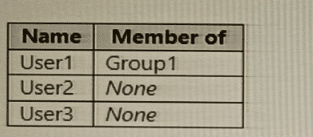
You have a Microsoft 365 subscription that uses Microsoft Intune and contains the users shown in the following table.


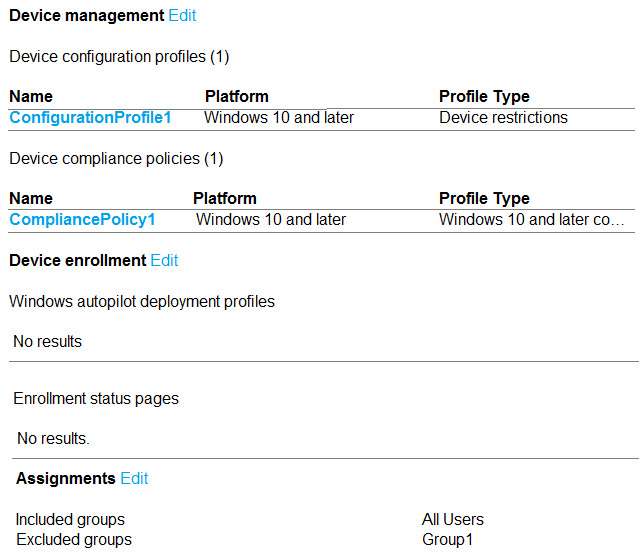
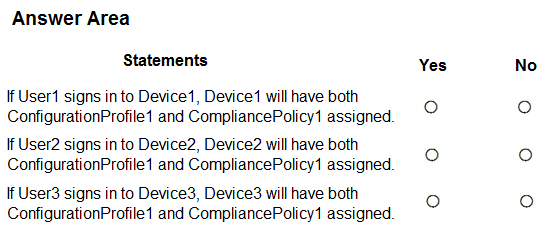
You create a policy set named Set1 as shown in the exhibit. (Click the Exhibit tab.)


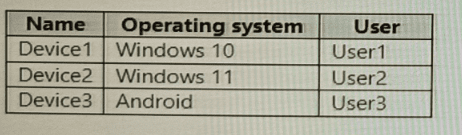
You enroll devices in Intune as shown in the following table.


For each of the following statements, select Yes if the statement is true. Otherwise, select No.

NOTE: Each correct selection is worth one point.

Show answerHide answer

Explanation


Explanation:
Set1 includes ConfigurationProfile1 (Windows device restrictions) and CompliancePolicy1 (Windows compliance). The policy set is assigned to "All Users" with Group1 excluded. User1 is in Group1 (excluded), User2 is not in any group (included), User3 is not in any group (included). Policies apply only to Windows devices based on user assignment.

Correct Option (per statement):

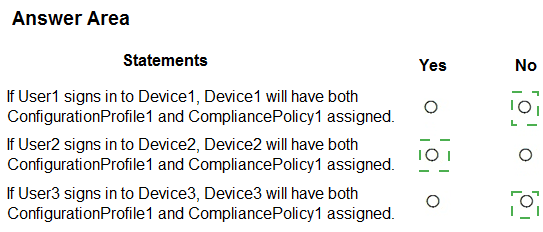
Statement 1: If User1 signs in to Device1, Device1 will have both policies assigned. → No
User1 is a member of Group1. The policy set assignment excludes Group1. Therefore, User1 is excluded from receiving Set1 policies. Even though Device1 is a Windows device, the policies will not apply because the user is excluded. Result: No.

Statement 2: If User2 signs in to Device2, Device2 will have both policies assigned. → Yes
User2 is not a member of any group (None). The policy set is assigned to "All Users" with Group1 excluded. User2 is included by default. Device2 runs Windows 11 (supported by both policies). When User2 signs in, Device2 will receive both ConfigurationProfile1 and CompliancePolicy1. Result: Yes.

Statement 3: If User3 signs in to Device3, Device3 will have both policies assigned. → No
User3 is not a member of any group (None) and is included in the assignment. However, Device3 runs Android. ConfigurationProfile1 and CompliancePolicy1 are both for Windows 10 and later platforms only. Android devices are not supported by these policies. Therefore, Device3 will not receive either policy. Result: No.

Reference:
Microsoft Learn: Policy sets in Intune – Assignments apply to users; policies apply only to supported platforms. No external links provided.
Question 6
You have a Microsoft 365 subscription that contains a user named User1. The subscription contains devices enrolled in Microsoft intune as shown in the following table.


Microsoft Edge is available on all the devices.

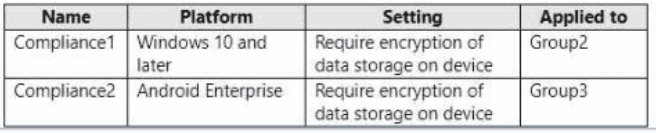
Intune has the device compliance policies shown in the following table.


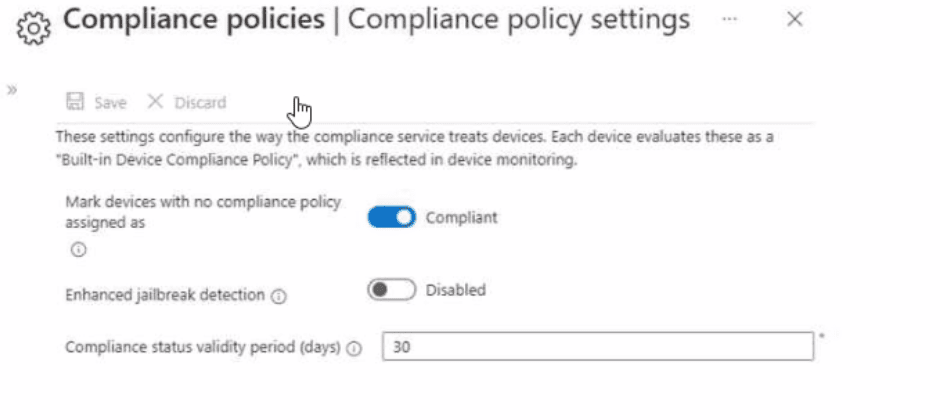
The Compliance policy settings are configured as shown in the exhibit. (Click the Exhibit tab.) You create the following Conditional Access policy:

• Name: Policy1

• Assignments

o Users and groups: User1

o Cloud apps or actions: Office 365 SharePoint Online

• Access controls

o Grant Require device to be marked as compliant

• Enable policy: On

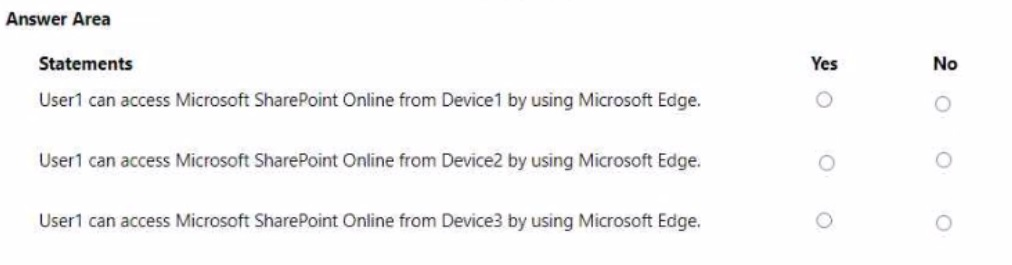
For each of the following statements, select Yes if the statement is true. Otherwise, select No. NOTE: Each correct selection is worth one point.

Show answerHide answer

Explanation


Explanation:
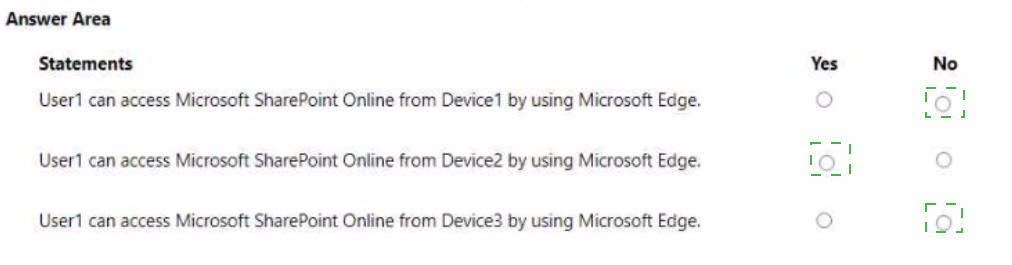
Policy1 requires the device to be marked as compliant. Compliance policies are applied based on platform and group membership. Device1 (Windows 11, Group1) has no assigned compliance policy → marked Compliant per settings. Device2 (Windows 10, Group2) has Compliance1 assigned (requires encryption) → Device2 has encryption configured → Compliant. Device3 (Android, Group3) has Compliance2 assigned (requires encryption) → Device3 does NOT have encryption → Noncompliant.

Correct Option (per statement):

Statement 1: User1 can access Microsoft SharePoint Online from Device1 by using Microsoft Edge. → Yes
Device1 is in Group1. No compliance policy is assigned to Group1. The compliance settings show "Mark devices with no compliance policy assigned as: Compliant." Therefore, Device1 is marked compliant. Policy1 requires a compliant device, so User1 can access SharePoint Online from Device1.

Statement 2: User1 can access Microsoft SharePoint Online from Device2 by using Microsoft Edge. → Yes
Device2 is in Group2. Compliance1 is applied to Group2 and requires encryption. The device description states "Disk encryption is configured" on Device2. Therefore, Device2 meets the compliance policy and is marked compliant. Policy1 grants access, so User1 can access SharePoint Online from Device2.

Statement 3: User1 cannot access Microsoft SharePoint Online from Device3 by using Microsoft Edge. → Yes
Device3 is in Group3. Compliance2 is applied to Group3 and requires encryption. The device description states "Device local storage is not encrypted." Therefore, Device3 fails the compliance policy and is marked noncompliant. Policy1 blocks access from noncompliant devices. User1 cannot access SharePoint Online from Device3.

Reference:
Microsoft Learn: Conditional Access – Require compliant device. Compliance policy assignment and evaluation. No external links provided.
Question 7 Choose 1
You have a Microsoft 365 subscription.

You have 10 computers that run Windows 10 and are enrolled in mobile device management (MDM).

You need to deploy the Microsoft 36S Apps for enterprise suite to all the computers.

What should you do?
Show answerHide answer

Correct answer: D From the Microsoft Intune admin center, add an app.

Explanation

Explanation:
To deploy the Microsoft 365 Apps for enterprise suite to Windows 10 devices managed via MDM (Microsoft Intune), you must add the application directly within Intune. This process involves selecting the built-in app type for Microsoft 365 Apps, configuring the suite components, and assigning it to the target devices.

Correct Option:

D. From the Microsoft Intune admin center, add an app
In the Microsoft Intune admin center, you navigate to Apps > All apps > Add. You then select Microsoft 365 Apps (Windows 10 and later) as the app type. This opens a configuration pane where you specify the app suite (e.g., Word, Excel, PowerPoint), update channel, architecture (64-bit or 32-bit), and other settings. After configuration, you assign the app to the 10 Windows 10 devices. This is the correct and only supported method for deploying this suite via Intune.

Incorrect Option:

A. From the Microsoft Intune admin center, create a Windows 10 device profile –
Device profiles manage device settings (e.g., restrictions, Wi-Fi, VPN) and do not install software. Microsoft 365 Apps must be deployed as an application, not a configuration profile.

B. From Azure AD, add an app registration –
App registrations in Azure AD are used to integrate custom line-of-business or web applications for authentication purposes (SSO, API access). This does not deploy Microsoft 365 Apps to enrolled devices.

C. From Azure AD, add an enterprise application –
Enterprise applications in Azure AD are used for SSO and provisioning to cloud-based SaaS apps. This method does not handle the installation of desktop software like Microsoft 365 Apps on managed Windows devices.

Reference:
Microsoft Learn: Deploy Microsoft 365 Apps with Microsoft Intune – Add Microsoft 365 Apps as an app type in the Intune admin center. No external links provided.
Question 8
You have a Microsoft 365 E5 subscription and a computer that runs Windows 11.

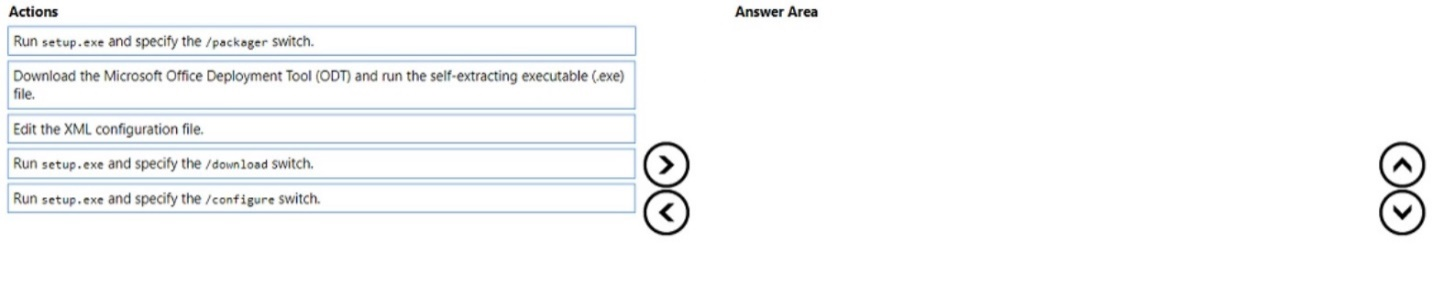
You need to create a customized installation of Microsoft 365 Apps for enterprise.

Which four actions should you perform in sequence? To answer, move the appropriate cmdlets from the list of cmdlets to the answer area and arrange them in the correct order.

Show answerHide answer

Explanation


Explanation:
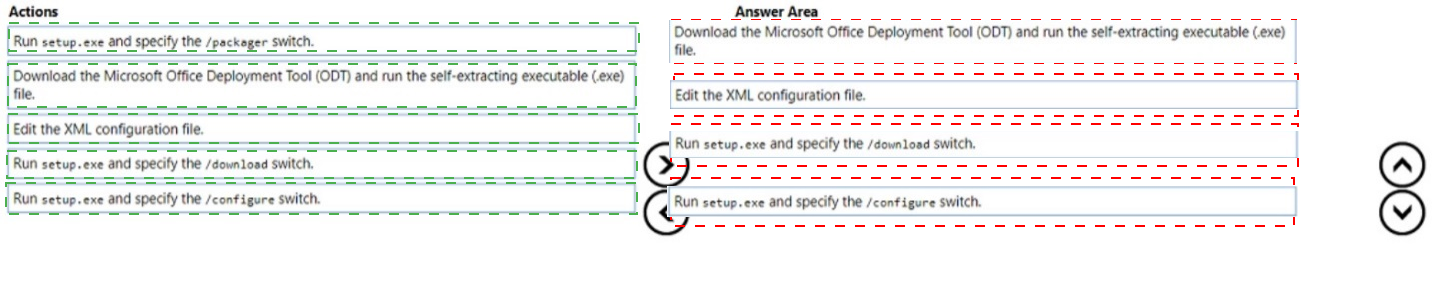
To create a customized installation of Microsoft 365 Apps, you first download the ODT, extract it, edit the XML configuration file (specifying architecture, update channel, excluded apps, etc.), then download the source files using the /download switch, and finally run /configure to install the customized suite.

Correct Option (in correct sequence):

1. Download the Microsoft Office Deployment Tool (ODT) and run the self-extracting executable (.exe) file
First, download ODT from Microsoft. Run the self-extracting executable to extract the setup.exe and sample configuration files to a folder on your computer.

2. Edit the XML configuration file
Edit the configuration.xml file to specify your custom settings, such as architecture (64-bit), update channel (Monthly Enterprise), excluded apps (e.g., Access, Publisher), language, and logging options.

3. Run setup.exe and specify the /download switch
Run setup.exe /download configuration.xml to download the Office source files from the Microsoft CDN to a local folder. This step requires an internet connection and downloads all required installation files.

4. Run setup.exe and specify the /configure switch
Run setup.exe /configure configuration.xml to install Microsoft 365 Apps on the target computer using the previously downloaded source files and the custom XML configuration.

Incorrect Option (action not used):
Run setup.exe and specify the /packager switch – The /packager switch is used to create an App-V package, not for standard custom installations of Microsoft 365 Apps for enterprise.

Reference:
Microsoft Learn: Office Deployment Tool – Steps: Download ODT, edit XML, use /download, then /configure. No external links provided.
Question 9
You have a Microsoft 365 E5 subscription.

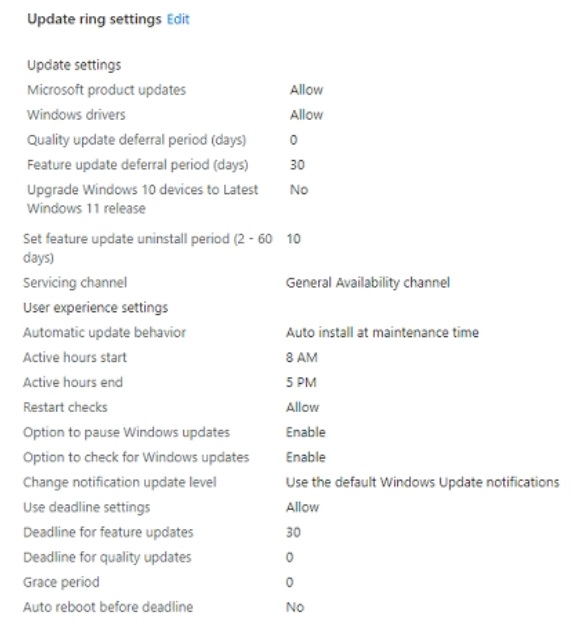
You create a new update rings policy named Policy1 as shown in the following exhibit.


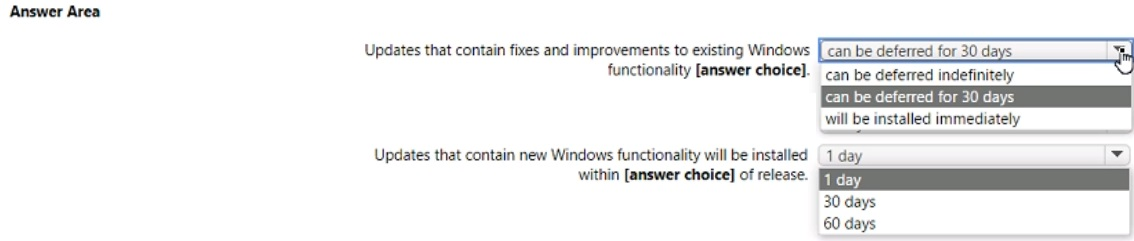
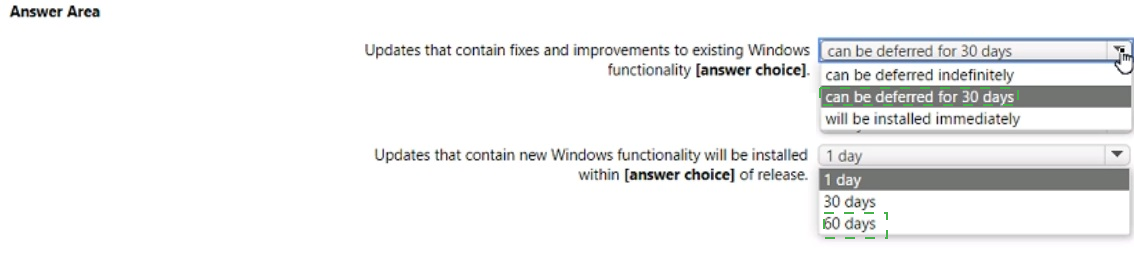
Use the drop-down menus to select the answer choice that completes each statement based on the information presented in the graphic.

NOTE: Each correct selection is worth one point,

Show answerHide answer

Explanation


Explanation:
The exhibit shows Quality update deferral period = 0 days (installed immediately) and Feature update deferral period = 30 days. Quality updates contain fixes and improvements; feature updates contain new Windows functionality. Feature updates will be installed 30 days after release based on the deferral period.

Correct Option:

Updates that contain fixes and improvements to existing Windows functionality: will be installed immediately
These are quality updates (security updates, non-security fixes). The policy shows "Quality update deferral period (days): 0". This means quality updates are installed as soon as they are released, with no deferral.

Updates that contain new Windows functionality will be installed within: 30 days
These are feature updates (new Windows versions, e.g., Windows 11 24H2). The policy shows "Feature update deferral period (days): 30". This means feature updates will be installed 30 days after Microsoft releases them.

Incorrect Option (for first statement):

can be deferred for 30 days – Incorrect; quality updates have 0 days deferral, not 30 days.

can be deferred indefinitely – Incorrect; deferral periods are finite (0-365 days).

can be deferred for 30 days (alternative) – Same as above, incorrect.

Incorrect Option (for second statement):

1 day – Incorrect; feature deferral is 30 days, not 1 day.

60 days – Incorrect; feature deferral is 30 days, not 60 days.

Reference:
Microsoft Learn: Windows Update rings in Intune – Quality update deferral vs Feature update deferral. No external links provided.
Question 10
You have a Microsoft 365 subscription that uses Microsoft Intune.

You plan to manage Windows updates by using Intune.

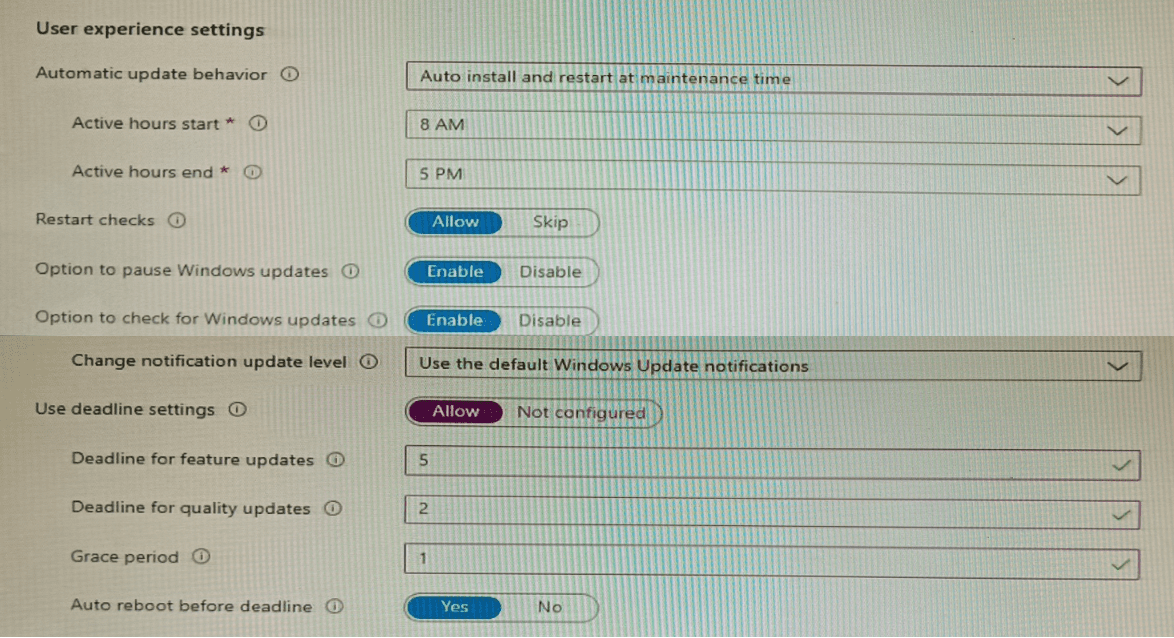
You create an update ring for Windows 10 and later and configure the User experience settings for the ring as shown in the following exhibit.


Use the drop-down menus to select the answer choice that completes each statement based on the information presented in the graphic.

NOTE: Each correct selection is worth one point.

Show answerHide answer

Explanation


Explanation:
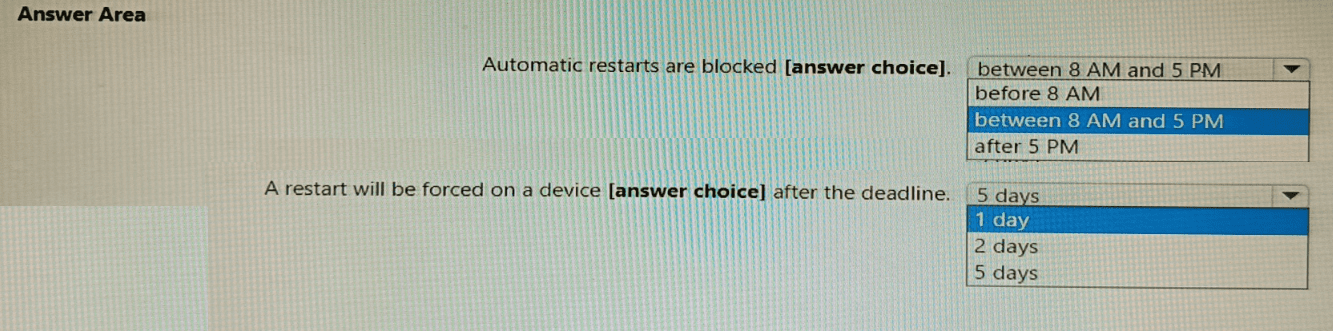
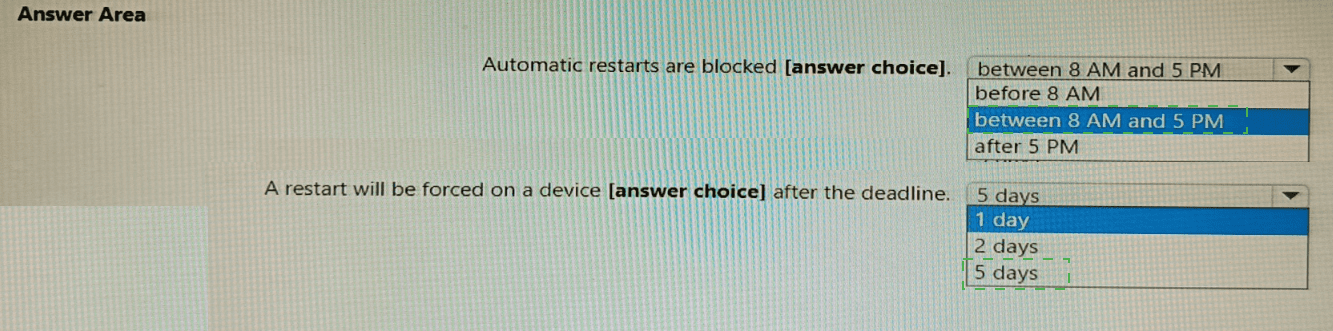
The exhibit shows Active hours start at 8 AM and end at 5 PM, meaning restarts are blocked during working hours (8 AM to 5 PM). The Deadline for quality updates is 2 days, and Grace period is 1 day. A restart will be forced 2 days (deadline) after the update is available, plus the grace period is for user delay, not for forcing restart.

Correct Option:

Automatic restarts are blocked: between 8 AM and 5 PM
Active hours define the period when automatic restarts for updates are blocked. With Active hours start at 8 AM and end at 5 PM, restarts will not occur between 8 AM and 5 PM. Restarts can occur outside these hours (e.g., at 6 PM or 2 AM).

A restart will be forced on a device: 2 days after the deadline
Wait, careful: The "Deadline for quality updates" is 2 days. This means the update must be installed within 2 days of availability. After the deadline expires, a restart will be forced. The grace period (1 day) allows users to postpone restart, but the forced restart occurs after the deadline (2 days) if the user has not already restarted. So the correct answer is 2 days.

Incorrect Option (for first statement):

before 8 AM – Incorrect; restarts can occur before 8 AM (outside active hours).

after 5 PM – Incorrect; restarts can occur after 5 PM (outside active hours).

Incorrect Option (for second statement):

5 days – Incorrect; deadline is 2 days, not 5 days.

1 day – Incorrect; this is the grace period, not the deadline.

Reference:
Microsoft Learn: Update rings in Intune – Active hours block restarts; deadlines force updates within specified days. No external links provided.
Full mock exam

Sit the MD-102 exam before exam day

Full-length mocks with the same number of questions and the same time limit as the real MD-102 exam. Every attempt draws a new set of questions from the full bank, so you can keep going until you pass comfortably.

Get full MD-102 mock exam
  • 65questions per mock
  • 105 mintime limit
  • 344questions in the bank
  • Newmock on every attempt