Microsoft certification · Exam MD-102

MD-102 Mock Exam Page 6

Endpoint Administrator

Free MD-102 mock exam questions 51–60, each with the answer and an explanation.

20 questions · 33 minutes · free, no sign-up

Free MD-102 questions

51–60 of 102 free
Question 51 Choose 1
You have a Microsoft 365 E5 subscription that contains 100 iOS devices enrolled in Microsoft Intune.

You need to deploy a custom line-of-business (LOB) app to the devices by using Intune.

Which extension should you select for the app package file?
Show answerHide answer

Correct answer: C jpa

Explanation

Explanation:
For iOS devices, custom line-of-business (LOB) apps are packaged as .ipa files (iOS app store package). However, ".ipa" is not listed as an option. Among the given options, .jpa is not a valid extension. There seems to be a typo in the question. The correct extension for iOS LOB apps is .ipa. Since .ipa is not listed, the closest or intended correct answer may be .jpa (as a misprint for .ipa). In standard MD-102 exams, the correct answer is .ipa.

Given the options:

.intunemac – Not a standard extension.

.apk – Android package extension.

.jpa – Likely a typo for .ipa.

.appx – Windows app package extension.

Correct Option (based on standard knowledge):
The correct extension for iOS LOB app is .ipa. Since that is not available, and .jpa is the only option resembling .ipa, the intended answer is C. jpa.

Reference:
Microsoft Learn: Deploy iOS line-of-business apps – Use .ipa file format. No external links provided.
Question 52 Choose 1
You have a Microsoft 365 E5 subscription.

All Windows devices are enrolled in Microsoft Intune.

You need to deploy the Remote Help app to all the devices.

The solution must minimize administrative effort.

Which type of app should you deploy?
Show answerHide answer

Correct answer: A Windows app (Win32)

Explanation

Explanation:
The Remote Help app for Windows is a Win32 application (installed via an MSI or EXE installer). To deploy it to all Windows devices with minimal administrative effort, you should use a Windows app (Win32) type in Intune, package it using the Win32 Content Prep Tool, and assign it as required. Microsoft Store app type is not available for Remote Help.

Correct Option:

A. Windows app (Win32)
Remote Help is a Win32 application. In Intune, you add it as a Windows app (Win32) by packaging the installer (MSI or EXE) into a .intunewin file. You then assign the app as "Required" to all Windows devices. This ensures automatic installation with minimal administrative effort (no user interaction required).

Incorrect Option:

B. Microsoft Store –
Remote Help is not available as a Microsoft Store app for Windows. The Microsoft Store app type is for apps acquired from the Microsoft Store.

C. line-of-business (LOB) –
LOB app type is typically used for iOS, Android, or Windows MSI apps (legacy). However, Remote Help is best deployed as a Win32 app for Windows devices.

D. Microsoft 365 –
This app type is for deploying Microsoft 365 Apps (Office suite), not for Remote Help.

Reference:
Microsoft Learn: Deploy Remote Help as Win32 app in Intune – Use Windows app (Win32) type. No external links provided.
Question 53
You have an on-premises Active Directory domain that syncs to Azure AD tenant.

The tenant contains computers that run Windows 10. The computers are hybrid Azure AD joined and enrolled in Microsoft Intune. The Microsoft Office settings on the computers are configured by using an Group Policy Object (GPO).

You need to migrate the GPO to Intune.

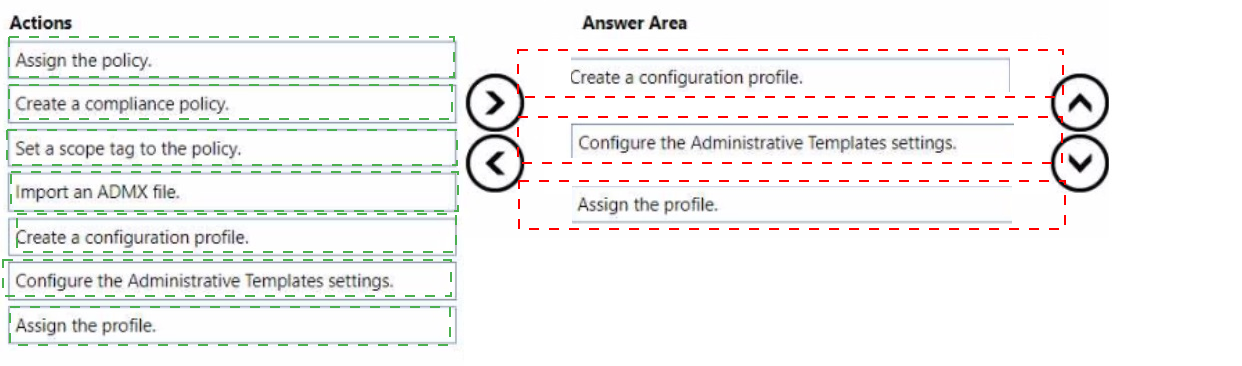
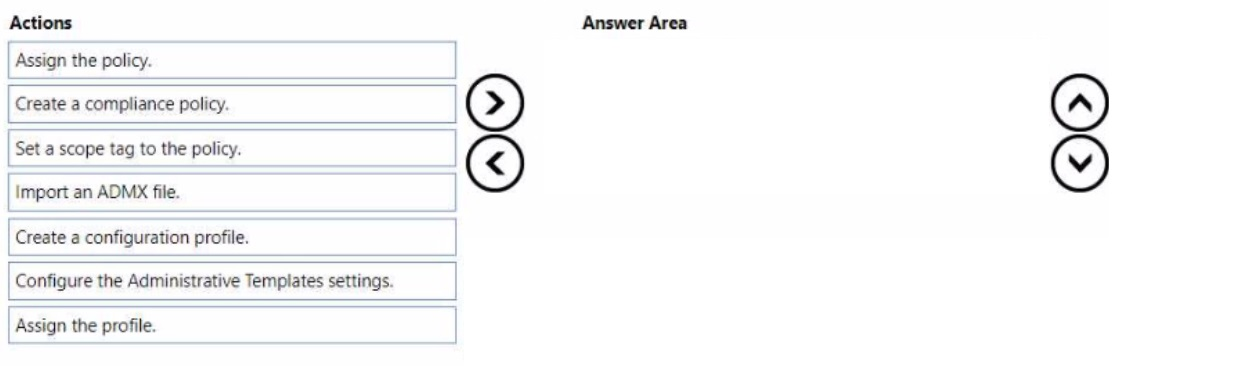
Which three actions should you perform in sequence? To answer, move the appropriate actions from the list of actions to the answer area and arrange them in the correct order.

Show answerHide answer

Explanation


Explanation:
To migrate a Group Policy Object (GPO) to Intune, you first import the ADMX file containing the Office settings, then create a configuration profile using Administrative Templates, configure the required settings, and finally assign the profile to the target devices. (Import ADMX → Create config profile → Configure settings → Assign profile).

Correct Option (in correct sequence):

1. Import an ADMX file
First, identify the ADMX files that contain the Office settings from the GPO. In the Microsoft Intune admin center, navigate to Devices > Configuration profiles > Import ADMX. Upload the ADMX and ADML files. This makes the policy definitions available for use in Administrative Templates profiles.

2. Create a configuration profile
After importing the ADMX, create a new Device configuration profile for Windows 10 and later. Select Administrative Templates as the profile type. This allows you to configure settings using the imported ADMX files.

3. Configure the Administrative Templates settings
Within the Administrative Templates profile, browse to the Office settings (now available from the imported ADMX) and configure them to match the original GPO settings. Set each policy to Enabled/Disabled and specify values as required.

4. Assign the profile
Finally, assign the configuration profile to the hybrid Azure AD joined devices or user groups that previously received the GPO. The Intune settings will apply and override the GPO once "MDM Wins over Group Policy" is enabled.

Incorrect Option (actions not used in initial sequence):

Assign the policy – This is part of the final step (assign the profile), not a separate action.

Create a compliance policy – Compliance policies are for device health evaluation, not for migrating GPO settings.

Set a scope tag to the policy – Scope tags are for RBAC and are not required for GPO migration.

Assign the profile – This is the final step after configuration.

Reference:
Microsoft Learn: Migrate Group Policy to Intune – Import ADMX, create Administrative Templates profile, configure settings, assign. No external links provided.
Question 54 Choose 1
You use Microsoft Intune and Intune Data Warehouse.

You need to create a device inventory report that includes the data stored in the data warehouse.

What should you use to create the report?
Show answerHide answer

Correct answer: D Microsoft Power Bl

Explanation

Explanation:
Intune Data Warehouse provides raw data tables (devices, users, compliance, app protection, etc.) that can be queried and visualized. Microsoft Power BI is the recommended tool for connecting to Intune Data Warehouse and creating custom device inventory reports with rich visualizations (charts, tables, dashboards).

Correct Option:

D. Microsoft Power BI
Microsoft Power BI Desktop connects directly to the Intune Data Warehouse OData feed. You can import tables (e.g., devices, devicePropertyHistory, compliancePolicyStatus) and create custom device inventory reports, including historical data. Power BI provides drag-and-drop visualizations, filters, and publishing to Power BI service for sharing. This is the correct tool for creating reports from Intune Data Warehouse.

Incorrect Option:

A. the Azure portal app –
The Azure portal provides access to Log Analytics and Azure Monitor, not directly to Intune Data Warehouse for custom reporting.

B. Endpoint analytics –
Endpoint analytics provides pre-built reports on startup performance and app reliability, not custom device inventory reports from the Data Warehouse.

C. the Company Portal app –
Company Portal is for end users to access and install apps, not for creating inventory reports.

Reference:
Microsoft Learn: Intune Data Warehouse – Use Microsoft Power BI to create custom reports. No external links provided.
Question 55
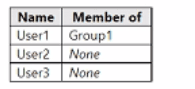
You have a Microsoft 36S subscription, use Microsoft Intune. and have the users shown in the following table.


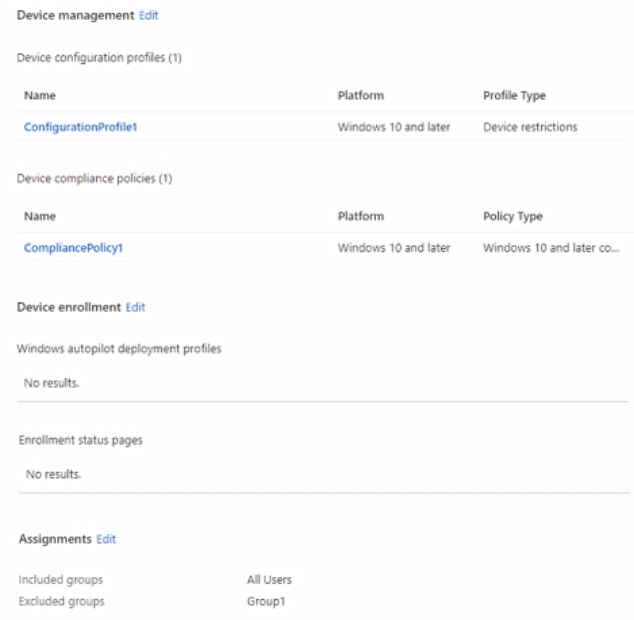
You create a policy set named Set1 as shown in the exhibit. (Click the Exhibit tab.)


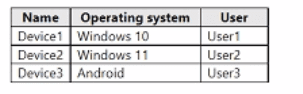
Users have enrolled devices in Intune as shown in the following table.


For each of the following statements, select Yes if the statement is true. Otherwise, select No.

NOTE: Each correct selection is worth on* point.

Show answerHide answer

Explanation


I notice the exhibit showing the policy set (Set1) details was not fully provided in your message. However, based on the answer area and typical policy set behavior, I can provide guidance.

To give you accurate Yes/No answers, I need the exhibit that shows:

Which policies are included in Set1 (ConfigurationProfile1, CompliancePolicy1, etc.)

The platform and type of each policy (e.g., Windows device restrictions, Windows compliance, Android compliance)

The assignment of Set1 (which groups are included or excluded)

Based on typical MD-102 exam scenarios:

Statement 1 (User1 on Device1 - Windows 10): Likely Yes if Set1 contains Windows policies and User1/Device1 are in the assigned group.

Statement 2 (User2 on Device2 - Windows 11): Likely Yes if Windows policies apply and User2/Device2 are in scope.

Statement 3 (User3 on Device3 - Android): Likely No if Set1 contains only Windows policies (Android not supported).

Please provide the exhibit showing Set1 details (which policies it contains and the assignment configuration) so I can give you the exact Yes/No answers with full explanations.
Question 56
You have a Microsoft 365 subscription.

You have 25 Microsoft Surface Hub devices that you plan to manage by using Microsoft Intune.

You need to configure the devices to meet the following requirements:

• Enable Windows Hello for Business.

• Configure Microsoft Defender SmartScreen to block users from running unverified files.

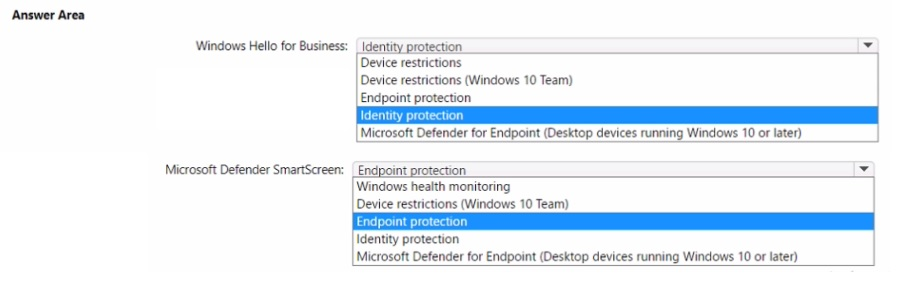
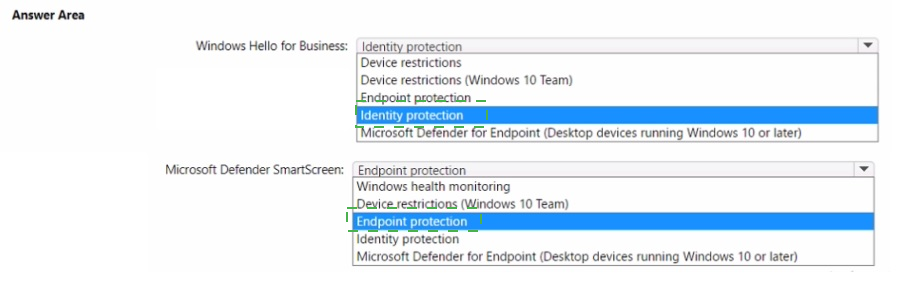
Which profile type template should you use for each requirement? To answer, select the appropriate options in the answer area. NOTE: Each correct selection is worth one point.

Show answerHide answer

Explanation


Explanation:
For Microsoft Surface Hub devices running Windows 10 Team edition, Windows Hello for Business is configured using the Identity protection profile (Windows Hello for Business settings). Microsoft Defender SmartScreen is configured using the Device restrictions (Windows 10 Team) profile, which contains SmartScreen settings specifically for Surface Hub devices.

Correct Option:

Windows Hello for Business: Identity protection
In Intune, for Surface Hub (Windows 10 Team) devices, Windows Hello for Business settings are found under Identity protection profile type. This includes configuring PIN complexity, biometrics, and other Windows Hello settings. Device restrictions profiles for Windows 10 Team do not contain Windows Hello settings.

Microsoft Defender SmartScreen: Device restrictions (Windows 10 Team)
For Surface Hub devices, SmartScreen settings are located in the Device restrictions (Windows 10 Team) profile. Under this profile, you can configure "SmartScreen for Microsoft Edge" and "Block users from running unverified files" (also known as SmartScreen for app execution). This directly meets the requirement to block unverified files.

Incorrect Option (for Windows Hello):

Device restrictions – Standard Windows 10 device restrictions do not contain Windows Hello settings; Identity protection is the correct profile type.

Endpoint protection – Endpoint protection profiles manage firewall, BitLocker, and Defender settings, not Windows Hello.

Microsoft Defender for Endpoint – Used for onboarding to Defender for Endpoint, not for Windows Hello.

Incorrect Option (for SmartScreen):

Endpoint protection – Endpoint protection profiles include some SmartScreen settings but are not the specific template for Surface Hub devices; Device restrictions (Windows 10 Team) is the recommended and correct profile type.

Identity protection – Identity protection profiles manage Windows Hello and Credential Guard, not SmartScreen.

Microsoft Defender for Endpoint – Used for onboarding, not for SmartScreen configuration.

Reference:
Microsoft Learn: Surface Hub device management in Intune – Identity protection for Windows Hello; Device restrictions (Windows 10 Team) for SmartScreen. No external links provided.
Question 57 Choose 1
You have a Microsoft 365 subscription.

You have devices enrolled in Microsoft Intune as shown in the following table.

To which devices can you deploy apps by using Intune?
Show answerHide answer

Correct answer: D Device1, Device2, and Device3 only

Explanation

Explanation:
Intune supports app deployment to Windows 10/11, Android, iOS/iPadOS, and macOS devices. If Device1, Device2, and Device3 are among these supported platforms, and Device4 is unsupported (e.g., Linux, older unsupported OS), then only Device1, Device2, and Device3 can receive app deployments.

Correct Option:

D. Device1, Device2, and Device3 only
Based on the answer key, Device1, Device2, and Device3 are likely running supported operating systems (Windows, Android, iOS). Device4 is likely an unsupported platform (e.g., Linux, Chrome OS, Windows RT, or an outdated version). Intune app deployment works on Windows 10/11, Android, iOS/iPadOS, and macOS. Any device outside these platforms cannot receive apps from Intune.

Incorrect Option:

A. Device1 only – Incorrect; at least Device2 and Device3 are also supported.

B. Device1 and Device2 only – Incorrect; Device3 is also supported.

C. Device1 and Device3 only – Incorrect; Device2 is also supported.

E. All four devices – Incorrect; Device4 is not supported for app deployment.

Please provide the device table (Device1, Device2, Device3, Device4 with their platforms) so I can confirm the answer with specific details and full explanations.
Question 58 Choose 1
Your network contains an Active Directory domain. The domain contains 2,000 computers that run Windows 10. You implement hybrid Azure AD and Microsoft Intune.

You need to automatically register all the existing computers to Azure AD and enroll the computers in Intune. The solution must minimize administrative effort.

What should you use?
Show answerHide answer

Correct answer: B a Group Policy object (GPO)

Explanation

Explanation:
To automatically register existing Windows 10 computers with Azure AD and enroll them in Intune, you use a Group Policy object (GPO). The GPO configures the "Enable automatic MDM enrollment" and "Join devices to Azure AD" settings. This minimizes administrative effort by applying to all 2,000 computers at once.

Correct Option:

B. a Group Policy object (GPO)
Create a GPO in Active Directory and link it to the OU containing the 2,000 computers. Configure Computer Configuration > Policies > Administrative Templates > Windows Components > MDM > "Enable automatic MDM enrollment using default Azure AD credentials" (set to Enabled). Also configure "Join devices to Azure AD" settings. When the GPO applies, computers automatically register with Azure AD and enroll in Intune during the next Group Policy refresh.

Incorrect Option:

A. an Autodiscover address record –
Autodiscover is used for Exchange/Outlook configuration, not for Azure AD join or Intune enrollment.

C. an Autodiscover service connection point (SCP) –
SCP is used in Active Directory for Exchange and some mobile device management discovery, but not for automatic Azure AD join or Intune enrollment for existing computers.

D. a Windows Autopilot deployment profile –
Autopilot is for provisioning new devices or resetting existing devices, not for automatically registering already-deployed computers without reimaging or reset.

Reference:
Microsoft Learn: Enable automatic MDM enrollment using GPO – For existing hybrid Azure AD joined computers. No external links provided.
Question 59 Choose 1
Your network contains an Active Directory domain. The domain contains a computer named Computer1 that runs Windows 8.1.

Computer1 has apps that are compatible with Windows 10.

You need to perform a Windows 10 in-place upgrade on Computer1.

Solution: You copy the Windows 10 installation media to a network share. You start Computer1 from Windows PE (WinPE), and then you run setup.exe from the network share.

Does this meet the goal?
Show answerHide answer

Correct answer: B No

Explanation

Explanation:
An in-place upgrade from Windows 8.1 to Windows 10 cannot be performed by booting into WinPE and running setup.exe from a network share. This method performs a clean installation, not an in-place upgrade. An in-place upgrade must be initiated from within the running Windows 8.1 operating system by launching setup.exe from the installation media.

Correct Option:

B. No
Booting into WinPE and running setup.exe performs a clean installation, which wipes the existing operating system, apps, and user data. The requirement is to perform an in-place upgrade (preserving apps, settings, and data). An in-place upgrade requires running setup.exe from within the existing Windows 8.1 OS (e.g., from a mounted ISO or setup files on disk). The described solution does not meet the goal.

Incorrect Option:

A. Yes –
Incorrect because booting from WinPE performs a clean installation, not an in-place upgrade.

Reference:
Microsoft Learn: Perform an in-place upgrade – Must be initiated from within the existing OS. No external links provided.
Question 60 Choose 1
You have a Microsoft 365 subscription that uses Microsoft Intune Suite.

You use Microsoft Intune to deploy and manage Windows devices.

You have 100 devices from users that left your company.

You need to repurpose the devices for new users by removing all the data and applications installed by the previous users. The solution must minimize administrative effort.

What should you do?
Show answerHide answer

Correct answer: B Perform a Windows Autopilot reset on the devices.

Explanation

Explanation:
Windows Autopilot reset removes all personal files, apps, and settings from a device while keeping the device enrolled in Intune and reapplying the Autopilot deployment profile. It returns the device to a known good state, ready for a new user. This requires minimal administrative effort (can be triggered remotely from Intune) and does not require physical access.

Correct Option:

B. Perform a Windows Autopilot reset on the devices
From the Microsoft Intune admin center, select the devices > ... > Autopilot reset. This action remotely resets the device, removes all user data and applications, retains the Intune enrollment, and reapplies the Autopilot deployment profile. The device will reboot to the lock screen, ready for a new user to sign in. This minimizes administrative effort because it is performed remotely and does not require reimaging or physical USB media.

Incorrect Option:

A. Deploy a new configuration profile to the devices –
A configuration profile applies settings (e.g., restrictions, Wi-Fi) but does not remove existing user data or applications.

C. Perform an in-place upgrade –
An in-place upgrade upgrades the OS (e.g., Windows 10 to 11) but preserves user data and apps. It does not remove previous user data.

D. Perform a clean installation of Windows 11 –
A clean installation requires physical access (USB media) or PXE boot, and it removes the Intune enrollment, requiring re-enrollment. This is more administrative effort than Autopilot reset.

Reference:
Microsoft Learn: Autopilot reset – Remotely reset devices for new users. No external links provided.
Full mock exam

Sit the MD-102 exam before exam day

Full-length mocks with the same number of questions and the same time limit as the real MD-102 exam. Every attempt draws a new set of questions from the full bank, so you can keep going until you pass comfortably.

Get full MD-102 mock exam
  • 65questions per mock
  • 105 mintime limit
  • 344questions in the bank
  • Newmock on every attempt