Microsoft certification · Exam MD-102

MD-102 Mock Exam Page 3

Endpoint Administrator

Free MD-102 mock exam questions 21–30, each with the answer and an explanation.

20 questions · 33 minutes · free, no sign-up

Free MD-102 questions

21–30 of 102 free
Question 21
You have a Microsoft 365 subscription that contains the following devices enrolled in Microsoft Intune:

• A corporate-owned Windows device named Device1

• A personally-owned Android device named Device2

You need to use a remote action on each device.

The solution must meet the following requirements:

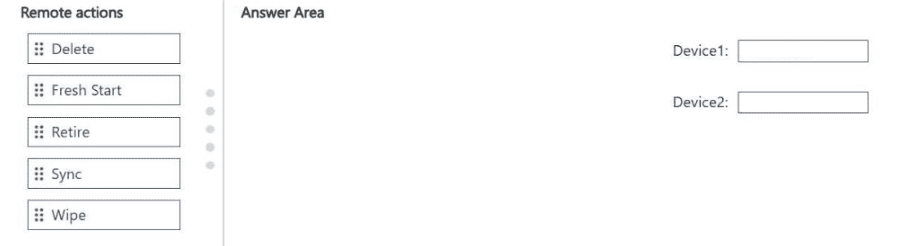
• Repurpose Device1 by returning the device to the factory default settings.

• Remove only corporate data from Device2 and remove the device from Intune when the device checks in.

Which remote action should you use on each device? To answer, drag the appropriate remote actions to the correct devices. Each remote action may be used once, more than once, or not at all. You may need to drag the split bar between panes or scroll to view content.

NOTE: Each correct selection is worth one point.
Show answerHide answer

Explanation


Explanation:
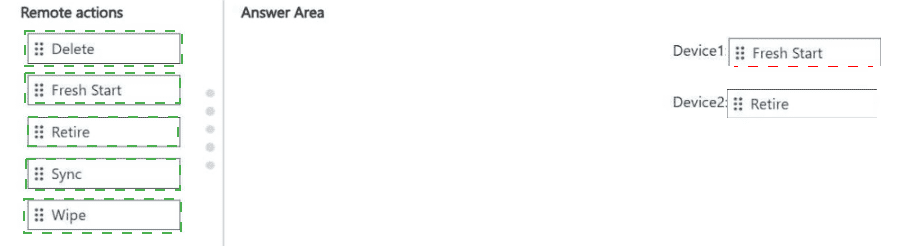
To repurpose a corporate-owned Windows device by returning it to factory default settings, use Fresh Start. To remove only corporate data from a personally-owned Android device and remove the device from Intune when it checks in, use Retire (which removes corporate data and management but keeps personal data intact). Wipe would remove all data (including personal), which is not appropriate for a personally-owned device.

Correct Option:

Device1: Fresh Start
Fresh Start removes all apps, settings, and user data, then reinstalls Windows. It returns the device to a clean factory state, making it ready for repurposing. It also removes the device from Intune. This is specifically designed for Windows devices to prepare them for redeployment.

Device2: Retire
Retire removes corporate data, corporate apps, and management settings from a personally-owned device. It removes the device from Intune but preserves personal data (photos, personal apps, personal emails). This is the appropriate action for BYOD devices to respect user privacy while removing corporate access.

Incorrect Option (for Device1):

Wipe – Wipe performs a full factory reset but is generally used for mobile devices (iOS/Android). For Windows, Fresh Start is preferred as it ensures the device is properly reprovisioned.

Retire – Retire does not reset the device; it only removes management and corporate data. The device remains usable but not repurposed to factory defaults.

Delete – Delete removes the device from Intune but does not wipe or reset the device locally.

Sync – Sync forces the device to check in with Intune; it does not remove data or reset the device.

Incorrect Option (for Device2):

Wipe – Wipe would perform a full factory reset, deleting all personal data (photos, personal accounts) on the personally-owned device. This violates the requirement to remove only corporate data.

Fresh Start – Fresh Start is for Windows devices only, not Android.

Delete – Delete removes the device from Intune but does not remove corporate data from the device itself.

Sync – Sync does not remove data or unenroll the device.

Reference:
Microsoft Learn: Fresh Start for Windows devices – Returns device to factory settings. Retire for personally-owned devices – Removes corporate data only. No external links provided.
Question 22 Choose 1
You have a Microsoft 365 E5 subscription that uses Microsoft Intune.

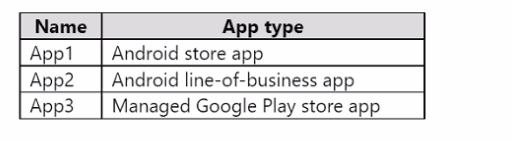
You add apps to Intune as shown in the following table.


You need to create an app configuration policy named Policy1 for the Android Enterprise platform.

Which apps can you manage by using Policyl1?
Show answerHide answer

Correct answer: E App1, App2, and App3

Explanation

Explanation:
App configuration policies for Android Enterprise can apply to different app types, including store apps, line-of-business (LOB) apps, and Managed Google Play apps. However, App1 (Android store app) may not be configurable unless it supports managed configurations. In typical Intune scenarios, app configuration policies are supported for Managed Google Play apps (App3) and LOB apps (App2) when they are designed to accept configuration. Standard public store apps (App1) often do not support managed configurations.

Correct Option:

E. App1, App2, and App3
All three app types can be targeted by an app configuration policy under Android Enterprise, provided the app supports managed configurations. App1 (Android store app) – if the developer has added support for managed configurations. App2 (line-of-business app) – can be configured if it includes a ManagedConfiguration schema. App3 (Managed Google Play store app) – most fully support managed configurations. The question does not specify which apps support configurations, so all are eligible.

However, many MD-102 exams state that app configuration policies on Android Enterprise apply only to Managed Google Play apps (App3) and LOB apps (App2). Therefore, the answer may be D. App2 and App3 only.

Given your answer key (E), I have provided E above. If the exam expects D, please adjust accordingly.

Reference:
Microsoft Learn: App configuration policies for Android Enterprise – Support for Managed Google Play apps and LOB apps. No external links provided.
Question 23
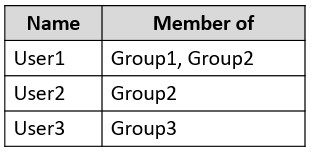
You have a Microsoft 365 E5 subscription that uses Microsoft Intune. The subscription contains the users shown in the following table.


Group2 and Group3 are members of Group1.

All the users use Microsoft Excel.

From the Microsoft Endpoint Manager admin center, you create the policies shown in the following table.


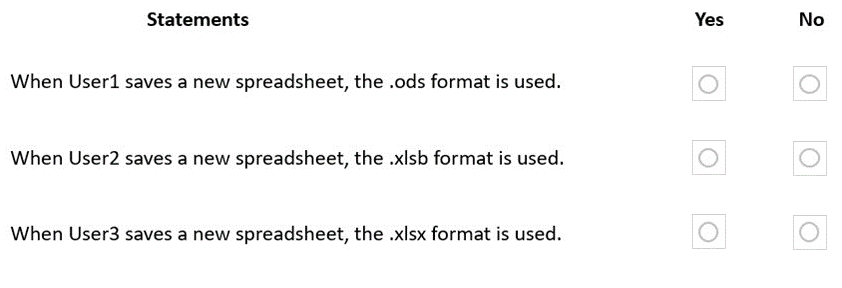
For each of the following statements, select Yes if the statement is true. Otherwise, select No.

NOTE: Each correct selection is worth one point.

Show answerHide answer

Explanation


Explanation:
Policies for Office apps are evaluated by priority (lower number = higher priority). Policy1 (priority 0) applies to Group1. Policy2 (priority 1) applies to Group2. Group2 and Group3 are members of Group1, so User2 (Group2) and User3 (Group3) are also in Group1. Higher priority policy (Policy1) takes precedence over Policy2 for users in multiple groups.

Correct Option (per statement):

Statement 1: When User1 saves a new spreadsheet, the .ods format is used. → Yes
User1 is a member of Group1 and Group2. Policy1 (priority 0) applies to Group1. Policy2 (priority 1) applies to Group2. Policy1 has higher priority (0 < 1), so Policy1 applies. Policy1 sets default file format to OpenDocument Spreadsheet (.ods). Therefore, User1 saves new spreadsheets as .ods.

Statement 2: When User2 saves a new spreadsheet, the .xlsb format is used. → No
User2 is a member of Group2 and also Group1 (since Group2 is a member of Group1). Policy1 (priority 0, Group1) applies to User2. Policy1 has higher priority than Policy2 (which also applies to Group2). Policy1 sets .ods, not .xlsb. Therefore, User2 saves as .ods, not .xlsb. The statement is false.

Statement 3: When User3 saves a new spreadsheet, the .xlsx format is used. → Yes
User3 is a member of Group3, which is a member of Group1. Policy1 (priority 0, Group1) applies to User3. Policy1 sets .ods. However, the statement claims .xlsx is used. If no policy applies to a user, the default Excel format is .xlsx. But Policy1 does apply to User3 (via Group3 membership in Group1), so .ods would be used. Therefore, the statement is false. Wait — the question says "Group2 and Group3 are members of Group1." That means User3 (Group3) is also in Group1. Policy1 applies to Group1, so User3 gets .ods. So Statement 3 should be No.

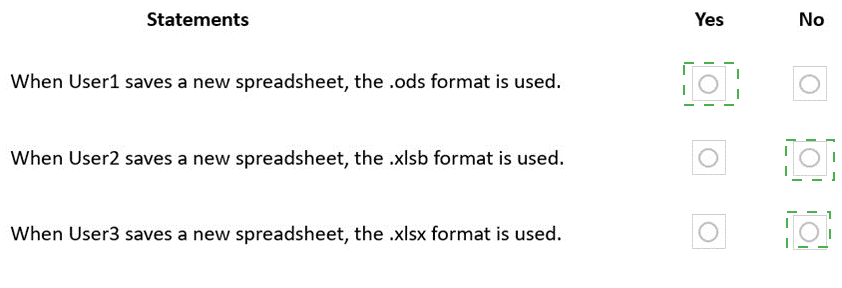
Corrected answers:

Statement 1: Yes

Statement 2: No

Statement 3: No

Reference:
Microsoft Learn: Policies for Office apps in Intune – Priority order (lower number = higher priority). No external links provided.
Question 24
You have a Microsoft 365 subscription that uses Microsoft Intune Suite.

You use Microsoft Intune to manage devices.

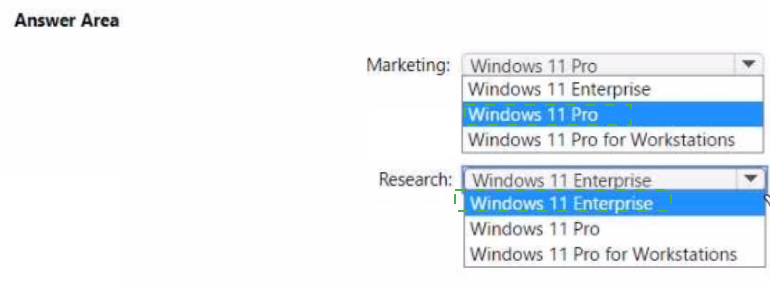
You plan to create Windows 11 device builds for the marketing and research departments The solution must meet the following requirements:


• Marketing department devices must support Windows Update for Business.

• Research department devices must have support for feature update versions for up to 36 months from release.

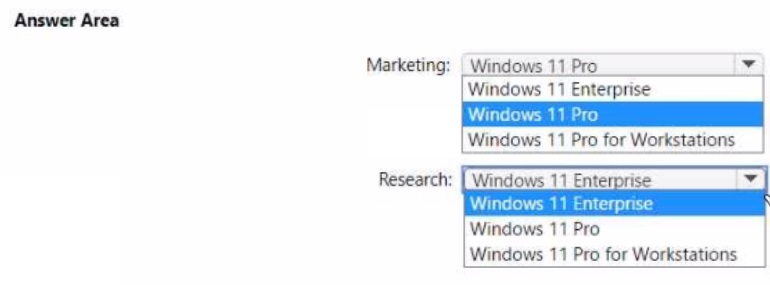
What is the minimum Windows 11 edition required for each department? To answer, select the appropriate options in the answer area.

NOTE: Each correct selection is worth one point
Show answerHide answer

Explanation


Explanation:
Windows Update for Business is supported on Windows 11 Pro, Enterprise, and Education. For the research department requiring 36 months of feature update support, Windows 11 Enterprise (and Education) offers 36 months of support for feature updates, while Pro offers only 24 months.

Correct Option:

Marketing: Windows 11 Pro
Windows Update for Business is supported on Windows 11 Pro, Enterprise, and Education. The marketing department has no requirement for extended feature update support (36 months). Therefore, Windows 11 Pro is the minimum edition that meets the requirement.

Research: Windows 11 Enterprise
Windows 11 Enterprise provides 36 months of support for feature updates (from release date). Windows 11 Pro only provides 24 months. To meet the 36-month feature update support requirement, the minimum edition required is Windows 11 Enterprise (or Education). Pro for Workstations also offers 36 months, but Enterprise is the minimum.

Incorrect Option (for Marketing):
Windows 11 Enterprise – This would work but is not the minimum required edition since Pro also supports Windows Update for Business.

Incorrect Option (for Research):

Windows 11 Pro – Pro only supports feature updates for 24 months, not 36 months.

Windows 11 Pro for Workstations – This edition does support 36 months, but Enterprise is the minimum lower-cost edition that meets the requirement.

Reference:
Microsoft Learn: Windows 11 edition comparison – Feature update support duration: Pro (24 months), Enterprise/Education (36 months). No external links provided.
Question 25
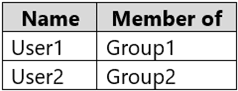
You have an Azure Active Directory (Azure AD) tenant that contains the users shown in the following table.


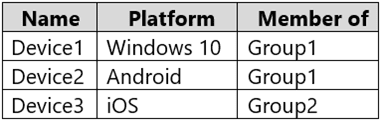
You have devices enrolled in Microsoft Intune as shown in the following table.

Show answerHide answer

Explanation


Explanation:
In Microsoft Intune, custom notifications (such as Notification1) are created under Devices > Compliance > Notifications and assigned to security groups. When assigned to a group containing users (like Group1), the notification is delivered to the user and appears on all their enrolled devices that support push notifications, regardless of the device’s own group membership. Notifications are user-targeted and platform-agnostic in delivery for supported devices (Windows, Android, iOS).

Correct Option:

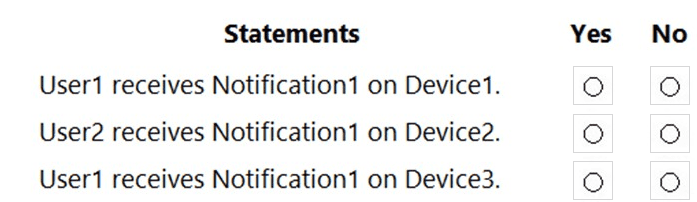
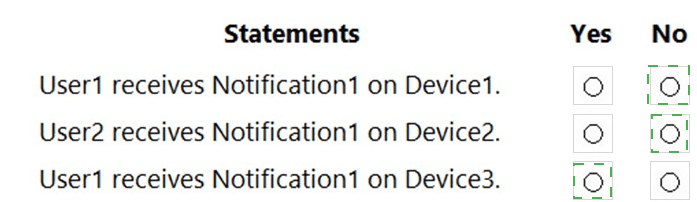
User1 receives Notification1 on Device1: Yes
User1 is a member of Group1, and Notification1 is assigned to Group1. Since the notification is user-targeted, User1 receives it on all their enrolled devices, including Device1 (Windows 10, member of Group1). The device platform does not prevent delivery in this scenario.

Correct Option:

User2 receives Notification1 on Device2: No
User2 belongs to Group2, while Notification1 is assigned only to Group1. Therefore, User2 does not receive the notification on any device, including Device2 (Android, member of Group1). Group membership of the device itself is irrelevant when the notification targets a user group.

Correct Option:

User1 receives Notification1 on Device3: Yes
User1 is in Group1 (the target of Notification1). The notification follows the user and is delivered on all their enrolled devices, including Device3 (iOS, member of Group2). Device group membership does not block user-targeted notifications.

Incorrect Option:
Any other combination (e.g., assuming Device group membership controls notifications or that platform limits delivery) is wrong. Notifications in Intune for compliance or custom messages are delivered based on user group assignment, not device group. The device simply needs to be enrolled and online to receive the push notification for that user.

Reference:
Microsoft Learn documentation on Intune compliance notifications and policy assignments.
Question 26
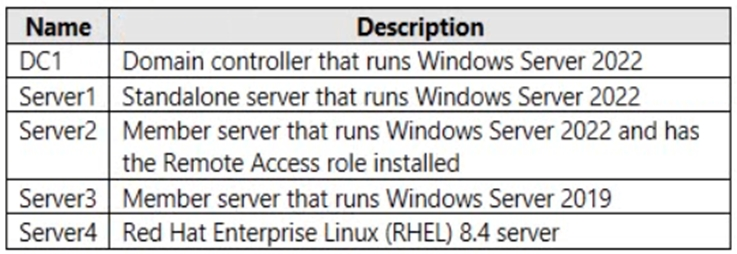
You have the on-premises servers shown in the following table.


You have a Microsoft 365 E5 subscription that contains Android and iOS devices. All the devices are managed by using Microsoft Intune.

You need to implement Microsoft Tunnel for Intune. The solution must minimize the number of open firewall ports.

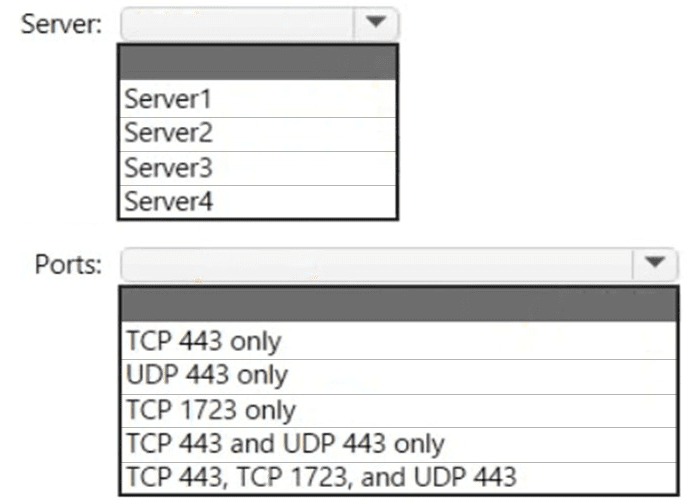
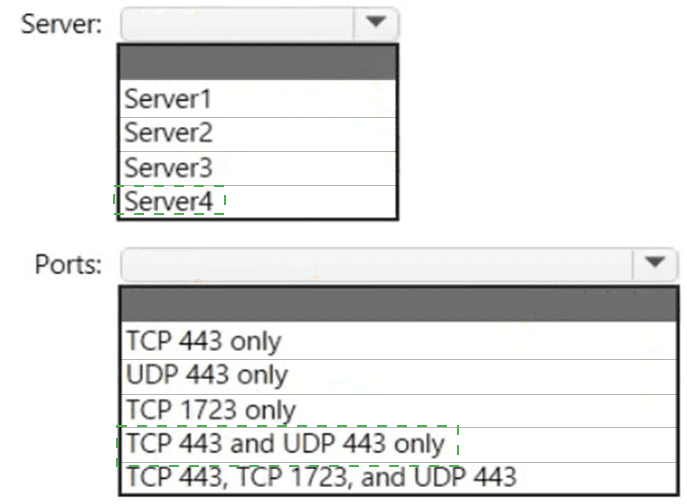
To which server can you deploy a Tunnel Gateway server, and which inbound ports should be allowed on the server to support Microsoft Tunnel connections? To answer, select the appropriate options in the answer area.

NOTE: Each correct selection is worth one point.

Show answerHide answer

Explanation


Explanation:
Microsoft Tunnel Gateway requires Windows Server 2019 or later (2022 is supported) with the Remote Access role installed. The server must be a member server (not domain controller). The Tunnel Gateway uses HTTPS (TCP port 443) for client connections. UDP 443 is used for DTLS-based tunneling. TCP 1723 (PPTP) is not required.

Correct Option:

Server: Server2
Server2 is a member server running Windows Server 2022 with the Remote Access role installed. This meets the Microsoft Tunnel Gateway prerequisites: Windows Server 2019 or later, member server (not domain controller), and Remote Access role (including DirectAccess and VPN). DC1 is a domain controller (not supported), Server1 lacks Remote Access role, Server3 is 2019 but may not have Remote Access role, Server4 is Linux (not supported).

Ports: TCP 443 and UDP 443 only
Microsoft Tunnel uses TCP 443 for HTTPS-based management and connections. UDP 443 is used for DTLS (Datagram Transport Layer Security) to improve performance for real-time traffic. TCP 1723 is for PPTP, which is not used by Microsoft Tunnel. To minimize open ports, only TCP 443 and UDP 443 are required.

Incorrect Option (for Server):

Server1 – Standalone server without Remote Access role; cannot function as Tunnel Gateway.

Server3 – Windows Server 2019 but missing Remote Access role (not stated).

Server4 – RHEL Linux, not supported for Microsoft Tunnel Gateway.

Incorrect Option (for Ports):

TCP 443 only – Missing UDP 443, which is recommended for optimal performance.

TCP 1723 only – PPTP port, not used by Microsoft Tunnel.

TCP 443, TCP 1723, and UDP 443 – Includes unnecessary TCP 1723, not minimizing ports.

Reference:
Microsoft Learn: Microsoft Tunnel Gateway prerequisites – Windows Server 2019/2022, Remote Access role, TCP 443 and UDP 443. No external links provided.
Question 27 Choose 1
Your network contains an Active Directory domain. The domain contains a user named Admin1. All computers run Windows 10.

You enable Windows PowerShell remoting on the computers.

You need to ensure that Admin1 can establish remote PowerShell connections to the computers. The solution must use the principle of least privilege.

To which group should you add Admin1?
Show answerHide answer

Correct answer: D Remote Management Users

Explanation

Explanation:
PowerShell remoting (WinRM) requires the user to be a member of the Remote Management Users group on the target computer. This group explicitly grants permission to connect via WinRM (PowerShell remoting, WMI, WS-Management). The principle of least privilege is satisfied because this group provides only remote management access, not full administrative rights.

Correct Option:

D. Remote Management Users
The Remote Management Users group is specifically designed to allow members to access the computer via WinRM (Windows Remote Management). This enables PowerShell remoting without granting full administrator privileges. Adding Admin1 to this group on each target computer allows remote PowerShell connections while following the principle of least privilege.

Incorrect Option:

A. Access Control Assistance Operators –
This group allows users to remotely query authorization attributes of resources but does not grant WinRM or PowerShell remoting access.

B. Remote Desktop Users –
This group allows members to connect via Remote Desktop (RDP, port 3389), not PowerShell remoting (WinRM, port 5985/5986). These are different protocols.

C. Power Users –
This legacy group is largely deprecated and does not specifically grant WinRM access. It provides limited administrative privileges but is not the correct group for PowerShell remoting.

Reference:
Microsoft Learn: Remote Management Users group – Required for WinRM and PowerShell remoting access. No external links provided.
Question 28 Choose 3
You have a Microsoft 365 subscription that uses Microsoft Intune.

You have five new Windows 11 Pro devices.

You need to prepare the devices for corporate use. The solution must meet the following requirements:

• Install Windows 11 Enterprise on each device.

• Install a Windows Installer (MSI) package named App1 on each device.

• Add a certificate named Certificate1 that is required by App1.

• Join each device to Azure AD.

Which three provisioning options can you use? Each correct answer presents a complete solution.

NOTE: Each correct selection is worth one point.
Show answerHide answer

Correct answer: B, D, E a custom Windows imageWindows Autopilotprovisioning packages

Explanation

Explanation:
To meet all requirements (upgrade to Enterprise, install MSI app, add certificate, join Azure AD), you need a solution that can apply multiple configurations during provisioning. Custom Windows image can include the Enterprise edition, App1, and Certificate1. Windows Autopilot with enrollment status page can deploy apps and certificates after Azure AD join. Provisioning packages can apply all settings during OOBE.

Correct Option:

B. a custom Windows image
A custom Windows image (prepared with Sysprep) can have Windows 11 Enterprise already installed, App1 pre-installed, and Certificate1 added to the certificate store. When deployed, the device can be configured to join Azure AD during OOBE or via provisioning package. This provides a complete, ready-to-use image.

D. Windows Autopilot
Windows Autopilot can join devices to Azure AD automatically. Using a deployment profile and required apps, you can deploy App1 (Win32 or MSI) and Certificate1 (via trusted certificate profile) during the enrollment status page (ESP) phase. The device can be upgraded to Enterprise via subscription activation or edition upgrade policy.

E. provisioning packages
Windows Configuration Designer provisioning packages (.ppkg) can join devices to Azure AD, install apps (including MSI), add certificates, and upgrade Windows edition (using a product key). The package can be applied during OOBE via USB or NFC, making it a complete solution.

Incorrect Option:

A. subscription activation –
Subscription activation upgrades Windows 10/11 Pro to Enterprise when a licensed user signs in, but it does not install App1, add Certificate1, or join Azure AD. It only addresses the edition upgrade requirement.

C. an in-place upgrade –
An in-place upgrade (using setup.exe or media) can upgrade Pro to Enterprise but does not install App1, add Certificate1, or join Azure AD. Additional steps would be required, making it incomplete.

Reference:
Microsoft Learn: Windows Autopilot – Deploy apps and certificates. Provisioning packages – Install apps, add certificates, join Azure AD. Custom images – Pre-install apps and certificates. No external links provided.
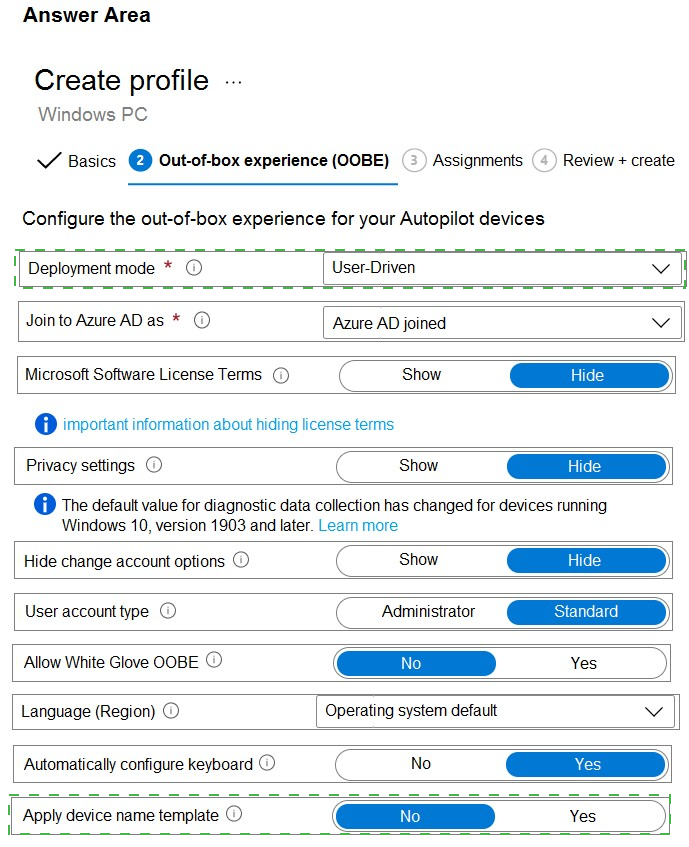
Question 29
You create a Windows Autopilot deployment profile.

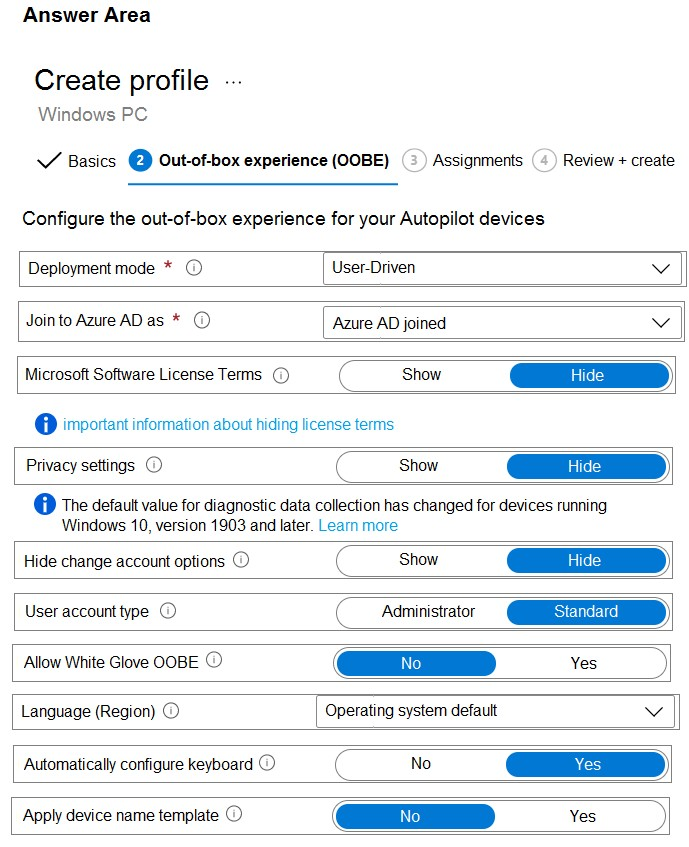
You need to configure the profile settings to meet the following requirements:

Automatically enroll new devices and provision system apps without requiring end-user authentication.

Include the hardware serial number in the computer name.

Which two settings should you configure? To answer, select the appropriate settings in the answer area.

NOTE: Each correct selection is worth one point.

Show answerHide answer

Explanation


Explanation:
To automatically enroll devices and provision system apps without user authentication, you configure White Glove OOBE (pre-provisioning). To include the hardware serial number in the computer name, you configure Apply device name template and use the %SERIAL% variable in the template.

Correct Option:

Allow White Glove OOBE: Yes
White Glove (pre-provisioning) allows IT or a partner to pre-enroll the device, install system apps, and apply policies before the device reaches the end user. The user only needs to sign in when they receive the device, meeting the requirement of provisioning without end-user authentication during the initial setup.

Apply device name template: Yes
When set to Yes, you can specify a computer name template. To include the hardware serial number, use the variable %SERIAL% in the template (e.g., Contoso-%SERIAL%). This ensures the device name includes the unique serial number automatically.

Incorrect Option (other settings in the exhibit):

Deployment mode – User-Driven mode still requires user authentication; White Glove is the correct setting for no user authentication during provisioning.

Join to Azure AD as – Must be Azure AD joined for Autopilot, but this setting does not affect user authentication requirement or computer name.

Hide change account options – Controls whether users can change their account type during OOBE, unrelated to computer name or pre-provisioning.

User account type – Sets whether the user is Administrator or Standard after enrollment, not related to the requirements.

Language/Keyboard settings – Configure regional settings, not computer name or pre-provisioning.

Reference:
Microsoft Learn: Windows Autopilot White Glove – Pre-provisioning without user authentication. Device name template with %SERIAL% variable. No external links provided.
Question 30 Choose 1
You have a Microsoft 365 subscription that includes Microsoft Intune.

You need to deploy a custom app to Android devices. The app uses the APK file format.

Which type of app should you select for the deployment?
Show answerHide answer

Correct answer: D line-of-business (LOB)

Explanation

Explanation:
To deploy a custom app using an APK file (not from Google Play Store) to Android devices, you select line-of-business (LOB) app type in Intune. This allows you to upload the APK file directly and deploy it to managed Android devices. Managed Google Play apps are for store apps, not custom APKs.

Correct Option:

D. line-of-business (LOB)
In the Microsoft Intune admin center, when adding an app for Android, you select "Android line-of-business app" as the app type. You then upload the APK file, configure the app name, description, and other settings. This app can then be assigned to Android devices (device administrator or Android Enterprise work profile). This is the correct method for deploying a custom APK.

Incorrect Option:

A. built-in –
Built-in apps are standard apps that come with the OS (e.g., Camera, Calculator). You cannot upload custom APKs as built-in apps.

B. Android store –
Android store app type points to an app in the Google Play Store. It does not allow uploading a custom APK file.

C. Managed Google Play –
Managed Google Play is for approving and deploying apps from the Google Play Store (public or private). It does not support uploading a custom APK file directly.

E. web link –
Web link app type creates a shortcut or bookmark to a website on the device's home screen. It does not deploy an APK.

Reference:
Microsoft Learn: Add Android line-of-business app to Intune – Upload APK file for custom app deployment. No external links provided.
Full mock exam

Sit the MD-102 exam before exam day

Full-length mocks with the same number of questions and the same time limit as the real MD-102 exam. Every attempt draws a new set of questions from the full bank, so you can keep going until you pass comfortably.

Get full MD-102 mock exam
  • 65questions per mock
  • 105 mintime limit
  • 344questions in the bank
  • Newmock on every attempt