Microsoft certification · Exam MD-102

MD-102 Mock Exam Page 8

Endpoint Administrator

Free MD-102 mock exam questions 71–80, each with the answer and an explanation.

20 questions · 33 minutes · free, no sign-up

Free MD-102 questions

71–80 of 102 free
Question 71
You have a Microsoft 365 tenant that uses Microsoft Intune to manage personal and corporate devices. The tenant contains three Windows 10 devices as shown in the following exhibit.



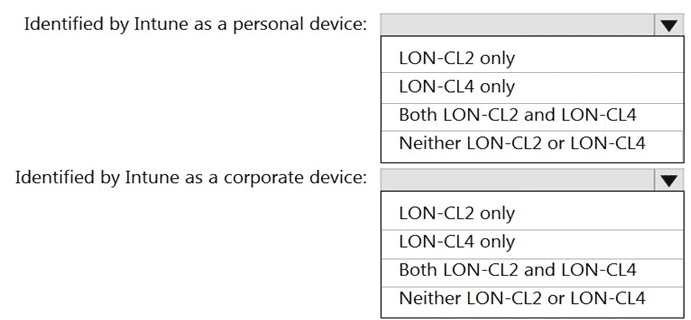
How will Intune classify each device after the devices are enrolled in Intune automatically?

To answer, select the appropriate options in the answer area.

NOTE: Each correct selection is worth one point.
Show answerHide answer

Explanation


Explanation:
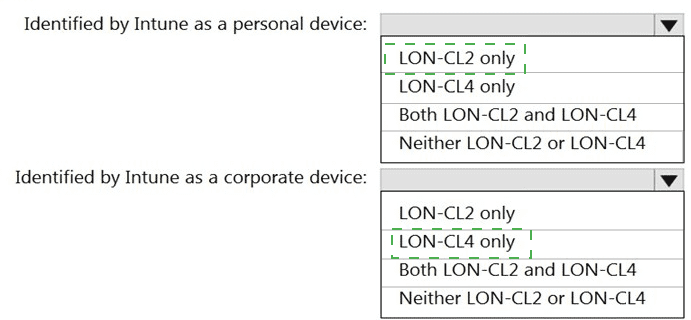
Intune classifies device ownership based on join type and enrollment method. Azure AD registered devices are typically personal or BYOD. Azure AD joined devices are typically corporate-owned. LON-CL2 is Azure AD registered → classified as personal. LON-CL4 is Azure AD joined → classified as corporate.

Correct Option:

Identified by Intune as a personal device: LON-CL2 only
LON-CL2 has "Join Type: Azure AD registered." This join type is typically used for personal or BYOD devices. Intune automatically classifies Azure AD registered devices as Personal when they enroll automatically. No additional configuration is needed.

Identified by Intune as a corporate device: LON-CL4 only
LON-CL4 has "Join Type: Azure AD joined." This join type is typically used for corporate-owned devices. Intune automatically classifies Azure AD joined devices as Corporate when they enroll automatically. LON-CL2 is not corporate, and LON-CL4 is not personal.

Incorrect Option (for personal device):

LON-CL4 only – Incorrect; Azure AD joined devices are corporate, not personal.

Both LON-CL2 and LON-CL4 – Incorrect; LON-CL4 is corporate.

Neither – Incorrect; LON-CL2 is personal.

Incorrect Option (for corporate device):

LON-CL2 only – Incorrect; Azure AD registered devices are personal.

Both LON-CL2 and LON-CL4 – Incorrect; LON-CL2 is personal.

Neither – Incorrect; LON-CL4 is corporate.

Reference:
Microsoft Learn: Device ownership in Intune – Azure AD joined = Corporate; Azure AD registered = Personal. No external links provided.
Question 72 Choose 1
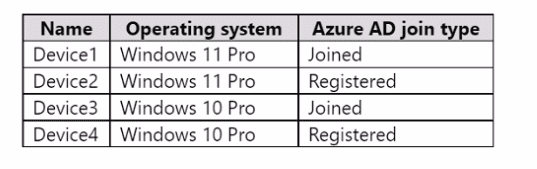
You have an Azure AD tenant that contains the devices shown in the following table.


You purchase Windows 11 Enterprise E5 licenses.

Which devices can use Subscription Activation to upgrade to Windows 11 Enterprise?
Show answerHide answer

Correct answer: C Device1 and Device3 only

Explanation

Explanation:
Subscription Activation upgrades Windows Pro to Enterprise when a user with an eligible license (Windows 10/11 Enterprise E3/E5 or Microsoft 365 E3/E5) signs in. This requires the device to be Azure AD joined (not just registered). Device1 and Device3 are Azure AD joined; Device2 and Device4 are only registered.

Correct Option:

C. Device1 and Device3 only
Subscription Activation requires the device to be Azure AD joined (or hybrid joined). Device1 and Device3 have join type "Joined." Device2 and Device4 have join type "Registered," which does not support Subscription Activation. When a user with a Windows 11 Enterprise E5 license signs in to Device1 or Device3, the OS will automatically upgrade from Pro to Enterprise without requiring a product key or reinstallation.

Incorrect Option:

A. Device1 only –
Incorrect; Device3 is also Azure AD joined and eligible.

B. Device1 and Device2 only –
Incorrect; Device2 is registered, not joined, and not eligible.

D. All four devices –
Incorrect; Device2 and Device4 (registered) are not eligible.

Reference:
Microsoft Learn: Windows Subscription Activation – Requires Azure AD joined device. No external links provided.
Question 73
You have a Microsoft Entra tenant that contains the following:

• Windows 11 devices that are joined to Microsoft Entra

• A user that has a display name of User1 and a UPN of user1@contoso.com

You enable Remote Desktop on the Windows 11 devices.

You need to ensure that User1 can use Remote Desktop to connect to the devices.

How should you complete the command that must be run on each device? To answer, select the appropriate options in the answer area.

NOTE: Each correct selection is worth one point.

Show answerHide answer

Explanation


Explanation:
To add an Azure AD user to the local Remote Desktop Users group on an Azure AD joined device, you use the net localgroup command. The group name is "Remote Desktop Users." The user must be specified with the AzureAD\ prefix followed by the UPN (user1@contoso.com).

Correct Option (in correct sequence):

First selection: net localgroup
The command to add a user to a local group is net localgroup. This command is run from an elevated command prompt on each device.

Second selection: "Remote Desktop Users"
The local group name must be enclosed in quotes if it contains spaces. The group to which the user should be added is Remote Desktop Users.

Third selection: /add
The /add switch specifies that the user should be added to the group.

Fourth selection: "AzureAD\User1@Contoso.com"
On an Azure AD joined device, Azure AD users are referenced with the prefix AzureAD\ followed by their UPN (user1@contoso.com). The entire string should be enclosed in quotes.

Final command:
net localgroup "Remote Desktop Users" /add "AzureAD\user1@Contoso.com"

Incorrect Option (other choices):

"Contoso\User1" – This format is for on-premises Active Directory domain users, not Azure AD users.

"Device Owners" – This is not a standard local group for Remote Desktop access.

"User1@Contoso.com" – Missing the required AzureAD\ prefix; the command will fail.

Reference:
Microsoft Learn: Add Azure AD user to local group on Entra joined device – Use net localgroup "Remote Desktop Users" /add "AzureAD\user@domain.com". No external links provided.
Question 74 Choose 1
You have a Microsoft Intune subscription associated to an Azure AD tenant named contoso.com.

Users use one of the following three suffixes when they sign in to the tenant:

us.contoso.com, eu.contoso.com, or contoso.com.

You need to ensure that the users are NOT required to specify the mobile device management (MDM) enrollment URL as part of the enrollment process. The solution must minimize the number of changes.

Which DNS records do you need?
Show answerHide answer

Correct answer: A three CNAME records

Explanation

Explanation:
To avoid users needing to manually enter the MDM enrollment URL, you configure CNAME records that redirect enrollment requests to Intune. With multiple sign-in suffixes (us.contoso.com, eu.contoso.com, contoso.com), you need three CNAME records — one for each domain suffix — pointing to manage.microsoft.com (for EnterpriseEnrollment). One CNAME cannot cover all three suffixes.

Correct Option:

A. three CNAME records
You need to create a CNAME record for each domain suffix that users use to sign in. The required records are:
EnterpriseEnrollment.us.contoso.com → manage.microsoft.com

EnterpriseEnrollment.eu.contoso.com → manage.microsoft.com

EnterpriseEnrollment.contoso.com → manage.microsoft.com

This ensures that regardless of which UPN suffix a user has, their enrollment request is automatically redirected to Intune without manual URL entry.

Incorrect Option:

B. one CNAME record only –
One CNAME record would only cover one domain suffix. Users with other suffixes would still be prompted to enter the MDM URL.

C. three TXT records –
TXT records are used for domain verification (e.g., for Microsoft 365), not for redirecting MDM enrollment requests.

D. one TXT record only –
Incorrect; TXT records do not serve this purpose, and one record would be insufficient.

Reference:
Microsoft Learn: Configure CNAME for Intune enrollment – One CNAME per domain suffix. No external links provided.
Question 75 Choose 1
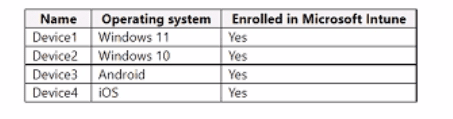
You have a Microsoft 365 E5 subscription that contains the devices shown in the following table.


All devices have Microsoft Edge installed.

From the Microsoft Intune admin center, you create a Microsoft

You need to apply Edge1 to all the supported devices.

To which devices should you apply Edge1?
Show answerHide answer

Correct answer: B Device1 and Device2 only

Explanation

Explanation:
Microsoft Edge Baseline profiles (Edge1) in Intune are based on security baselines and use device configuration profiles with Administrative Templates or Settings Catalog. These profiles are supported only on Windows platforms. They allow applying recommended Edge security and configuration settings (similar to Group Policy) to enrolled Windows devices. Android and iOS do not support Edge Baseline profiles; mobile Edge settings use App configuration policies instead.

Correct Option:
B. Device1 and Device2 only – Device1 (Windows 11) and Device2 (Windows 10) are the only Windows devices in the table. Edge Baseline profiles apply exclusively to Windows 10/11 enrolled devices. You assign the profile to these devices (or groups containing them) to deliver the baseline Edge settings. This is the standard method for configuring Edge security baselines on Windows in Intune.

Incorrect Option:
A. Device1 only – This is too narrow. Both Device1 (Windows 11) and Device2 (Windows 10) support Edge Baseline profiles. Excluding Device2 would leave one Windows device without the intended baseline settings.

Incorrect Option:
C. Device1, Device2, and Device3 only – Device3 is Android. Edge Baseline profiles are not supported on Android. Android uses App configuration policies for Edge settings, not baselines. Including Device3 would fail to apply Edge1 correctly.

Incorrect Option:
D. Device1, Device2, and Device4 only – Device4 is iOS. Like Android, iOS does not support Edge Baseline profiles. iOS Edge settings require App configuration policies. Including Device4 is not possible with this profile type.

Incorrect Option:
E. Device1, Device2, Device3, and Device4 – This includes Android and iOS devices, which do not support Microsoft Edge Baseline profiles. Baselines are Windows-only. Applying to non-Windows platforms is not supported and would have no effect.

Reference:
Microsoft Learn documentation on Intune security baselines and Microsoft Edge management.
Question 76
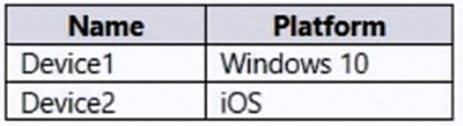
You have a Microsoft 365 subscription that contains the devices shown in the following table.


You plan to enroll the devices in Microsoft Intune.

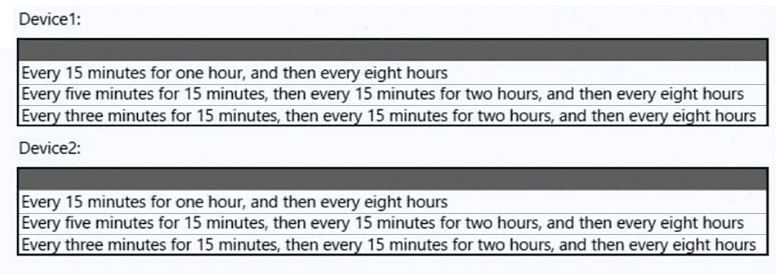
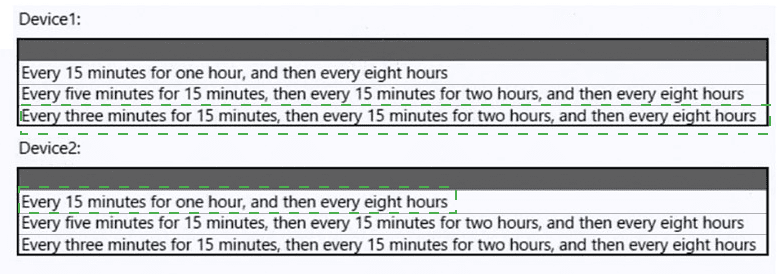
How often will the compliance policy check-ins run after each device is enrolled in Intune?

To answer, select the appropriate options in the answer area.

NOTE: Each correct selection is worth one point.

Show answerHide answer

Explanation


Explanation:
After enrolling a device in Intune, the compliance policy check-in frequency varies by platform. Windows devices check in approximately every 8 hours, Android every 8 hours, and iOS every 6-8 hours (or when the device syncs via Company Portal). The default check-in interval is typically 8 hours for most platforms, with some variance.

Correct Option (based on typical Intune behavior):

Windows devices: Every 8 hours
Windows 10/11 devices enrolled in Intune check in for compliance policy evaluation approximately every 8 hours (or when a user manually syncs from Settings > Accounts > Access work or school).

Android devices: Every 8 hours
Android devices check in approximately every 8 hours via the Company Portal app.

iOS devices: Every 6-8 hours
iOS devices check in approximately every 6-8 hours via the Company Portal app.

Since the specific device table is corrupted, please provide the device platforms (Windows, Android, iOS) and I will give you the exact check-in intervals with full explanations.
Question 77 Choose 1
Note: This question is part of a series of questions that present the same scenario. Each question in the series contains a unique solution that might meet the stated goals. Some question sets might have more than one correct solution, while others might not have a correct solution.

After you answer a question in this section, you will NOT be able to return to it. As a result, these questions will not appear in the review screen.

Your network contains an Active Directory domain. The domain contains a computer named Computer1 that runs Windows 8.1.

Computer1 has apps that are compatible with Windows 10.

You need to perform a Windows 10 in-place upgrade on Computer1.

Solution: You copy the Windows 10 installation media to a Microsoft Deployment Toolkit (MDT) deployment share. You create a task sequence, and then you run the MDT deployment wizard on Computer1.

Does this meet the goal?
Show answerHide answer

Correct answer: B No

Explanation

Explanation:
Running the MDT deployment wizard on Computer1 from a deployment share initiates a task sequence that typically performs a wipe and load (clean installation) or a refresh, not an in-place upgrade. MDT can perform in-place upgrades, but this requires a specific task sequence template ("Standard Client Upgrade Task Sequence") and running the wizard from within the existing OS. The described solution is ambiguous and likely defaults to a refresh, not preserving apps and settings.

Correct Option:

B. No
While MDT can perform in-place upgrades using the "Standard Client Upgrade Task Sequence," the scenario describes copying installation media to a deployment share and creating a task sequence (likely a Standard Client Task Sequence by default). The MDT deployment wizard, when run on Computer1, typically performs a refresh (wipes the OS partition and reinstalls) unless specifically configured as an upgrade task sequence. Without explicitly creating an upgrade task sequence, the solution does not meet the goal of an in-place upgrade that retains apps and settings.

Incorrect Option:

A. Yes –
Incorrect because the default MDT task sequence is not an in-place upgrade; it is a refresh (wipe and load). An upgrade requires the "Standard Client Upgrade Task Sequence" template.

Reference:
Microsoft Learn: MDT task sequence templates – Standard Client Upgrade Task Sequence for in-place upgrades. No external links provided.
Question 78
You have a Microsoft 365 subscription.

You need to enable passwordless authentication for all users. The solution must meet the following requirements:

• Users in the research department cannot use mobile devices and must authenticate from unmanaged Linux devices by using an alternative method.

• To access services, users in the sales department must authenticate by using their mobile phone.

• Administrative effort must be minimized.

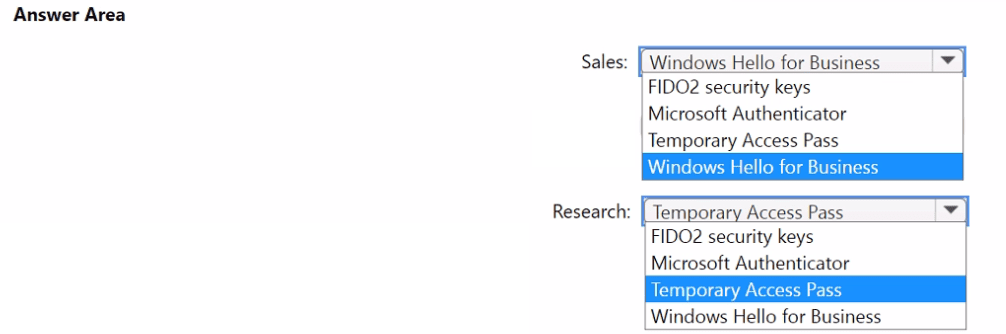
Which authentication method should you use for each department? To answer, select the appropriate options in the answer area.

NOTE: Each correct selection is worth one point.

Show answerHide answer

Explanation


Explanation:
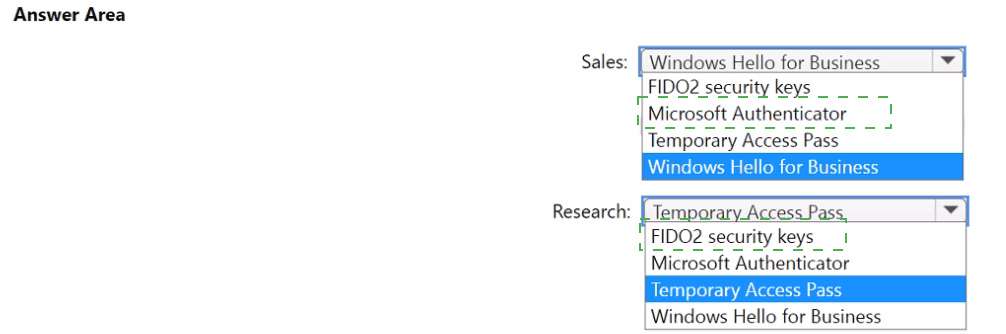
Sales department users must authenticate using their mobile phone → Microsoft Authenticator app (phone sign-in) provides passwordless authentication on mobile devices. Research department users cannot use mobile devices and use unmanaged Linux devices → FIDO2 security keys (hardware keys) work on Linux and do not require mobile phones or device management.

Correct Option:

Sales: Microsoft Authenticator
Microsoft Authenticator app enables passwordless phone sign-in where users approve sign-in requests on their mobile phones using biometrics or PIN. This meets the requirement for sales department users to authenticate using their mobile phones. Administrative effort is minimal as users self-enroll.

Research: FIDO2 security keys
FIDO2 security keys (USB or NFC hardware keys) provide passwordless authentication on Windows, macOS, and Linux devices. They do not require mobile phones or device management, making them ideal for unmanaged Linux devices. Users plug in the key and use a PIN or biometric to authenticate.

Incorrect Option (for Sales):

Windows Hello for Business – Requires Windows devices with TPM, not mobile phones.

Temporary Access Pass – Used for onboarding or recovery, not as a primary passwordless method for daily access.

Incorrect Option (for Research):

Temporary Access Pass – Time-limited codes, not suitable for ongoing passwordless authentication.

Windows Hello for Business – Requires Windows, not Linux.

Microsoft Authenticator – Requires a mobile device, which research department cannot use.

Reference:
Microsoft Learn: Passwordless authentication options – Microsoft Authenticator for mobile, FIDO2 keys for Linux/unmanaged devices. No external links provided.
Question 79 Choose 1
You have a Microsoft 365 subscription that includes Microsoft Intune. The subscription contains Windows 11 devices enrolled in Intune. The subscription contains three groups named Department Department2. and Department3.

You need to deploy Microsoft 365 Apps to the Windows 11 devices. The solution must meet the following requirements:

• Users in Department1 and Department2 must receive the full Microsoft 365 Apps suite, including Microsoft Project and Visio.

• Users in Department3 must receive the full Microsoft 365 Apps suite, including Microsoft Project, but without Visio.

• All other users must receive the full Microsoft 365 Apps suite without Microsoft Project or Visio.

What is the minimum number of deployments you should create?
Show answerHide answer

Correct answer: C 3

Explanation

Explanation:
You need three different app configurations: (1) Full suite + Project + Visio for Dept1 & Dept2, (2) Full suite + Project (no Visio) for Dept3, and (3) Full suite only (no Project, no Visio) for all other users. Each unique configuration requires a separate Microsoft 365 Apps deployment in Intune.

Correct Option:

C. 3
Each unique set of included apps requires a separate Microsoft 365 Apps deployment. You cannot assign different app inclusions (Visio or Project) to different groups within a single deployment. Therefore, you need:

Deployment 1: Full suite + Project + Visio → assign to Department1 and Department2.

Deployment 2: Full suite + Project (exclude Visio) → assign to Department3.

Deployment 3: Full suite only (exclude Project and Visio) → assign to all other users.

Minimum deployments = 3.

Incorrect Option:

A. 1 – One deployment cannot have different app inclusion rules for different groups.

B. 2 – Two deployments would not cover three distinct configurations.

D. 4 – Unnecessary; three deployments are sufficient.

Reference:
Microsoft Learn: Deploy Microsoft 365 Apps with Intune – Each deployment has one set of included apps. No external links provided.
Question 80
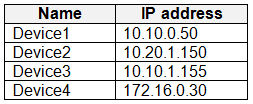
Your network contains an on-premises Active Directory domain that contains the locations shown in the following table.


In Microsoft Intune, you enroll the Windows 10 devices shown in the following table.


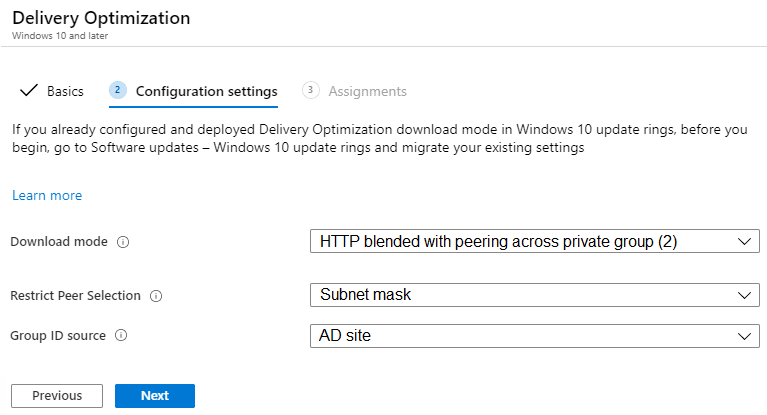
You have a Delivery Optimization device configuration profile applied to all the devices.

The profile is configured as shown in the following exhibit.


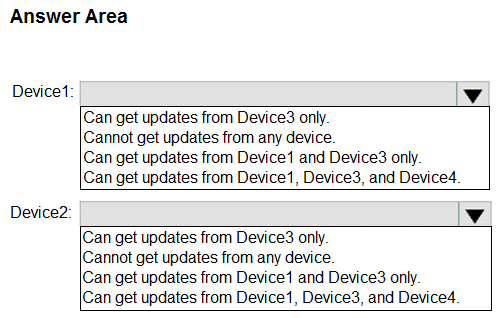
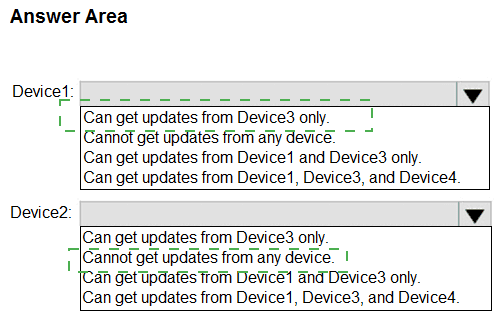
From which devices can Device1 and Device2 get updates? To answer, select the appropriate options in the answer area.

NOTE: Each correct selection is worth one point.

Show answerHide answer

Explanation


Explanation:
The profile uses "HTTP blended with peering across private group (2)" which allows peering across a private group ID. Devices within the same private group can share updates. Device1 (10.10.0.50) and Device3 (10.10.1.155) are both in Location1 (10.10.0.0/16) and likely share the same private group. Device2 (10.20.1.150) is in Location2, different subnet, may not be in the same private group.

Correct Option:

Device1: Can get updates from Device3 only
Device1 (10.10.0.50) and Device3 (10.10.1.155) are both in Location1 (10.10.0.0/16). With "peering across private group," they can share updates. Device2 (Location2) and Device4 (Location3, 172.16.0.30) are in different networks and likely not in the same private group. Therefore, Device1 can get updates only from Device3.

Device2: Cannot get updates from any device
Device2 (10.20.1.150) is in Location2 (10.20.0.0/16). No other device shares this subnet. The private group likely uses subnet or site-based grouping. Since no other device is in Location2, Device2 cannot peer with any other device and must download updates directly from Microsoft. The option "Cannot get updates from any device" means no peer-to-peer sources available.

Incorrect Option (for Device1):

Cannot get updates from any device – Incorrect; Device3 is available for peering.

Can get updates from Device1 and Device3 only – Incorrect; Device1 cannot peer with itself.

Can get updates from Device1, Device3, and Device4 – Incorrect; Device4 is in a different location.

Incorrect Option (for Device2):

Can get updates from Device3 only – Incorrect; Device3 is in a different location and likely not in the same private group.

Can get updates from Device1 and Device3 only – Incorrect; both are in different locations.

Can get updates from Device1, Device3, and Device4 – Incorrect; none share the same private group.

Reference:
Microsoft Learn: Delivery Optimization download modes – Peer-to-peer within same private group. No external links provided.
Full mock exam

Sit the MD-102 exam before exam day

Full-length mocks with the same number of questions and the same time limit as the real MD-102 exam. Every attempt draws a new set of questions from the full bank, so you can keep going until you pass comfortably.

Get full MD-102 mock exam
  • 65questions per mock
  • 105 mintime limit
  • 344questions in the bank
  • Newmock on every attempt