You need to ensure that any transaction that uses a customer account always includes the
customer source dimension.
Which five actions should you perform in sequence? To answer, move the appropriate actions from the list of actions to the answer area and arrange them in the correct order.
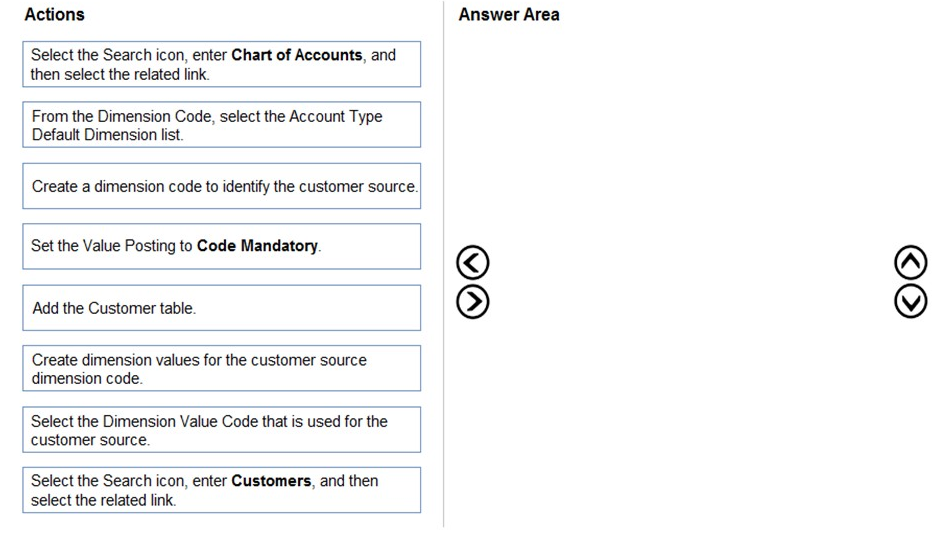
Which five actions should you perform in sequence? To answer, move the appropriate actions from the list of actions to the answer area and arrange them in the correct order.
Show answerHide answer
Explanation
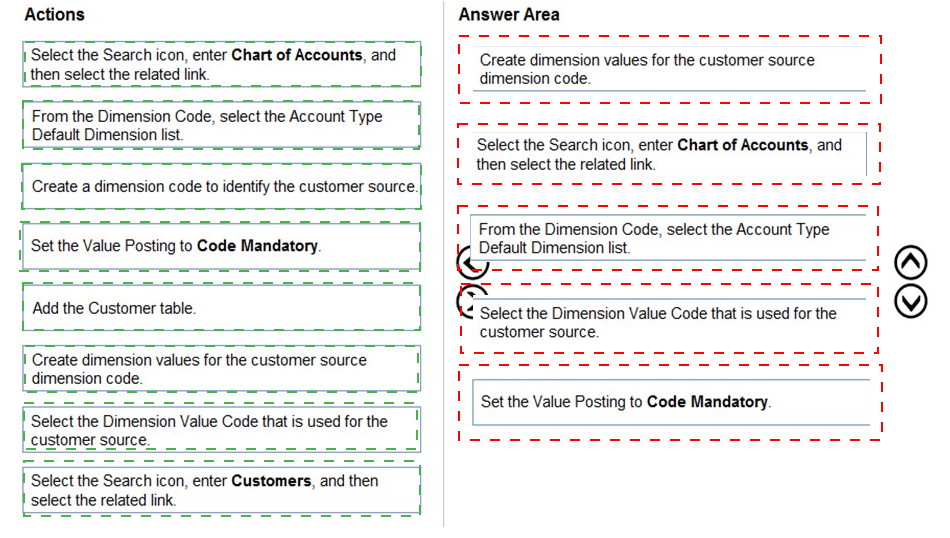
Explanation of the Sequence:
Step 1 – Create a dimension code to identify the customer source:
First, create a new dimension (e.g., CUSTSOURCE) on the Dimensions page. This dimension will be used to track the source of each customer transaction (e.g., Website, Store, Call Center).
Step 2 – Create dimension values for the customer source dimension code:
For the newly created dimension, define dimension values (e.g., WEB, STORE, CALL) on the Dimension Values page. These are the specific options users will select when tagging customer transactions.
Step 3 – Select the Search icon, enter Chart of Accounts, and then select the related link:
Open the Chart of Accounts page. This is where you assign dimension requirements to G/L accounts that are linked to customer transactions (e.g., Sales Revenue, Accounts Receivable).
Step 4 – From the Dimension Code, select the Account Type Default Dimension list:
On the relevant G/L account card (or via the Dimensions action), locate the Account Type Default Dimension list (or simply the dimension assignment grid). Select the CUSTSOURCE dimension code from the list to associate it with the G/L account.
Step 5 – Set the Value Posting to Code Mandatory:
For the CUSTSOURCE dimension on that G/L account, change the Value Posting field to Code Mandatory. This ensures that any transaction posted to this account (including customer-related transactions) requires a customer source dimension value, preventing posting without it.
Why Other Actions Are Not Used in This Sequence:
Add the Customer table: This would be used for table-level dimension defaulting, but the requirement is to ensure the dimension is included on any transaction using a customer account—which is best enforced at the G/L account level (e.g., Accounts Receivable, Sales Revenue).
Select the Dimension Value Code that is used for the customer source: This action is redundant because dimension values are already created in Step 2. Selecting a specific default value is optional and not required to enforce mandatory posting.
Select the Search icon, enter Customers, and then select the related link: This navigates to the customer list, which is not the primary location for enforcing mandatory dimensions on transactions.
Reference:
Microsoft Learn – "Set Up Dimensions" – Creating dimensions and values; enforcing Code Mandatory on G/L accounts for customer-related transactions.