Microsoft certification · Exam MB-800

MB-800 Mock Exam Page 4

Microsoft Dynamics 365 Business Central Functional Consultant

Free MB-800 mock exam questions 31–40, each with the answer and an explanation.

20 questions · 33 minutes · free, no sign-up

Free MB-800 questions

31–40 of 69 free
Question 31 Choose 1
Note: This question is part of a series of questions that present the same scenario.
Each question in the series contains a unique solution that might meet the stated goals. Some question sets might have more than one correct solution, while others might not have a correct solution.
After you answer a question in this section, you will NOT be able to return to it. As a result, these questions will not appear in the review screen.
You are configuring default reports and layouts in Dynamics 365 Business Central.
You must add new data items to the report and change the layout associated with the default Purchase Order report.
A developer creates and deploys a new report object that includes the new data items and layout.
You need to configure Business Central to use the new report object as the system default when printing purchase orders.
Solution: On the Report Selection – Purchase page, set the value of the Usage option to Order. Update the Report ID shown on the page to reflect the new report object.
Does the solution meet the goal?
Show answerHide answer

Correct answer: A Yes

Explanation

Explanation:

This question evaluates how report substitution works in Microsoft Dynamics 365 Business Central. It focuses on configuring the system to use a custom report instead of the default Purchase Order report through the Report Selection setup.

🟒 Correct Option:
Setting Usage = Order ensures the configuration applies specifically to Purchase Orders. Updating the Report ID to the newly deployed custom report redirects the system to use it during printing. Since the custom report already includes the required data items and layout, this method correctly replaces the default report behavior in Business Central.

πŸ”΄ Incorrect options:

B. No
This is incorrect because Business Central supports replacing standard reports via the Report Selection page. Assigning the correct usage and updating the report ID is the proper and sufficient way to set a custom report as the default.

πŸ”§ Reference:
β†’ Report Selections (Business Central)
Confirms that Report Selection allows assigning custom reports to specific document usages like Purchase Orders.

Question 32
A company uses Dynamics 365 Business Central.
The finance manager requires distinct processes for posting sales, purchase invoices, and shipments.
You need to configure the restrictions.
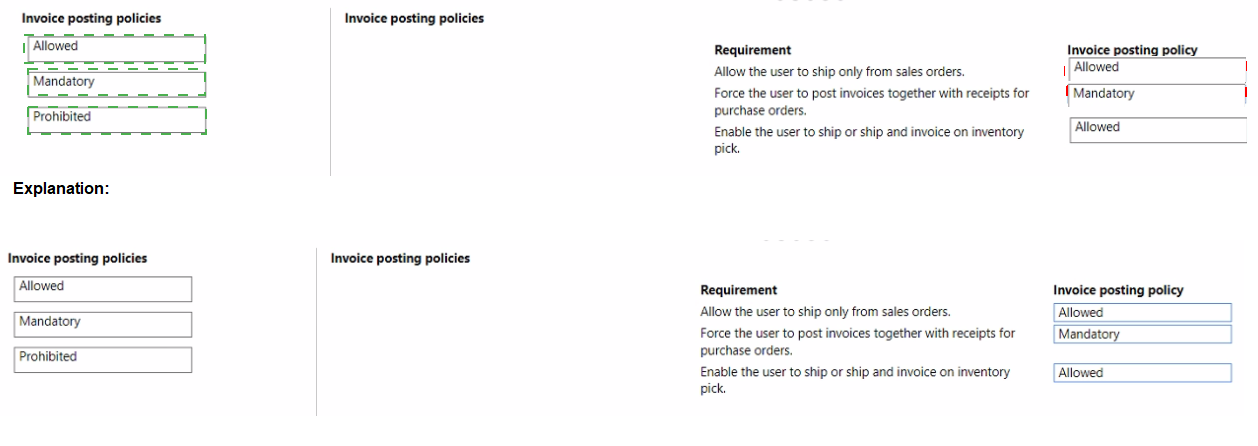
Which invoice posting policy should you use? To answer, move the appropriate invoice posting policies to the correct requirements. You may use each requirement once, more than once, or not at all. You may need to move the split bar between panes or scroll to view content
NOTE: Each correct selection is worth one point.

Show answerHide answer

Explanation


Explanation:

This question evaluates your knowledge of invoice posting policies in Business Central, which dictate how users interact with shipping and invoicing workflows. You must match the policy behavior to the system's operational requirements.

βœ… Correct Option:
Allow the user to ship only from sales orders: You must select Allowed. This setting permits users to perform shipping without immediately creating an invoice, providing the flexibility to invoice later.

Force the user to post invoices together with receipts for purchase orders: You must select Mandatory. This setting ensures that the invoice must be processed at the same time as the receipt, preventing separate posting and maintaining accounting integrity.

Enable the user to ship or ship and invoice on inventory pick: You must select Allowed. This allows the flexibility to either perform a shipment only or combine shipment and invoicing, accommodating different warehouse operational needs.

❌ Incorrect options:

❌ Prohibited:
This setting prevents the user from posting an invoice at all for the specified action. It does not satisfy any of the requirements, as none of the scenarios call for completely blocking the invoicing function during the posting process.

❌ Mandatory (for "Allow the user to ship only"):
Choosing Mandatory would force an invoice to be created whenever shipping occurs. This contradicts the requirement to ship only, as it would prevent shipping without an accompanying invoice.

❌ Allowed (for "Force the user to post"):
If set to Allowed, the system would not force the invoice to be posted with the receipt. Users would have the option to post the receipt without the invoice, failing the requirement to enforce a combined posting.

πŸ”§ Reference:
Define Invoice Posting Policies in Microsoft Learn: Sales & Receivables Setup
This official Microsoft documentation confirms the definitions and functional impacts of Allowed, Mandatory, and Prohibited posting policies on document workflows.
Question 33
You are creating a filtered view of a Chart of Accounts page.
The page must be filtered to display Net Change values only for transactions between a specific date range. You must save the filtered view for future use.
You need to filter on transactions occurring between January 1, 2020 and January 31, 2020.
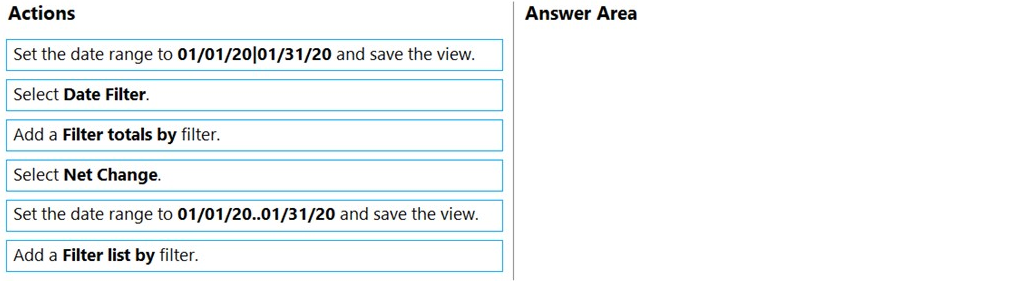
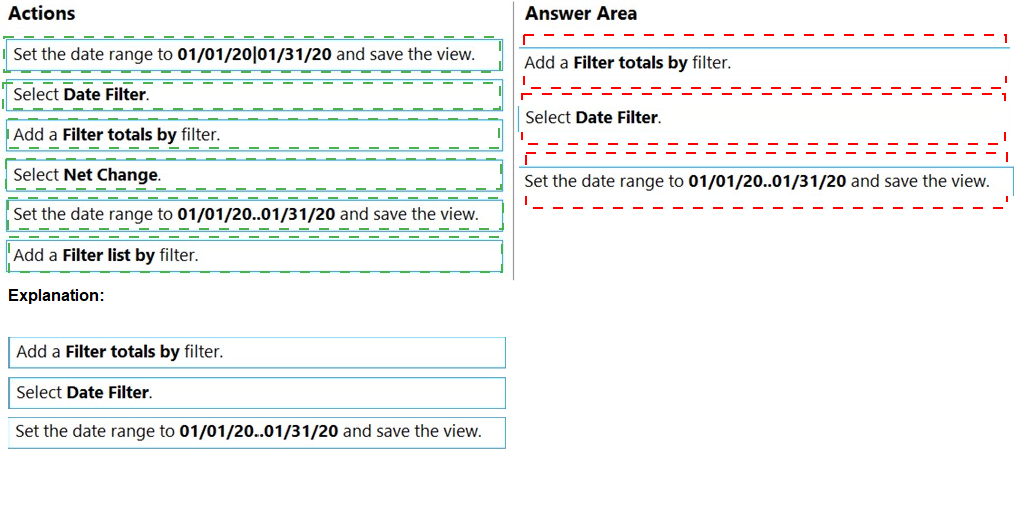
Which three actions should you perform in sequence? To answer, move the appropriate actions from the list of actions to the answer area and arrange them in the correct order.
Show answerHide answer

Explanation


Explanation:

This question tests knowledge of how to filter and save views on the Chart of Accounts page in Business Central. The goal is to display Net Change values within a specific date range (January 2020) and persist that view for future use. It requires understanding the difference between list filters and totals filters, and the correct date range syntax.

βœ… Correct Answers:

➀ Step 1: Add a Filter totals by filter
The Chart of Accounts displays calculated totals (like Net Change and Balance). To filter these calculated fields by a period, you must use "Filter totals by" β€” not the standard list filter. This is the only filter type in Business Central that applies to totaling fields on financial pages.

➀ Step 2: Select Date Filter
Within the "Filter totals by" panel, Date Filter is the specific filter field that controls the date range used to calculate Net Change. Selecting it allows you to define the transaction period. Without choosing Date Filter here, no date-based restriction will be applied to the calculated totals.

➀ Step 3: Set the date range to 01/01/20..01/31/20 and save the view
Business Central uses the double-dot (..) syntax to define a range between two dates. The format 01/01/20..01/31/20 correctly captures all transactions from January 1 to January 31, 2020. Saving the view ensures this filter is preserved for future access without re-entry.

❌ Incorrect Answers:

➀ Set the date range to 01/01/20|01/31/20 and save the view
The pipe symbol (|) in Business Central filters means "OR" β€” it returns records matching either date, not a range between them. This would not capture all January transactions and is the wrong syntax for a date range filter on totaling fields.

➀ Select Net Change
Net Change is a display column, not a filter action. It shows the difference between debits and credits for a period but is already visible by default on the Chart of Accounts. Selecting it is not a step in the filtering process and does not affect how data is filtered or saved.

➀ Add a Filter list by filter
"Filter list by" applies to standard list fields (text, codes, etc.) β€” not to calculated totaling fields like Net Change or Balance. Using this filter type would not affect the date range for financial totals, making it the wrong filter mechanism for this scenario.

πŸ”§ Reference:
β†’ Sort, search, and filter data in lists, reports, or XMLports – Microsoft Learn
Confirms the use of "Filter totals by" for calculated fields and the ".." range syntax for date filtering.

β†’ Understanding the Chart of Accounts – Microsoft Learn
Explains how Net Change values are computed and how date filters affect financial totals on the Chart of Accounts page.
Question 34 Choose 1
A customer has premium licenses for Dynamics 365 Business Central.
You need to make all actions and fields for the Manufacturing and Service modules available to users.
What should you do?
Show answerHide answer

Correct answer: B Select the Premium option in the Experience field on the Company Information page.

Explanation

Explanation:

This question tests how Business Central controls the visibility of advanced functionality for Premium-licensed users. The Manufacturing and Service modules are part of the Premium experience, so enabling that experience is what makes those actions and fields available.

βœ”οΈ Correct Option:
When you select Premium in the Experience field, Business Central shows the full set of premium features, including Manufacturing and Service Management. This matches the license level already assigned to the customer and enables the related pages, actions, and fields for users in the company. The Premium experience is the correct way to expose these module capabilities.

❌ Incorrect options:

A. Assign users to the D365 BUS FULL ACCESS user group.
This user group focuses on broad access, but it does not switch the company to the Premium experience. It is not the setting that enables Manufacturing and Service module features based on license level.

C. Assign SUPER permission sets to users.
SUPER gives very high permissions, but permissions alone do not turn on Premium application areas. The Manufacturing and Service modules still depend on the company’s experience setting.

D. Assign users to the D365 BUS PREMIUM user group.
This group aligns with Premium licensing, but the question asks what to do to make the modules available. The relevant company-level setting is the Experience field, not just membership in a group.

E. Select the Custom option for the Company Badge field on the Company Information page.
Company Badge controls branding-related display behavior, not module availability. It has no impact on enabling Manufacturing or Service features.

πŸ”§ Reference:
β‡’ Essential and Premium experiences in Business Central
β€” Microsoft documentation on Essentials and Premium experiences, confirming that Premium includes Manufacturing and Service functionality.
Question 35 Choose 1
A company is implementing Dynamics 365 Business Central. Vendor open balances need to be posted to the general ledger (G/L) account directly by using the general journal. You need to configure the G/L account to allow users to post vendor open balances to payables accounts. Which setting should you use?
Show answerHide answer

Correct answer: D Direct Posting

Explanation

Explanation

This tests the G/L account setup that governs whether users can manually post entries directly to an account from journals or documents. Control accounts (e.g., Accounts Payable) are normally updated only through the vendor subledger, so you must explicitly enable the Direct Posting flag on the payables G/L account when you need to enter opening balances directly via a general journal.

βœ”οΈ Correct Option: Direct Posting
The Direct Posting field on the G/L Account card is the switch that allows (Yes) or blocks (No) manual posting to that account from general journals, purchase documents, and other pages. For implementation, you temporarily set Direct Posting = Yes on the Accounts Payable G/L account so the general journal can create the opening vendor balances, then you typically set it back to No to protect the control account from direct entries going forward.

❌ Incorrect Option: Account Category
Account Category classifies an account for financial reporting layouts (Assets, Liabilities, Equity, Income, Cost of Goods Sold, Expense, etc.). It determines where the account appears on reports but does not control posting permissions or whether a user can select the account on a journal line.

❌ Incorrect Option: Income/Balance
Income/Balance indicates whether the account is an Income Statement account (closed to retained earnings at year-end) or a Balance Sheet account (carries a balance forward). It affects closing processes, not the ability to post vendor opening balances directly to a payables account.

❌ Incorrect Option: Default Deferral Template
Default Deferral Template assigns a deferral schedule that spreads revenue or expense recognition across periods for that G/L account. It is used for revenue/expense deferrals and has no impact on posting control for payables control accounts or opening balances.

πŸ”§ Reference
β†’ Set up posting groups – Business Central | Microsoft Learn – states that bank (and similar control) G/L accounts typically have Direct Posting set to No, confirming the flag’s role in controlling direct postings.
Question 36 Choose 2
You create a test instance of Dynamics 365 Business Central and enter transactions for testing purposes. You create a production company instance in the same Business Central environment.
You need to copy the setup and master data from the test instance to the production instance without copying transaction data.
What are two possible ways to achieve the goal? Each correct answer presents a complete solution.
NOTE: Each correct selection is worth one point.
Show answerHide answer

Correct answer: B, C Create and export a configuration package from the source company. Next, import into the destination company Use the Copy Data from Company function from the Configuration Worksheet page

Explanation

Explanation:

This question tests methods for transferring setup and master data between companies in Microsoft Dynamics 365 Business Central without including transactional data. It focuses on tools designed for data migration and configuration copy.

🟒 Correct Options:

B. Create and export a configuration package from the source company. Next, import into the destination company
A configuration package allows you to select tables that contain master or setup data and export them from one company. Importing the package into the target company replicates the setup and master data without bringing over transactions, ensuring the production instance mirrors the test setup.

C. Use the Copy Data from Company function from the Configuration Worksheet page
The Copy Data from Company function is designed to replicate setup and master data between companies. It allows selective copying, ensuring that only relevant master/setup records are transferred while ignoring transactional data. This method is simple and does not require exporting/importing packages.

πŸ”΄ Incorrect options:

A. Use the Run Migration Now function from Cloud Migration Management
This is intended for tenant or environment migrations, not for copying setup/master data between companies within the same environment. It typically involves full migration, including transactions, and is overkill for intra-environment company setup replication.

D. Use the Copy function from the Companies page
The Copy function on the Companies page duplicates an entire company, including all transaction data. It cannot selectively copy only master or setup data without transactions, so it does not meet the requirement.

πŸ”§ Reference:
β†’ Use configuration packages in Business Central – Microsoft Learn
Confirms how to export and import setup and master data between companies without including transactional data.

β†’ Copy data from company in Business Central – Microsoft Learn
Explains using the Copy Data from Company function on the Configuration Worksheet page to replicate setup and master data between companies.
Question 37
A company uses Dynamics 365 Business Central. The company requires the following discount setup:
β€’ The system must calculate the discounts given on individual items that are sold.
β€’ The system must post the discounts to a specific general ledger account.
You need to configure the system.
Show answerHide answer

Explanation


Explanation

The question tests your understanding of discount configuration in Dynamics 365 Business Central. The first requirement specifies that discounts must be calculated on individual items sold, which refers to line discounts rather than invoice-level discounts. The second requirement mandates that these discounts be posted to a dedicated general ledger account. The Discount Posting setting determines how discounts are calculated, while the Sales Line Disc. Account setting specifies where the discount amounts are posted in the general ledger.

βœ”οΈ Select Line Discounts for the Discount Posting setting.
The Discount Posting setting on the Sales & Receivables Setup page controls how discount amounts are calculated and handled. Selecting Line Discounts configures the system to automatically calculate discounts at the individual sales line level based on predefined line discount rules (e.g., by item, customer, or quantity). This directly satisfies the requirement to calculate discounts on individual items sold, as opposed to invoice-level discounts which apply to the entire invoice total.

βœ”οΈ Enter the G/L account for the Sales Line Disc. Account setting.
The Sales Line Disc. Account field on the Sales & Receivables Setup page specifies the general ledger account used to post discount amounts when line discounts are applied. By entering a dedicated G/L account here, the system will post all calculated line discounts to that account, enabling accurate tracking of discount expenses in the general ledger. This meets the second requirement to post discounts to a specific G/L account.

❌ Incorrect Options for Discount Posting Setting

❌ Select Invoice Discounts for the Discount Posting setting.
The Invoice Discounts option configures the system to calculate discounts based on the total invoice amount, not on individual items sold. While invoice discounts can also be posted to a G/L account, this setting does not fulfill the requirement to calculate discounts on a per-item basis.

❌ Select No Discounts for the Discount Posting setting.
The No Discounts option disables discount calculations entirely. With this setting, the system will not calculate any discounts, whether at the line level or invoice level. This does not satisfy either requirement.

❌ Incorrect Options for G/L Account Setting

❌ Enter the G/L account for the Sales Inv. Disc. Account setting.
The Sales Inv. Disc. Account field is used to post invoice discounts (discounts applied to the total invoice amount) to the general ledger. Since the requirement specifies discounts on individual items, this account is not the appropriate destination for posting line discount amounts.

❌ Enter the G/L account for the Purch. Line Disc. Account setting.
The Purch. Line Disc. Account field is used for purchase-side transactions, specifically for discounts received from vendors on purchased items. This setting applies to purchases, not sales, and therefore does not address the requirement for discounts on items sold.

πŸ”§ Reference
β†’ Microsoft Learn: Set Up Sales Discounts
Confirms the difference between Line Discounts (applied to individual items) and Invoice Discounts (applied to invoice totals).

β†’ Microsoft Learn: Sales and Receivables Setup
Documents the Discount Posting field options and the Sales Line Disc. Account field for posting discount amounts to the general ledger.
Question 38
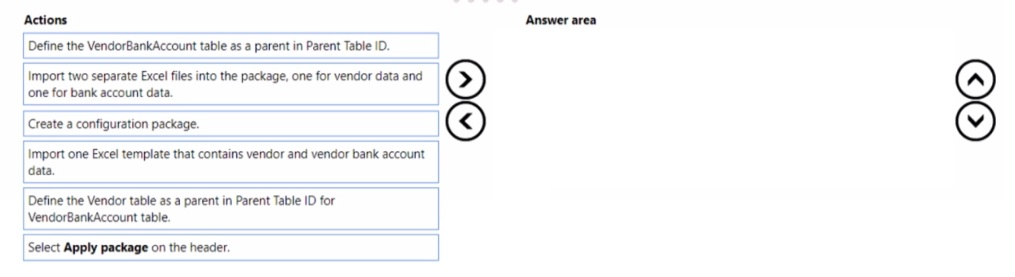
You set up a new company for a client. The client provides you with a Microsoft Excel file that contains master data for vendors and vendor bank accounts details. You need to import vendor master data and relevant bank account details by using a configuration package. Which four actions should you perform in sequence?
To answer, move the appropriate actions from the list of actions to the answer area and arrange them in the correct order.
Show answerHide answer

Explanation


Explanation:

This question tests the sequential process of using RapidStart Services to import complex, related master data into Business Central. You must establish a relationship between the primary entity (Vendor) and its child records (Bank Accounts) to ensure data integrity during the import.

βœ… Correct Option: Sequential Steps

Create a configuration package: You must first initialize the container that holds the table definitions and the logic for the data migration.
Import one Excel template: Instead of managing multiple files, Business Central allows you to import a single multi-sheet Excel workbook where each sheet corresponds to a table in the configuration package.
Define Parent Table ID: This is a critical step for relational data. By setting the Vendor table as the parent for the Vendor Bank Account table, you ensure that the system validates the existence of the vendor before attempting to attach a bank account to it.
Select Apply package: This final step moves the data from the temporary "buffer" tables into the actual database tables (Vendor and Vendor Bank Account), making the records live in the system.

❌ Incorrect options:

Import two separate Excel files into the package
While importing separate files is technically possible, it is not the most efficient or standard method for related master data. Using a single template containing both sets of data simplifies the mapping process and reduces the risk of mismatched vendor numbers between files.

Define the VendorBankAccount table as a parent
This is logically reversed. A bank account cannot exist in Business Central without being attached to a primary Vendor record. Setting the bank account as the parent would cause the import to fail because the system would look for "parent" bank account records that do not exist independently.

πŸ”§ Reference:
β†’ Import Customer and Vendor Data in Microsoft Learn: Configuration Packages
This official documentation confirms the workflow for importing related tables and the importance of defining parent-child relationships in configuration packages.
Question 39
A company implements Dynamics 365 Business Central.
The company must import the following opening balances into Dynamics 365 Business Central:

β€’ Item
β€’ Bank
β€’ Customer

You need to implement tools to import opening balances.
Which components should you use? To answer, drag the appropriate components to the correct opening balances. Each component may be used once, more than once, or not at all. You may need to drag the split bar between panes or scroll to view content.
NOTE: Each correct selection is worth one point.

Show answerHide answer

Explanation


Explanation:

This question tests knowledge of the correct journals and tools used to import different types of opening balances during a Business Central implementation. Each balance type β€” inventory items, bank accounts, and customer ledgers β€” requires a specific component. Choosing the wrong journal results in data being posted to incorrect ledgers or system errors.

βœ… Correct Answers:

➀ Item β†’ Item Journal
The Item Journal is the designated tool for entering opening inventory balances in Business Central. It posts directly to the Item Ledger and adjusts quantities and values for each inventory item. Using any other journal for item balances would bypass inventory tracking and produce incorrect stock valuation entries.

➀ Bank β†’ General Journal
Bank opening balances are entered through the General Journal by posting directly to the Bank Account Ledger. This creates the initial balance on the bank account before reconciliation begins. The General Journal provides the flexibility to offset the entry against a designated opening balance G/L account during migration.

➀ Customer β†’ General Journal
Customer opening balances (outstanding receivables) are posted using the General Journal, specifically targeting customer ledger entries. This allows each outstanding invoice or balance to be recorded against the customer account. The offsetting entry is typically posted to a migration or suspense G/L account during the go-live process.

❌ Incorrect Answers:

➀ Bank account reconciliation (for Item)
Bank account reconciliation is used to match posted bank transactions with bank statements β€” not to import opening balances. It has no functionality for recording inventory quantities or values, making it entirely unsuitable for setting up item opening balances during implementation.

➀ Bank account reconciliation (for Customer)
This component is specific to bank account matching workflows and cannot post to customer ledger entries. Customer balances require journal entries that create proper receivable records. Using reconciliation here would not create any customer ledger entries or reflect outstanding receivables correctly.

➀ Item journal (for Bank or Customer)
The Item Journal is exclusively designed for inventory-related transactions. It posts only to Item and Value Ledger entries. It cannot interact with bank accounts or customer accounts, so using it for Bank or Customer opening balances would either cause an error or result in completely misallocated financial data.

πŸ”§ Reference:
β†’ Item Journal – Microsoft Learn
Confirms that Item Journal is the correct tool for posting inventory opening balances and adjustments.

β†’ Work with general journals – Microsoft Learn
Confirms General Journal usage for posting opening balances to bank accounts and customer ledgers during migration.

β†’ Import business data from other finance systems – Microsoft Learn
Explains recommended components and methods for importing various types of opening balances in a Business Central implementation.
Question 40 Choose 1
You need to transfer opening balances data into the system.
Solution: Use a configuration package to import the data.
Does the solution meet the goal?
Show answerHide answer

Correct answer: A Yes

Explanation

Explanation

This tests the standard data-migration tool for opening balances in Business Central. Configuration packages (RapidStart) are the supported method to import master data and opening balance transactions (G/L, customers, vendors, items) into journals and then post them.

βœ”οΈ Correct Option: Yes
Configuration packages let you export/import tables (e.g., Gen. Journal Line, Customer, Vendor, Item Journal) via Excel, validate the data, apply it to the target company, and then post the resulting journals to create opening balances. Microsoft’s documentation explicitly describes using configuration packages (and the related actions like Create G/L Acct. Journal Lines) to bring in opening balances and post them.

❌ Incorrect Option: No
Saying β€œNo” would imply configuration packages cannot be used for opening balances, which contradicts the product design. RapidStart configuration packages are built for initial data load, including importing opening balance journal lines for G/L, customers, vendors, and inventory, then posting them to create ledger entries.

πŸ”§ Reference
β†’ Apply Company Configuration Packages – Business Central | Microsoft Learn – describes creating journal lines for G/L accounts (and the same applies to customers, vendors, items) as part of importing opening balances, then posting them.

β†’ Import business data from other finance systems – Business Central | Microsoft Learn – confirms that Business Central provides templates and import from Excel via configuration packages to transfer customer, vendor, inventory, and bank account data when setting up a new company.
Full mock exam

Sit the MB-800 exam before exam day

Full-length mocks with the same number of questions and the same time limit as the real MB-800 exam. Every attempt draws a new set of questions from the full bank, so you can keep going until you pass comfortably.

Get full MB-800 mock exam
  • 65questions per mock
  • 105 mintime limit
  • 234questions in the bank
  • Newmock on every attempt