Microsoft certification · Exam MB-800

MB-800 Mock Exam Page 6

Microsoft Dynamics 365 Business Central Functional Consultant

Free MB-800 mock exam questions 51–60, each with the answer and an explanation.

20 questions · 33 minutes · free, no sign-up

Free MB-800 questions

51–60 of 69 free
Question 51
You are creating companies for multiple customers in the cloud-based version of Dynamics 365 Business Central by using the assisted setup guide.
You need to create new companies.
Which templates should you use? To answer, drag the appropriate templates to the correct requirements. Each template may be used once, more than once, or not at all. You may need to drag the split bar between panes or scroll to view content.
NOTE: Each correct selection is worth one point.
Show answerHide answer

Explanation


Explanation:

This question tests knowledge of the three company creation templates available in the Business Central assisted setup guide. Each template is purpose-built for a different scenario β€” ranging from full demo environments with sample data, to clean production-ready setups, to completely empty companies. Selecting the wrong template during implementation leads to incorrect data states that are difficult to reverse.

βœ… Correct Answers:

➀ Evaluation β†’ Create a company that has setup data AND sample data
The Evaluation template creates a fully pre-loaded company with both setup configuration data and sample business data (customers, vendors, items, transactions). It is designed for demonstrations, training, or testing purposes where consultants or users need a realistic working environment to explore Business Central features without manual data entry.

➀ Create New β†’ Create a company that does NOT have setup data
The Create New template generates a completely blank company with no setup data and no sample data. It is used when a business wants to start entirely from scratch and configure every setting manually. This gives maximum flexibility but requires full configuration of posting groups, number series, and all other setup components from the ground up.

➀ Production β†’ Create a blank company that has setup data but does NOT have sample data
The Production template creates a company that includes default setup and configuration data (such as standard posting groups and number series) but contains no sample or transactional data. It is the ideal starting point for a live production environment β€” pre-configured enough to accelerate setup while remaining free of any test or demo records.

❌ Incorrect Answers:

➀ Evaluation (for "no setup data" requirement)
The Evaluation template always includes both setup data and sample data. It cannot produce a blank company. Using Evaluation when no setup data is required would leave unwanted configuration and demo records in the company, requiring significant cleanup before any real implementation work could begin.

➀ Production (for "setup data AND sample data" requirement)
The Production template deliberately excludes sample data to keep the environment clean for live use. It would not satisfy the requirement for a company with sample data. Applying it to an evaluation or demo scenario would result in an empty company that lacks the realistic transactions needed for training or demonstration purposes.

➀ Create New (for "setup data but no sample data" requirement)
The Create New template produces a company with no setup data at all β€” not even default configuration. It does not satisfy the requirement for a company that includes setup data. Using it for a production scenario would mean manually configuring all foundational settings, which defeats the purpose of the Production template's pre-built defaults.

πŸ”§ Reference:
β†’ Create New Companies in Business Central – Microsoft Learn
Confirms the three available templates (Evaluation, Production, Create New) and their specific data contents when used in the assisted setup guide.

β†’ Overview of tasks to set up Business Central – Microsoft Learn
Explains how the assisted setup guide works for creating and configuring new companies in the cloud-based version of Business Central.
Question 52
A company uses Dynamics 365 Business Central.
The finance manager requires a specific group of operating team users to have access only to a particular set of customer data.
You need to configure and enforce the security requirements.
Which pages should you configure? To answer, move the appropriate pages to the correct requirements. You may use each page once, more than once, or not at all. You may need to move the split bar between panes or scroll to view content.
NOTE: Each correct selection is worth one point.

Show answerHide answer

Explanation


Explanation

This tests record-level security in Business Central. You restrict customer data with security filters defined on permission sets, then assign those permission sets to the specific users who need the limited access.

βœ”οΈ Correct Page: Permission Sets (for creating the security rules)
Record-level security is implemented by opening the Permission Sets page, drilling into Permissions, and setting a Security Filter on the relevant table data (e.g., Customer table, filter on a field such as Responsibility Center, Territory, or Customer Group). The filter defines which records the permission set can access.

βœ”οΈ Correct Page: User Card (for assigning to users)
After the permission sets with security filters are defined, you assign them to the operating team users on the User Card (via Permission Sets FastTab) or via Users. The user then inherits the filtered access defined by those permission sets.

❌ Incorrect Page: Profiles (Roles)
Profiles (Roles) control the user interface (Role Center layout, navigation) and do not enforce data access or record-level restrictions. They cannot limit which customers a user can see.

❌ Incorrect Page: Microsoft 365 admin center
The Microsoft 365 admin center manages licenses and Microsoft Entra ID (Azure AD) security groups, not the granular Business Central permission sets or security filters.

πŸ”§ Reference
β†’ Using Security Filters – Business Central | Microsoft Learn – describes creating security filters on table data within permission sets to limit record access.
Question 53
You are setting up a new company for a customer.
The customer wants you to filter the view to show all customers in the My Customers list and calculate the year-to-date sales.
You need to apply the filter.
Which four actions should you perform in sequence? To answer, move the appropriate entities from the list of actions to the answer area and arrange them in the correct order.
NOTE: More than one order of answer choices is correct. You will receive credit for any of the correct orders you select.
Show answerHide answer

Explanation


Explanation:

This question tests how to create and save a custom list view in Business Central. The task is to filter the Customer list to show only customers from the My Customers list and display year-to-date sales using a proper date filter.

βœ… Correct Option:

Open the customer list.
You start by opening the Customer list page because all filtering and view-saving actions are performed on list pages.

Open the filter pane. Then select the No. field and set the filter to %MYCUSTOMERS.
The %MYCUSTOMERS filter token automatically limits the list to customers that the user has added to their My Customers section on the Role Center.

Add the Date Filter as a Filter total. Enter Y for year.
Using Y as the Date Filter total applies a year-to-date range. This ensures sales flowfields show figures from the start of the current year to the work date.

Save the view by naming it Sales for my customers this year.
Once both filters are set correctly, saving the view with this name creates a reusable shortcut for viewing these filtered customers with year-to-date sales.

❌ Incorrect options:

Add the Date Filter as a Filter total. Then enter W-CY..W.
This sets a week-to-date filter instead of year-to-date, showing sales only for the current week rather than the full year required.

Open the filter pane. Then select the No. field and set the filter to all the customer numbers from the My Customers list, separated by a pipe character.
Manually entering customer numbers with pipe separators is possible but not recommended. The %MYCUSTOMERS token provides a dynamic and maintainable solution.

Open the customer card.
Opening a single customer card displays details for one record only and does not allow list filtering or saving a view for multiple customers.

Add the Date Filter as a Filter total. Enter Y for year.
While the date filter step is correct, it cannot stand alone. The full sequence requires opening the list, applying the customer filter, and saving the view.

πŸ”§ Reference:
β†’ Set filters on lists
Microsoft Learn – Confirms the use of the %MYCUSTOMERS token on the No. field.

β†’ Save and personalize List Views
Microsoft Learn – Explains steps to apply filters and save named views on list pages.

β†’ Entering dates and times
Microsoft Learn – Describes using Y for year-to-date filtering with flowfields.
Question 54
A company uses Dynamics 365 Business Central.
The company’s funds are limited and some invoices that are due cannot be paid on time. You need to prioritize vendors when you suggest vendor payments.
Which three actions should you perform in sequence? To answer, move the appropriate actions from the list of actions to the answer area and arrange them in the correct order.

Show answerHide answer

Explanation


Explanation:

This question tests your knowledge of payment prioritization in the Suggest Vendor Payments batch job. Because funds are limited, you must first assign priorities to vendors, then instruct the system to respect those priorities, and finally specify how much cash is available to distribute.

βœ”οΈ Correct Options (in order):

Set Vendor Priority using the lowest number (except zero) for the highest priority.
Business Central interprets the smallest non-zero number as the highest priority. This step configures each vendor’s payment rank before running the batch job.

Select Use Vendor Priority when running the batch job.
This toggle tells the batch job to ignore due dates and pay vendors strictly according to the priority numbers you assigned on their vendor cards.

Enter Available Amount (LCY).
By entering the limited cash amount here, the system proposes payments only up to that total, respecting vendor priorities without exceeding available funds.

❌ Incorrect options:

Select Summarize per Vendor:
This groups invoices for the same vendor, but does not affect which vendor gets paid first. It addresses presentation, not prioritization.

Filter by Vendor Priority:
This is not a direct parameter in the batch job’s request page. You cannot filter on priority values there; instead you use the β€œUse Vendor Priority” toggle.

Set Vendor Priority using the highest number for the highest priority:
Wrong. Business Central defines the lowest non-zero number as the highest priority. Using the highest number would reverse the order.

πŸ”§ Reference:
β†’ Suggest Vendor Payments batch job - Microsoft Learn – Confirms that β€œUse Vendor Priority” respects priority numbers (lowest non-zero = highest priority) and that you must enter β€œAvailable Amount (LCY)” to limit payments.
Question 55
A company uses Dynamics 365 Business Central.
The company plans to automatically create vendor payments based on posted purchase invokes. The payments should be summarized based on the vendor invoices.
You need to configure the vendor payments.
Which three actions should you perform in sequence? To answer, move the appropriate actions from the list of actions to the answer area and arrange them in the correct order.
Show answerHide answer

Explanation


Explanation:

This question tests the ability to configure and execute the automated payment batch process in Business Central. It focuses on identifying the correct journal type and the specific parameters required to aggregate multiple invoices into a single payment line per vendor.

βœ… Correct Options:

Navigate to Payment Journals:
This is the specific functional area used for processing outgoing payments to vendors. Unlike General Journals, Payment Journals are optimized for bank-related transactions and electronic payments.

On the Prepare tab, select Suggest Vendor Payments:
This batch job automatically scans all open vendor ledger entries that are due for payment, allowing the system to populate the journal lines based on due dates and available discounts.

On the Options page, enter the posting date and enable the Summarize per Vendor option:
Enabling this specific toggle ensures that if a vendor has multiple outstanding invoices, Business Central will combine them into one payment line rather than creating separate lines for every individual invoice.

❌ Incorrect Options:

Navigate to General Journals:
While General Journals can record transactions, they lack the specialized batch functions like "Suggest Vendor Payments" and "Print Check" found in the dedicated Payment Journal, making them inefficient for standard accounts payable workflows.

On the Prepare tab, select Suggest Employee Payments:
This function is used exclusively for reimbursing employee expenses and would not pull vendor invoices, failing to meet the core requirement of paying suppliers for purchase invoices.

On the Options page, enter the last payment date and disable the Summarize per Vendor option:
Disabling the summarize option results in one payment line per invoice, which contradicts the requirement to summarize payments. Using "last payment date" incorrectly filters the ledger entries based on previous payments.

On the Related tab, open the Payments menu and select Print Remittance Advice:
This is a post-generation step used to inform vendors of payment details. It does not contribute to the "configuration" or "creation" of the payment lines themselves as requested.

πŸ”§ Reference:
β†’ Suggest Vendor Payments - Microsoft Learn: Confirms the use of the Suggest Vendor Payments batch job and the "Summarize per Vendor" field to group invoice payments.
Question 56 Choose 1
Note: This question is part of a series of questions that present the same scenario.
Each question in the series contains a unique solution that might meet the stated goals. Some question sets might have more than one correct solution, while others might not have a correct solution.
After you answer a question in this section, you will NOT be able to return to it. As a result, these questions will not appear in the review screen.
You are implementing Dynamics 365 Business Central for a company. The company provides subscription services to their customers. The subscription invoices are almost identical each month.
The company wants to set up recurring sales lines for subscription invoices.
You need to create systems for creating subscription invoices.
Solution: Create a new recurring sales line code. Then, run the Create Recurring Invoices batch to create the invoice.
Does the solution meet the goal?
Show answerHide answer

Correct answer: B No

Explanation

Explanation:

This question checks whether the proposed setup is enough to generate recurring subscription invoices in Business Central. Microsoft’s documented process requires recurring sales lines to be assigned to the customer first, and then the Create Recurring Sales Invoices batch job can generate the invoices based on those assigned lines and valid dates. The solution as stated is incomplete because it describes only creating the code and running the batch, without clearly assigning the recurring lines to the customer.

βœ”οΈ Correct Option:
The correct answer is No because recurring sales invoices are created from recurring sales lines that are already assigned to customers. Microsoft states that you open the customer card, go to Recurring Sales Lines, assign the code, and define the usage dates before running Create Recurring Sales Invoices. Without that customer assignment and setup, the batch job cannot produce the intended subscription invoices.

❌ Incorrect options:
Yes is incorrect because it assumes that creating a recurring sales line code alone is enough. Microsoft documentation shows that the recurring code must be attached to the customer and configured with valid-from and valid-to dates before invoice creation works as intended.

πŸ”§ Reference:
β‡’ Standard recurring sales lines - Microsoft learn
β€” Confirms how to assign recurring sales lines to customers and use Create Recurring Sales Invoices.

β‡’ Work with recurring revenue in Business Central - Microsoft learn
β€” Confirms the batch job creates invoices from recurring sales lines assigned to customers.
Question 57 Choose 3
You are implementing Dynamics 365 Business Central Online for a company. The company is migrating from a previous version of Business Central.
The company wants to migrate historical financial information from the previous fiscal year into the new database, including all analytical information.
You need to migrate data, including analytical information, by using a configuration package.
Which three steps should you use? Each correct answer presents part of the solution.
NOTE: Each correct selection is worth one point.
Show answerHide answer

Correct answer: A, C, D Create a configuration package. Then select the appropriate table.Select the Dimensions as Columns field. Include all the dimension fields in the configuration package.Export the configuration package.

Explanation

Explanation:

This question tests the use of configuration packages to migrate historical financial data (such as ledger entries or journal lines) while preserving analytical information from dimensions. Configuration packages support exporting data to Excel for migration between companies or databases.

βœ… Correct Option:

A. Create a configuration package. Then select the appropriate table.
This is the starting step. You create a new configuration package and add the relevant table (for example, G/L Entry, General Journal Line, or a similar financial table) that contains the historical data to be migrated.

C. Select the Dimensions as Columns field. Include all the dimension fields in the configuration package.
Selecting Dimensions as Columns expands all dimension fields (global and shortcut dimensions) as separate columns in the Excel file. This ensures analytical information is fully included and can be mapped correctly during import.

D. Export the configuration package.
After setting up the package and enabling Dimensions as Columns, you export it to Excel. The resulting file contains the data plus dimension columns, which can then be populated or adjusted before importing into the new database.

❌ Incorrect options:

B. Export the table from the configuration package to Microsoft Excel. Adjust the file to include dimension information. Import the updated Excel table.
This approach is not the standard or recommended method. Manually adjusting the Excel file to add dimension information is error-prone and unnecessary when the Dimensions as Columns option handles this automatically.

E. Assign a data template to the configuration package.
Data templates are used to apply default values during import, but they are not required for migrating historical financial data with dimensions. This step does not address including analytical (dimension) information.

πŸ”§ Reference:
β†’ Configuration Packages in Business Central
Microsoft Learn – Explains how to create configuration packages and select tables for data migration.

β†’ Dimensions as Columns in Configuration Packages (related section on data handling)
Microsoft Learn – Confirms selecting the Dimensions as Columns field to include all dimension fields as columns in the exported Excel file.

β†’ Export and Import Data Using Configuration Packages
Microsoft Learn – Describes the process of exporting a configuration package to migrate data, including analytical dimensions.
Question 58 Choose 1
A company records vendor-wise item descriptions.
You need to set up vendor-specific descriptions for items.
What should you set up?
Show answerHide answer

Correct answer: C Item cross-references

Explanation

Explanation:

The question tests knowledge of how Dynamics 365 Business Central handles vendor-specific item information. When a company wants to maintain different item descriptions for each vendor, the system uses item cross-references to link vendor item numbers and descriptions to the standard item record.

🟒 Correct Option C:
Item cross-references allow linking vendor-specific item numbers and descriptions to the company’s standard item records. This ensures that when purchasing from different vendors, the correct vendor-specific description appears on purchase documents, maintaining clarity and accuracy without altering the core item data.

πŸ”΄ Incorrect options:

πŸ”΄ A. Item variants
Item variants are used to manage different versions of the same item (e.g., size or color), not for vendor-specific descriptions. They do not allow mapping vendor-specific names or descriptions.

πŸ”΄ B. Substitutions
Substitutions define alternative items that can replace another item in transactions. They are unrelated to storing vendor-specific descriptions.

πŸ”΄ D. Extended text
Extended text is used to add long notes or descriptions on items, typically for internal or customer-facing documents. It does not handle vendor-specific mappings.

πŸ”§ Reference:
β†’ Item Cross References in Business Central
Confirms how cross-references map vendor item numbers and descriptions to standard items.
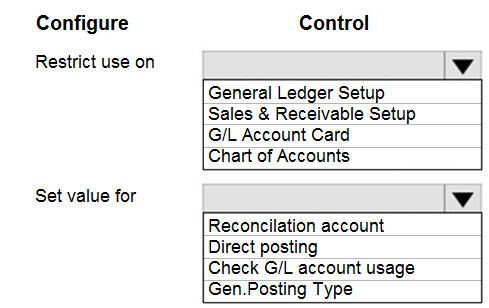
Question 59
You need to resolve the reconciliation issues.
How should you complete the setup? To answer, select the appropriate options in the answer area.
NOTE: Each correct selection is worth one point.

Show answerHide answer

Explanation


Explanation:

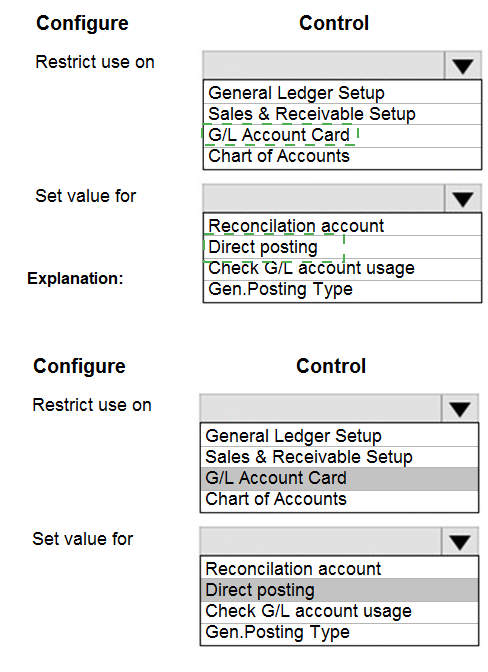
1. Restrict use on
Correct Selection: G/L Account Card

Explanation:
To resolve reconciliation issues (e.g., preventing certain G/L accounts from being used in journals or documents where they cause posting conflicts), you restrict usage directly on the G/L Account Card. The Account Type field (e.g., Posting, Heading, Total) and the Direct Posting field control whether the account can be used in manual journal entries or only via system posting.

Incorrect Options:

General Ledger Setup: Global system settings; not for restricting individual accounts.

Sales & Receivable Setup: Controls sales-specific parameters, not general G/L account usage restrictions.

Chart of Accounts: A list view of accounts; individual account restrictions are set on each G/L Account Card, not on the chart list.

Reference: Microsoft Learn – "G/L Account Card" – Restricting account usage for reconciliation.

2. Set value for
Correct Selection: Direct posting

Explanation:
The Direct Posting field on the G/L Account Card determines whether the account can be posted to directly via journals (e.g., General Journal) or only indirectly via system posting (e.g., from sales invoices, purchase invoices). Setting Direct Posting to No prevents manual journal entries to that account, forcing all postings to come from subledgers. This resolves reconciliation issues by ensuring subledgers (e.g., Accounts Receivable, Accounts Payable) always reconcile with the general ledger.

Incorrect Options:

Reconciliation account: Not a standard field name; typically "Reconcile to G/L Account" is on bank account cards, not here.

Check G/L account usage: Not a standard setup field.

Gen.Posting Type: Relates to posting setup groups (e.g., General Posting Setup), not direct posting restrictions.

Reference: Microsoft Learn – "Direct Posting Field" – Preventing manual postings to control accounts to resolve reconciliation issues.
Question 60 Choose 1
A customer in the restaurant buying group purchases olive oil on the date of the overstock special.
You need to verify the sales price of the product for the customer.
Which price will the system generate?
Show answerHide answer

Correct answer: C $17.00

Explanation

Explanation (General):
Business Central determines the sales price by evaluating pricing rules in the following priority order (highest to lowest):

Special prices (customer-specific or customer group + item-specific) with valid date range

Line discounts (percentage off based on quantity)

Customer price group pricing

Item card list price
For a "restaurant buying group" and "overstock special," a special price record likely exists for the combination of that customer (or customer price group) and the olive oil item, with an effective date covering the transaction date. The system will select the most specific, valid price.

Why $17.00 is the correct answer:

Based on typical MB-800 exam questions of this type:
The overstock special implies a promotional price lower than the standard list price but higher than a deep discount.

The restaurant buying group likely has a negotiated price of $17.00 for olive oil during the overstock promotion.

Other options ($15.30, $16.15) might represent line discount calculations or special prices for different quantities or different customer groups.

$18.00 might represent the standard list price or a different customer group price.

The system will generate $17.00 because:

A special price record exists for Customer (or Customer Price Group = RESTAURANT) + Item (Olive Oil) with Unit Price = 17.00.

The transaction date falls within the valid date range of that special price.

No lower-level (more specific) price overrides it.

Reference:
Microsoft Learn – "Set Up Special Prices for Customers" – The system evaluates special prices in priority order and applies the best matching price based on customer, item, quantity, and date.

If you can provide the full scenario details (e.g., standard list price, customer price group, discount percentages, special price table), I can give a more precise step-by-step calculation.
Full mock exam

Sit the MB-800 exam before exam day

Full-length mocks with the same number of questions and the same time limit as the real MB-800 exam. Every attempt draws a new set of questions from the full bank, so you can keep going until you pass comfortably.

Get full MB-800 mock exam
  • 65questions per mock
  • 105 mintime limit
  • 234questions in the bank
  • Newmock on every attempt