You need to configure telemetry for the SaaS tenant and test whether the ingested signals
are displayed.
Which three actions should you perform in sequence? To answer, move the appropriate actions from the list of actions to the answer area and arrange them in the correct order.
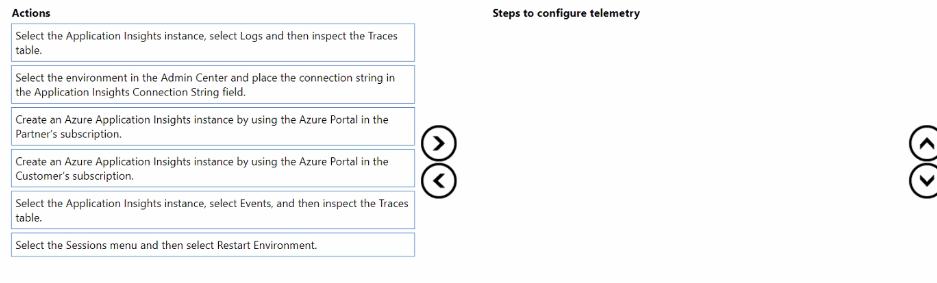
Which three actions should you perform in sequence? To answer, move the appropriate actions from the list of actions to the answer area and arrange them in the correct order.
Show answerHide answer
Explanation
Explanation:
Configuring telemetry for a SaaS (Software-as-a-Service) Business Central tenant involves a specific sequence of steps across different administrative portals.
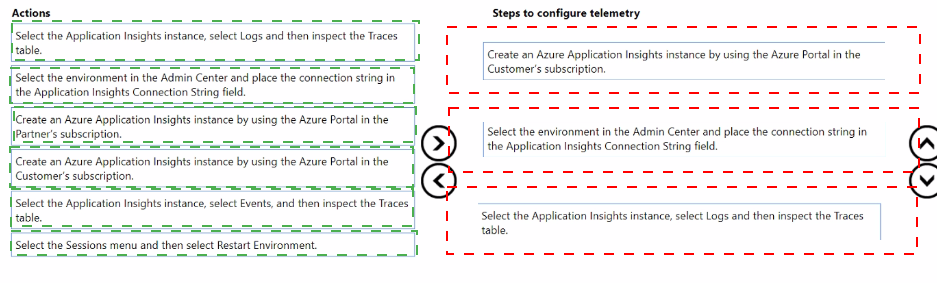
Step 1: Create an Azure Application Insights instance by using the Azure Portal in the Partner’s subscription.
Reasoning: The foundational step is to create the destination where telemetry data will be sent. For a SaaS tenant, the partner (the developer or ISV creating the extension) is responsible for providing the Application Insights resource. This is created in the partner's Azure subscription, not the customer's, because the partner typically analyzes the telemetry for their extension's performance and usage.
Step 2: Select the environment in the Admin Center and place the connection string in the Application Insights Connection String field.
Reasoning: After the Application Insights resource exists, you must configure the Business Central environment to send data to it. This is done in the Business Central Admin Center. You select the specific SaaS environment and paste the "Connection String" from the Application Insights resource into the designated field. This action links the environment to the telemetry data sink.
Step 3: Select the Application Insights instance, select Logs, and then inspect the Traces table.
Reasoning: This is the correct method to verify that telemetry is being ingested. After performing actions in Business Central (like using the extension), you go to the Application Insights resource in the Azure portal, open the Logs query interface (not the "Events" view), and run a query against the traces table. This table contains the detailed log traces sent from Business Central, confirming the configuration is working. The "Sessions menu" and "Restart Environment" are not part of this process.
Reference:
Microsoft Learn Documentation: Enabling Application Insights for an Environment
The official documentation outlines this exact process: creating an Application Insights resource and then configuring the environment in the admin center with the connection string. It also directs users to use the Logs experience in Application Insights to query data, specifically mentioning the traces table.