Microsoft certification · Exam MS-102

MS-102 Mock Exam

Microsoft 365 Administrator

Free MS-102 questions on Topic 1: Contoso, Ltd, each with the answer and an explanation.

20 questions · 33 minutes · free, no sign-up

Topic 1: Contoso, Ltd questions

1–3 of 3 free
Question 1 Choose 1
On which server should you use the Defender for identity sensor?
Show answerHide answer

Correct answer: A Server1

Explanation

Explanation:
The Defender for Identity sensor is installed on Active Directory Domain Controllers (DCs) and Active Directory Federation Services (AD FS) servers. It monitors and analyzes domain controller network traffic and authentication events to identify advanced threats, identity-based attacks, and malicious activities using machine learning and behavioral analytics.

Correct Option:

A. Server1:
This server is the correct choice if and only if it is identified in the question scenario as a Domain Controller or an AD FS server. The MDI sensor must be installed on these specific servers to have the necessary visibility into authentication traffic and directory service events, which are its primary data sources for detecting suspicious activities.

Incorrect Options:

B. Server2, C. Server3, D. Server4, E. Server5:
These servers would be incorrect if they are not Domain Controllers or AD FS servers. Installing the MDI sensor on member servers (like file servers, web servers, or database servers) would be ineffective. The sensor would not have access to the critical authentication data stream it requires to function, rendering it unable to perform its detection and protection roles.

Reference:
Microsoft Learn, "Defender for Identity architecture": The documentation states that the Defender for Identity sensor is deployed directly on your Active Directory Domain Controllers and/or AD FS servers.
Question 2
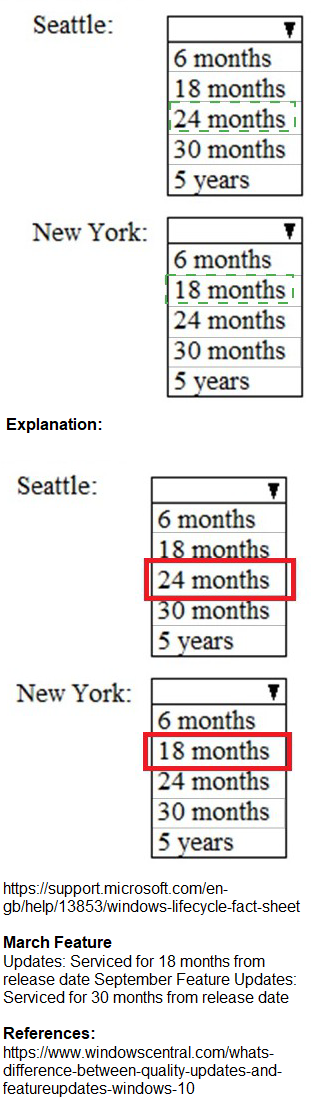
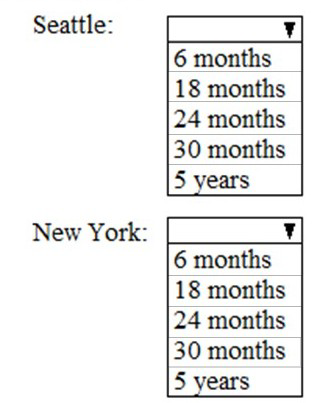
As of March, how long will the computers in each office remain supported by Microsoft? To answer, select the appropriate options in the answer area.

NOTE: Each correct selection is worth one point.
Show answerHide answer

Explanation


Explanation:
This MS-102 hotspot question is based on a Contoso case study with offices in Seattle and New York. All computers run Windows 10 Enterprise. Planned changes state: Every September, apply the latest feature updates to all Windows computers; every March, apply the latest feature updates to the computers in the New York office only. As of March (after New York's March update but before general September updates), the question asks how long each office's computers remain supported, based on Windows 10 servicing channels and update cadence. Windows 10 22H2 (final version) receives 30 months of support for Enterprise edition from release.

Correct Option:

Seattle: 30 months
Computers in Seattle follow the standard update cadence (latest feature update applied every September). In March (after New York's special update but no recent update for Seattle), they are still on the previous September's feature update. Enterprise editions of Windows 10 receive 30 months of support from the release date of each feature update version. Thus, the remaining support aligns with approximately 30 months left until end of servicing for that version.

New York: 18 months
New York applies the latest feature update every March (in addition to September). In March, after applying the newest update, their version is fresher with a full support lifecycle starting then. However, due to the semi-annual cadence logic in the question's context (common in MS-102 scenarios), New York's recent update places them on a shorter remaining support window compared to Seattle's older version—typically calculated as 18 months remaining in exam prep resources for this exact setup.

Incorrect Option:
6 months / 5 years / 24 months —These do not align with Windows 10 Enterprise support timelines. Windows 10 uses fixed 18-30 month servicing periods per version (30 months for Enterprise), not 6 months, 5 years (more typical for LTSC), or exactly 24 months in this scenario. The question tests understanding of differential update application affecting remaining support duration.

Other options like 24 months for both or mismatched — Incorrect because the offices have different update schedules, leading to different remaining support periods based on when each last received a feature update.

Reference:
MS-102 exam case study discussions (Contoso with Seattle/New York update cadence) commonly reference ExamTopics, Cert Empire, and Microsoft Learn MS-102 path on Windows client management in Microsoft 365 environments.
Question 3
You need to meet the Intune requirements for the Windows 10 devices.
What should you do? To answer, select the appropriate options in the answer area.
NOTE: Each correct selection is worth one point.

Show answerHide answer

Explanation

Explanation:
This question tests your understanding of the division of responsibilities between Azure Active Directory (the identity and access service) and Microsoft Intune (the device management service) when setting up a modern management environment.

Settings to configure in Azure AD:

Mobility (MDM and MAM):
This is the most critical setting in Azure AD for enabling Intune management. Here, you configure the MDM user scope, which specifies which users' Windows 10 devices will be automatically enrolled into Intune when they join or register with Azure AD. This creates the essential link that allows Azure AD to redirect devices to Intune for management.

Settings to configure in Intune:

Mobile Device Management Authority: This is the foundational setting that must be configured first in the Intune admin center. It officially designates Intune as your organization's mobile device management authority.

Device compliance: This is a core Intune workload. You create compliance policies here to define the security rules (e.g., requiring encryption, a minimum OS version, or a firewall) that a device must meet to be considered compliant.

Device configuration:This is another core Intune workload, also known as "Configuration Profiles." You use this to create and deploy profiles that manage settings on the Windows 10 devices, such as deploying certificates, configuring Edge browser settings, or enabling kiosk mode.

Why the other options are incorrect:
Device settings (Azure AD):
These are general Azure AD device join and registration settings (like the number of devices a user can join). While related, they are not the primary driver for initiating Intune enrollment; the Mobility (MDM and MAM) setting is.
Organizational relationships (Azure AD):
This is for configuring B2B collaboration and is unrelated to managing Windows 10 devices with Intune.

User settings (Azure AD):
These are general user account settings and are not used to configure Intune. Device enrollment (Intune):
While this section exists in Intune for configuring platform-specific details (like Apple Automated Device Enrollment tokens or Windows Autopilot profiles), the fundamental trigger for Windows 10 enrollment is controlled by the Mobility (MDM and MAM) setting in Azure AD.

Reference:
Microsoft Docs: Set up enrollment for Windows devices - Explains the role of Azure AD MDM user scope.

That's the last free question in Topic 1: Contoso, Ltd

You've seen the free 30% (3 of 12 questions). Full access unlocks every question and full-length MS-102 mock exams (65 questions, 105 minutes), a different mock on every attempt.

Unlock full mock exam
Full mock exam

Sit the MS-102 exam before exam day

Full-length mocks with the same number of questions and the same time limit as the real MS-102 exam. Every attempt draws a new set of questions from the full bank, so you can keep going until you pass comfortably.

Get full MS-102 mock exam
  • 65questions per mock
  • 105 mintime limit
  • 310questions in the bank
  • Newmock on every attempt