Microsoft certification · Exam AB-410

AB-410 Mock Exam Page 3

Building Intelligent Applications

Free AB-410 questions on A. Datum Corporation, each with the answer and an explanation.

20 questions · 40 minutes · free, no sign-up

A. Datum Corporation questions

21–30 of 39 free
Question 21

You are troubleshooting multiple production Power Automate cloud flows for a company. The cloud flows connect to Microsoft Dataverse by using Microsoft Entra ID authentication. You analyze the following issues:

• A flow that has not executed for more than 90 days fails when performing actions that rely on an existing connection configuration.

• A flow fails for records containing incomplete data.

You need to resolve flow failures.

Which actions should you perform? To answer, move the appropriate actions to the correct issues. You may use each action once, more than once, or not at all. You may need to move the split bar between panes or scroll to view content.

NOTE: Each correct select is worth one point.

Show answerHide answer

Explanation

Explanation:
Power Automate cloud flows can fail because of authentication problems or invalid input data. Connections that rely on Microsoft Entra ID authentication may require reauthentication when their authorization becomes invalid or expires. Separately, incomplete data can cause flow actions to fail when required fields or values are missing. These issues require different troubleshooting approaches. Reauthenticating the connection restores authorized access to Dataverse, while input validation and condition checks prevent the flow from processing records that do not contain the required information.

Correct Option:

1. Reauthenticate the connection — Correct
This action addresses authentication-related failures caused by an inactive or invalid connection. It is particularly relevant when a flow has remained unused for an extended period and subsequently fails while attempting to access Dataverse through its existing connection configuration.

2. Add input validation or condition checks — Correct
Incomplete data can cause Dataverse actions to fail when required fields are missing or contain null values. Input validation and condition checks help prevent these failures.

Incorrect Options:

1. Configure retry policy — Incorrect
Retry policies control how many times an action is attempted again when a temporary failure occurs. They are useful for handling transient network errors, service interruptions, and throttling responses. However, retrying an action does not resolve an expired authentication token or missing input values. If the Dataverse connection is no longer authorized, the connection must be reauthenticated. Similarly, incomplete data must be validated or handled before the affected action executes. Therefore, retry policies do not directly address either underlying issue.

2. Limit concurrency in trigger settings — Incorrect
Concurrency control determines how many flow runs can execute simultaneously. Limiting concurrency is useful when flows process shared resources, require sequential execution, or need to avoid conflicts caused by parallel processing. However, it does not restore expired Microsoft Entra ID authentication or correct incomplete input data. Even when only one flow instance executes at a time, an invalid connection or missing required field can still cause failure. Therefore, concurrency settings are not appropriate solutions for the two issues described.

Reference:
Microsoft Learn documentation, Troubleshoot a cloud flow, explains how to resolve authentication failures by reconnecting or reauthenticating connections. Microsoft's Power Automate troubleshooting guidance also recommends checking null values, validating inputs, and using conditions to prevent runtime expression failures.
Question 22

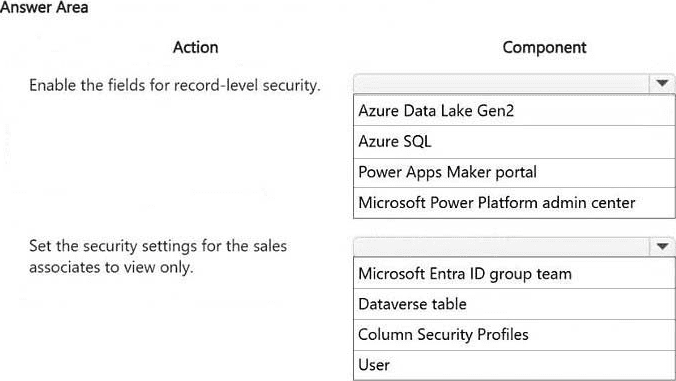
A customer uses Power Apps to view and maintain contacts stored in Microsoft Dataverse.

Several columns must be configured so that sales associates have view-only access to the secured information.

You need to configure the access restrictions.

Which components should you use to enable column-level security and configure read-only access?

Exhibit:

Show answerHide answer

Explanation

Explanation:
Microsoft Dataverse provides column-level security to restrict access to sensitive information stored in individual table columns. To allow sales associates to view secured contact information without modifying it, column security must first be enabled on the relevant columns. A Field Security Profile then controls the permissions granted to users or teams. By enabling Read permission while disabling Create and Update permissions, sales associates can view the secured information but cannot create or modify its values.

Correct Option:

1. Enable column security — Correct
The Enable column security property must be selected for every Dataverse column containing sensitive information.

2. Field Security Profile — Correct
A Field Security Profile defines which users or teams can access secured columns.

3. Read permission — Correct
This configuration allows users to view sensitive contact information without creating or modifying secured column values.

Incorrect Options:

Create permission — Incorrect
Create permission allows users to enter values into secured columns when creating records. It does not provide view-only access. Since sales associates should only view secured information, this permission should remain disabled.

Update permission — Incorrect
Update permission allows users to modify the values stored in secured columns. Enabling it would violate the requirement for view-only access. Therefore, Update permission must remain disabled.

Reference:
Microsoft Learn documentation, Column-level security to control access, explains how Dataverse uses secured columns and Field Security Profiles to control access. Profiles provide Read, Create, and Update permissions, allowing administrators to configure view-only access to sensitive information.
Question 23 Choose 2

You are building a model-driven app that uses a Microsoft Dataverse table named Accounts. Sales representatives use the app to manage customer records.

Sales representatives report that too many records are displayed, including inactive and unrelated accounts where the sales representative isn't the record owner.

You need to ensure only relevant records are displayed for the users.

What are two ways to complete the goal? Each correct answer presents a complete solution. NOTE: Each correct selection is worth one point.

Show answerHide answer

Correct answer: C, E Apply security roles to restrict view access.Configure view filters.

Explanation

Explanation:
In a model-driven Power Apps application, Dataverse security roles and view filters help control which records sales representatives can access and see. Security roles determine record-level access based on privileges and access depth, allowing organizations to restrict records according to ownership and business-unit requirements. View filters provide additional control over displayed records by applying conditions such as active status or record ownership. Combining these approaches ensures that sales representatives see relevant customer accounts while reducing unnecessary and unrelated records.

Correct Option:

C. Apply security roles to restrict view access — Correct

Dataverse security roles control users' access to records through privileges and access levels.

- Configure the appropriate security role for sales representatives.

- Use the User-level access depth for the relevant table privileges when users should access only records they own.

- Configure appropriate sharing and team access where required.

- Ensure users do not receive broader access through other assigned security roles.

This restricts access to unrelated account records and ensures that representatives can access records according to their assigned permissions.

E. Configure view filters — Correct

View filters allow administrators to control which records appear in a model-driven app view by defining specific filtering conditions.

- Apply a filter to display only accounts with an Active status.

- Add ownership-related filtering where appropriate.

- Exclude inactive or unrelated account records from the displayed results.

- Configure the required filters in the Accounts table view.

Combining view filters with Dataverse security roles provides both record-level access control and a focused user experience.

Incorrect Option:

A. Define view columns — Incorrect
View columns determine which fields appear in a view, such as account name, phone number, email address, and owner. They control the information displayed for each record but do not restrict which records users can access. Adding or removing columns cannot exclude inactive accounts or accounts owned by other representatives. Therefore, defining view columns does not satisfy the requirement to display only relevant records.

B. Configure app settings — Incorrect
App settings control application-level behavior, configuration, and user experience. They can help customize how users interact with a model-driven application, but they do not directly establish record ownership restrictions or filter Dataverse records based on their status. Record-level security must be configured through Dataverse security roles, while filtering should be implemented through table views. Consequently, app settings alone cannot meet the requirements.

D. Configure record status columns — Incorrect
Status and Status Reason columns indicate the current state of a Dataverse record, such as Active or Inactive. Although these columns provide the information needed to distinguish active accounts from inactive accounts, simply configuring them does not automatically filter records displayed in a model-driven app. Administrators must apply appropriate view filters to exclude inactive records. Therefore, configuring status columns alone does not accomplish the required record visibility.

Reference:
Microsoft Learn documentation explains that Dataverse security roles control record access through privileges and access levels, while model-driven app views use filters to determine which records appear. Combining record-level security and view filtering provides appropriate access restrictions and improves the relevance of displayed records.
Question 24 Choose 1

You must create a new table to support a new feature for an application.

Records for the table must be associated with a business unit. The table must also be visible when specifying a security role.

You need to configure table ownership.

Which table ownership type should you use?

Show answerHide answer

Correct answer: D User or team-owned.

Explanation

Explanation:
Microsoft Dataverse supports different table ownership types that determine how records are associated with users, teams, or an organization. The requirement is to associate individual records with business units and ensure that the table supports security-role configuration. A user or team-owned table supports record-level ownership and security access based on ownership, teams, and business units. Unlike organization-owned tables, user or team-owned tables provide more granular record-level security, making this ownership type appropriate for the application's requirements.

Correct Option:

D. User or team-owned — Correct

A user or team-owned table allows individual records to be owned by a specific user or team.

- Record ownership: Each record can be assigned to a user or an owner team.

- Business unit association: Records can be associated with business units through their owners and the Dataverse security model.

- Security roles: The table supports security-role privileges with different access levels, including User, Business Unit, Parent: Child Business Units, and Organization.

- Granular security: Administrators can control access to individual records based on ownership and business-unit hierarchy.

This ownership type provides the flexibility required to manage records and configure appropriate security permissions.

Incorrect Options:

A. Organization-owned — Incorrect
Organization-owned tables store records at the organization level rather than assigning individual records to users or teams. Security roles can control access to these records, but the available access levels are generally limited to Organization or None. This ownership type does not provide the granular record ownership and business-unit-based access required by the scenario.

B. None — Incorrect
The None ownership type indicates that a table does not have an owner. It is primarily associated with certain system tables, such as the Privilege table. It does not provide the user or team ownership model needed for assigning records and controlling access through business-unit security levels.

C. Business-owned — Incorrect
Business-owned is an ownership classification associated with certain existing Dataverse system tables. It indicates that data belongs to a business unit. However, it is not an available ownership option when creating a new custom table. New custom tables use User or team, Organization, or Filtered ownership options.

Reference:
Microsoft Learn documentation, Types of tables, explains that user or team-owned tables support individual record ownership and user-level security. Microsoft's Dataverse security documentation also describes Business Unit, Parent: Child Business Unit, and Organization access levels for controlling record visibility.
Question 25

You are building a canvas app that connects to a third-party system by using a connector.

The third-party system returns customer-specific, eight-digit reference numbers embedded in alphabetic characters of varying length.

You need to create a formula to extract the customer reference numbers in a single string value.

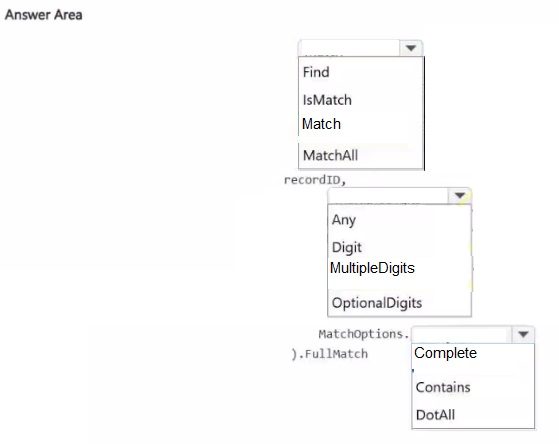
How should you complete the Power Fx formula? To answer, select the appropriate options in the answer area.

NOTE: Each correct selection is worth one point.

Show answerHide answer

Explanation

Explanation:
Power Fx provides regular-expression functions to identify and extract patterns from text values. In this scenario, the customer reference numbers contain digits embedded within alphabetic characters of varying lengths. The MatchAll function is appropriate because it returns all matching occurrences rather than stopping at the first match. The MultipleDigits pattern identifies consecutive numeric characters, while MatchOptions.Contains allows the matching pattern to be found within a larger text string.

Correct Option:

MatchAll — Correct
The MatchAll function searches the supplied text for all occurrences matching a specified regular expression and returns a table of matching records.

MultipleDigits — Correct
MultipleDigits identifies sequences containing multiple consecutive digits. This is useful for finding numeric reference values embedded within alphabetic text.

Contains — Correct
MatchOptions.Contains allows the pattern to match within the supplied text instead of requiring the entire string to match.

Reference:
Microsoft Learn documentation, Match, MatchAll, and IsMatch functions, explains how Power Fx uses regular expressions to identify and extract text patterns. MatchAll returns all matching occurrences, making it suitable for extracting multiple numeric values embedded within a larger string
Question 26 Choose 1

Note: This question is part of a series of questions that present the same scenario. Each question in the series contains a unique solution that might meet the stated goals. Some question sets might have more than one correct solution, while others might not have a correct solution.

After you answer a question in this section, you will NOT be able to return to it. As a result these questions will not appear on the review screen.

A company integrates external systems into Power Automate by using cloud flows.

The company must connect to external services with different characteristics and determine whether a custom connector is required.

You need to evaluate if a custom connector is necessary to meet the requirements.

Solution: A cloud flow must retrieve data from Microsoft Dataverse.

Does the solution meet the goal?

Show answerHide answer

Correct answer: B No

Explanation

Explanation:
A custom connector is not required when a Power Automate cloud flow needs to retrieve data from Microsoft Dataverse. Power Automate provides a built-in Microsoft Dataverse connector with predefined actions, such as Get a row by ID and List rows. These actions allow cloud flows to retrieve Dataverse records without creating a separate custom connector. Custom connectors are primarily used when integrating with external services that expose APIs but do not have an appropriate existing connector available.

Correct Option:

B. No — Correct
The solution does not meet the goal because retrieving data from Microsoft Dataverse does not require a custom connector.

- Built-in connector: Power Automate includes a Microsoft Dataverse connector.

- Data retrieval: Actions such as List rows and Get a row by ID retrieve Dataverse records.

- Authentication: The connector supports configuring connections using supported authentication methods.

- No custom development: Developers can directly use the existing connector without defining API operations or authentication settings manually. Therefore, a custom connector is unnecessary for this requirement.

Incorrect Option:

A. Yes — Incorrect
Selecting Yes would indicate that a custom connector is necessary to retrieve data from Microsoft Dataverse. This is incorrect because Dataverse already has a dedicated Power Automate connector with predefined operations for retrieving, creating, updating, and deleting records. A custom connector is generally needed when the required external service does not have a suitable standard connector or requires a separately defined API integration.

Reference:
Microsoft Learn documentation, Microsoft Dataverse connector, describes the built-in Power Automate connector and its available actions for interacting with Dataverse records. These predefined operations eliminate the need to develop a custom connector for standard Dataverse data retrieval.
Question 27 Choose 1

You plan to implement Microsoft Dataverse.

You must track changes for two columns in the Account table. You must maintain a historical log of changes for the two columns and track only what is necessary.

You configure the appropriate organization settings.

You need to configure the system to track changes for the two columns.

Which two actions should you perform?

Show answerHide answer

Correct answer: C Enable auditing for the Account table and enable auditing for the two specified columns.

Explanation

Explanation:
Microsoft Dataverse provides auditing to maintain a historical record of changes made to table records and individual columns. The company needs to track changes to only two specific columns in the Account table while minimizing unnecessary audit data. To achieve this, auditing must first be enabled at the environment level and then configured for the Account table and the two required columns. This approach records relevant changes, including previous and new values, without unnecessarily auditing every column.

Correct Option:

C. Enable auditing for the Account table and enable auditing for the two specified columns — Correct
Dataverse auditing supports tracking changes at multiple levels, including the environment, table, and individual column levels.

The required configuration is:

- Environment level: Enable auditing in the environment settings.

- Account table: Enable auditing for the Account table.

- Two specified columns: Enable auditing only for the two columns that require historical tracking.

This configuration ensures that Dataverse records changes to the selected columns, including information about who made the changes and when they occurred.

It also minimizes unnecessary audit records by avoiding auditing unrelated columns.

Incorrect Options:

A. Enable change tracking for the Account table and both specified columns — Incorrect
Dataverse change tracking and auditing serve different purposes. Change tracking identifies data changes so external systems can synchronize updated records with Dataverse. It does not maintain a detailed historical audit log containing previous and new column values, the user responsible, and the time of the change. Since the company requires historical information about modifications to two specific columns, auditing is the appropriate feature rather than change tracking.

B. Enable change tracking for the Account table and auditing for the two specified columns — Incorrect
Although auditing selected columns is relevant, enabling change tracking is not the correct table-level prerequisite for maintaining an audit history. Dataverse requires auditing to be enabled for the table before auditing can be configured for individual columns. Therefore, the Account table's auditing setting must also be enabled. Change tracking serves a different purpose and does not replace table-level auditing.

D. Enable auditing only at the environment level — Incorrect
Enabling auditing at the environment level establishes the organization-wide prerequisite for auditing, but it does not automatically configure every table and column for historical tracking. The Account table must also have auditing enabled, followed by enabling auditing on the two specified columns. Without these additional configurations, the company cannot ensure that changes to the required columns are recorded in the audit history.

Reference:
Microsoft Learn confirms that Dataverse auditing can be configured at three levels: environment, table, and column. To capture changes, auditing must be enabled at all applicable levels. Column-level configuration allows administrators to track only the required fields and minimize unnecessary audit log storage.
Question 28

A company must be able to monitor changes to records and support integration with external systems. The solution must provide the following functionality:

• Maintain a history of changes to records.

• Allow external systems to detect data updates.

You need to configure table properties.

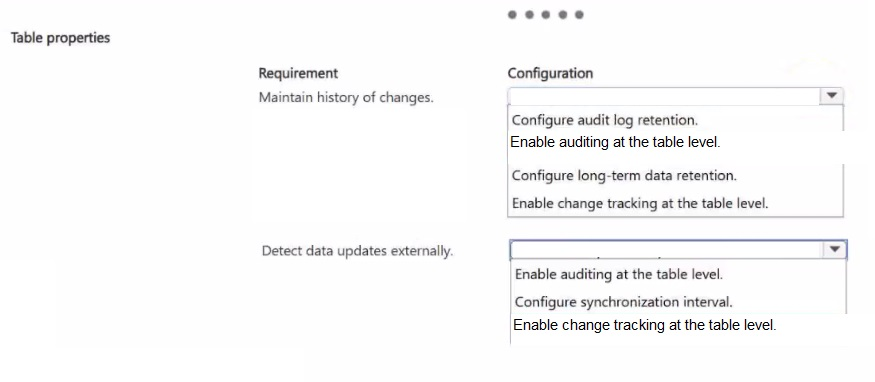
How should you configure the properties? To answer, select the appropriate options in the answer area.

NOTE: Each correct selection is worth one point.

Show answerHide answer

Explanation

Explanation:
Microsoft Dataverse provides two separate features for monitoring data changes and supporting external integrations. Auditing maintains a historical record of modifications, including who changed a record, when the change occurred, and the previous and new values. Change tracking identifies records that have changed since the last synchronization, allowing external systems to retrieve updates efficiently. Both features can be enabled independently through table properties to satisfy the company's requirements.

Correct Options:

1. Audit changes to its data — Enabled

Dataverse auditing records changes made to table records.

- Maintains historical change information.

- Tracks record creation, updates, and deletion.

- Records information about who performed the change and when.

- Supports retrieving previous and updated column values.

This satisfies the requirement to maintain a historical record of changes.

2. Track changes — Enabled

Change tracking allows external systems to identify data modifications since the previous synchronization.

- Detects changes to Dataverse records.

- Supports incremental data synchronization.

- Helps external systems retrieve updated records efficiently.

- Avoids repeatedly extracting the entire dataset.

This satisfies the requirement for external systems to detect data updates.

Incorrect Configuration:

- Audit disabled: Historical changes will not be captured for the table.

- Track changes disabled: External systems cannot use Dataverse change tracking to efficiently retrieve incremental updates.

Reference:
Microsoft Learn distinguishes auditing from change tracking. Auditing maintains historical records of data modifications, while change tracking identifies updates for synchronization with external systems. Both features are configured through Dataverse table properties.
Question 29

A company uses a business process flow to manage case resolution.

The business process flow has the following requirements:

Users must complete required data before progressing to the next stage.

Before exiting a stage, a background process must create an approval, assign it to the record owner, and send the approval by using Microsoft Teams.

Mandatory data entry enforcement must be part of only the business process flow itself.

You need to enforce the stage progression requirements.

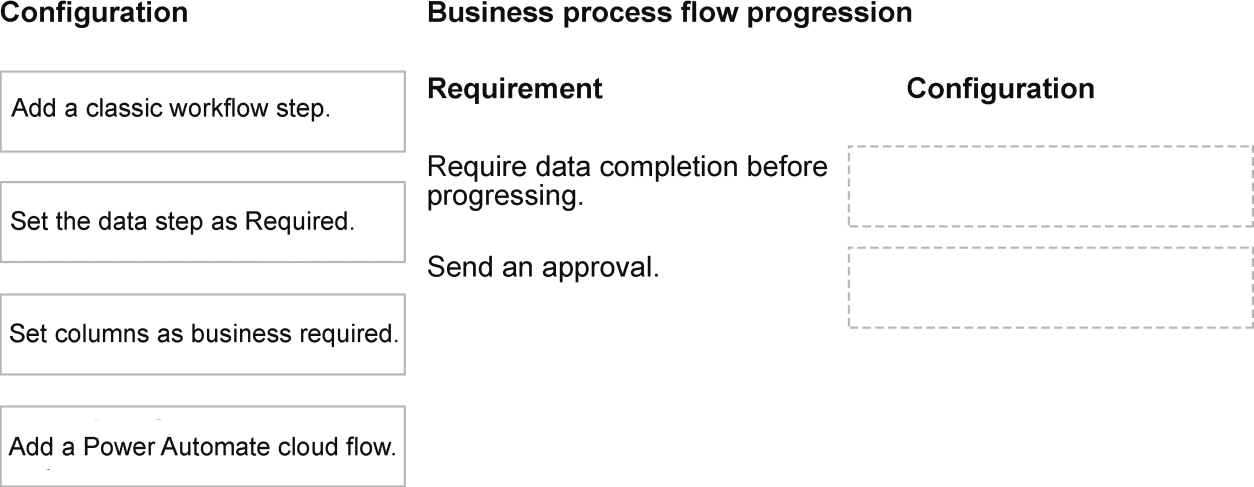
How should you configure the business process flow? To answer, move the appropriate configurations to the correct requirements. You may use each configuration once, more than once, or not at all. You may need to move the split bar between panes or scroll to view content. NOTE: Each correct selection is worth one point.

Show answerHide answer

Explanation

Explanation:
Business Process Flows in Microsoft Dataverse guide users through predefined stages and ensure that required information is entered before progression. A data step can be configured as required, preventing users from moving forward until the associated field contains a value. For additional automation, Power Automate can respond to business process flow stage changes and create approval records, assign them to record owners, and send approval requests through Microsoft Teams.

Correct Option:

1. Require data completion before progressing — Set the data step as Required.

This is the correct configuration because the requirement specifies that mandatory data entry must be enforced within the BPF itself.

- Select the relevant data step in the BPF designer.

- Enable the Required property.

- Users cannot advance to the next stage until the required field is completed.

Do not use business-required columns because the requirement specifically limits mandatory enforcement to the BPF.

2. Send an approval — Add a Power Automate cloud flow.

A Power Automate cloud flow is appropriate because it supports background automation and integration with Microsoft Teams.

Configure the flow to:

- Detect the relevant BPF stage transition using Dataverse.

- Create the approval record.

- Assign the approval to the record owner.

- Send the approval notification through Microsoft Teams.

The cloud flow provides the external integration capabilities needed for this approval process.

Incorrect Options:

Add a classic workflow step — Incorrect
A classic workflow can execute when a BPF stage is entered or exited and can perform background operations. However, it does not provide native Microsoft Teams connector actions for sending modern approval notifications. A Power Automate cloud flow is more appropriate for the Teams integration.

Set columns as business required — Incorrect
Business-required columns enforce mandatory data entry at the Dataverse column level, rather than exclusively within the BPF. This could affect data entry outside the business process flow, violating the requirement.

Reference:
Microsoft Learn documentation explains that BPF data steps can be marked Required to prevent stage progression until data is entered. Power Automate cloud flows support Dataverse integration and Microsoft Teams approval operations.
Question 30

A company uses a model-driven app that has multiple forms and system views for the same table.

You must restrict specific users from accessing:

- A specific form.

- A specific system view.

You need to configure the access restrictions.

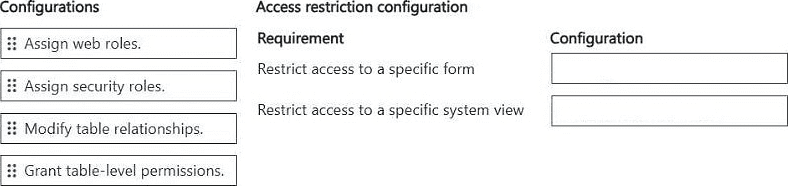
How should you complete the configurations? You may use each configuration once, more than once, or not at all.

Exhibit:

Show answerHide answer

Explanation

Explanation:
Model-driven Power Apps supports role-based access restrictions for forms and public system views. Administrators can assign specific Dataverse security roles to individual forms and views, ensuring that only users with the assigned roles can access them. This allows different groups of users to see different forms and views for the same table. Both configurations use security roles, but they are configured separately through the respective form and view settings.

Correct Option:

1. Specific security roles for the form — Correct

To restrict access to a particular form:
- Open the table in Power Apps.
- Navigate to the Forms section.
- Select the required form.
- Open Form settings.
- Select Security role.
- Choose Specific security roles.
- Assign the security roles that should have access.
- Save and publish.
Only users assigned the selected security roles can access that form. Ensure an appropriate fallback form is configured for other users.

2. Specific security roles for the system view — Correct

To restrict access to a particular system view:
- Open the table in a solution.
- Navigate to the Views section.
- Select the required public system view.
- Open View settings.
- Choose Specific security roles.
- Assign the security roles that should have access.
- Save and publish.
This limits access to the selected public view based on the user's assigned security roles.

Important: Default public views cannot be assigned security roles using this feature. Use a nondefault public view.

Incorrect Options:

Everyone — Incorrect
Selecting Everyone makes the form or view available to all users rather than restricting access to specific security roles.

Form order — Incorrect
Form order determines which available form appears by default. It does not determine which users are authorized to access a form.

View filters — Incorrect
View filters determine which records appear within a view. They do not restrict access to the view itself based on security roles.

Reference:
Microsoft Learn documents role-based access configuration for model-driven app forms and public system views. Both features allow administrators to select specific security roles and publish the configuration to restrict availability to authorized users.
Full mock exam

Sit the AB-410 exam before exam day

Full-length mocks with the same number of questions and the same time limit as the real AB-410 exam. Every attempt draws a new set of questions from the full bank, so you can keep going until you pass comfortably.

Get full AB-410 mock exam
  • 60questions per mock
  • 120 mintime limit
  • 154questions in the bank
  • Newmock on every attempt