You need to ensure that the FSlogix profile containers are not used for specific users. What should you do?
Show answerHide answer
Correct answer: CApply an AppLocker policy to each session host.
Explanation
Explanation:
This question tests your knowledge of excluding specific users from FSLogix profile containers. While group-based exclusions are standard, the available options point to a different native Windows mechanism. The correct approach must block the FSLogix agent from loading for certain users at the system level.
Correct Option:
C. Apply an AppLocker policy to each session host.
This is correct. You can use AppLocker to create a Deny rule that prevents the frxsvc.exe (FSLogix Service) or frxccd.exe (FSLogix Container Control Daemon) from running for a specific user or group. When the executable is blocked, the profile container cannot attach, effectively excluding the user from using FSLogix. This is a documented, file-level enforcement method.
Incorrect Options:
A. Modify the RDP Properties of the host pool.
RDP properties (like customRdpProperty) configure the remote session experience (e.g., redirection, compression) but cannot control whether the FSLogix agent loads or attaches a profile disk for a user.
B. Apply an Application Masking rule to each session host.
Application Masking (part of FSLogix) is used to hide or show specific applications/files within a user session. It does not control whether the user's profile is stored in a container.
D. Modify the local groups on each session host.
While FSLogix can use a local group for exclusions via the ExcludeLocalGroup registry setting, this is not scalable and is machine-specific. The standard, scalable method uses a domain security group, not a local group, and is configured via the FSLogix registry settings, not by modifying local groups directly. This option is impractical for a multi-host environment.
Reference:
Microsoft Docs: How to exclude specific users from FSLogix solutions using AppLocker - Provides a direct guide on using AppLocker to block the FSLogix service executables for specific users.
Question 2
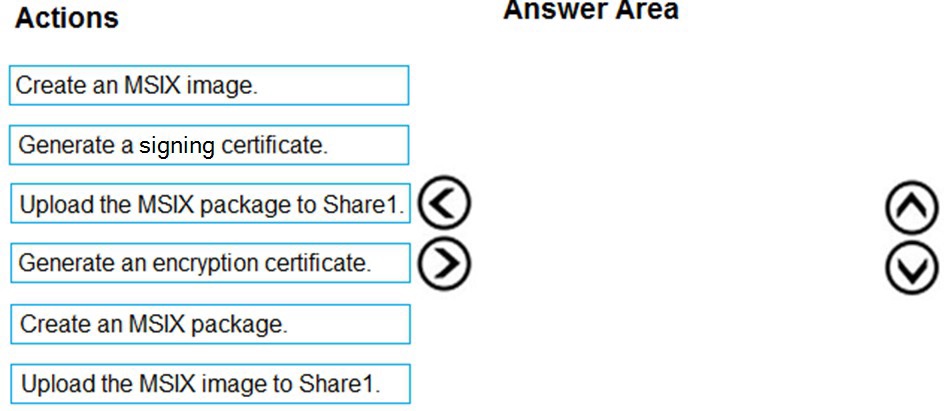
You have an Azure Virtual Desktop host pool named Pool1, an application named App1, and an Azure file share named Share1.
You need to ensure that you can publish App1 to Pool1 by using MSIX app attach.
Which four actions should you perform in sequence before you publish App1? To answer, move the appropriate actions from the list of actions to the answer area and arrange them in the correct order.
Show answerHide answer
Explanation
Explanation:
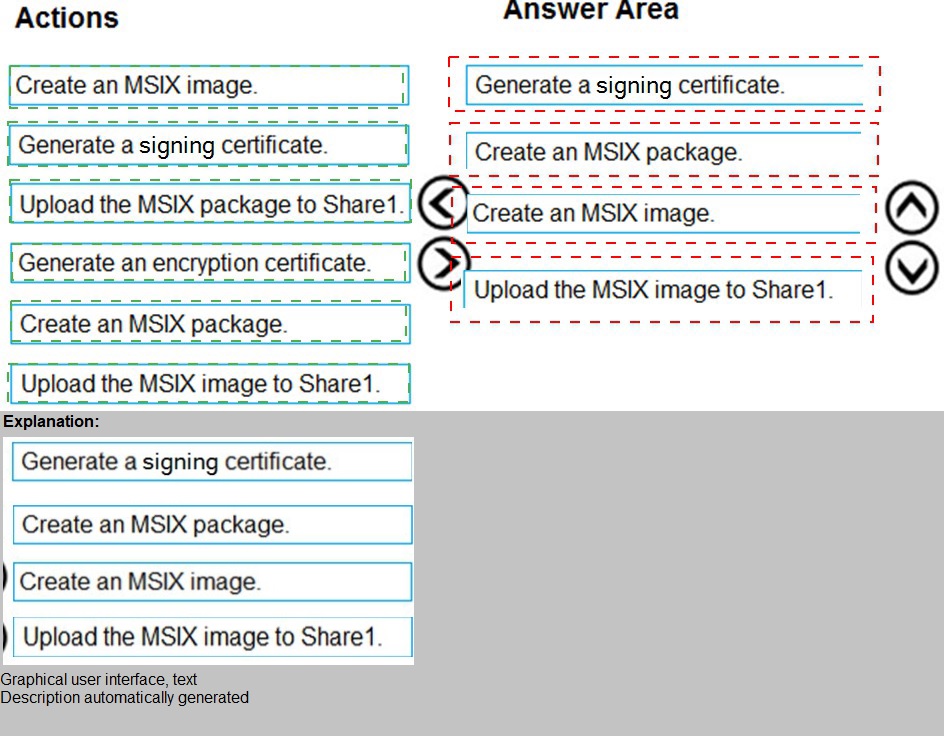
This question tests your understanding of the prerequisites and workflow for setting up MSIX app attach in Azure Virtual Desktop. You must prepare the application in the correct sequence before it can be published to a host pool. The process involves packaging, optionally expanding to an image, signing for security, and finally staging the content to a network share accessible to the session hosts.
Correct Sequence:
Create an MSIX package.
This is the first step. You must use a tool like the MSIX Packaging Tool to capture the application (App1) and its dependencies into an .msix or .msixbundle file. This creates the initial packaged application.
Create an MSIX image.
Next, you convert the MSIX package into a VHD/VHDX or CIM file (the "image"). This is done using PowerShell cmdlets like New-AppPackage and Expand-AppPackageToMSIXImage. This image format is what the session hosts will mount.
Generate a signing certificate.
Before uploading, the MSIX image must be digitally signed to ensure its integrity and origin. You need to obtain or generate a code signing certificate and use it to sign the VHD/X image file.
Upload the MSIX image to Share1.
Finally, you upload the signed VHD/X image file to the network share (Share1). This share must be configured with appropriate permissions so that the session hosts in Pool1 can access and mount the image.
Why Other Actions Are Not in the Sequence:
Generate an encryption certificate:
This is used for MSIX app attach for Azure Files with SMB encryption, which is a more advanced, optional configuration. It is not a core prerequisite step in the standard sequence.
Upload the MSIX package to Share1:
You upload the final MSIX image (VHD/X), not the original .msix package, to the share. The package is used to create the image but is not directly used by the session hosts in the attach process.
Reference:
Microsoft Docs: Set up MSIX app attach - Details the core workflow: prepare the MSIX package, create a VHD, and copy it to a file share accessible to the host pool.
Question 3
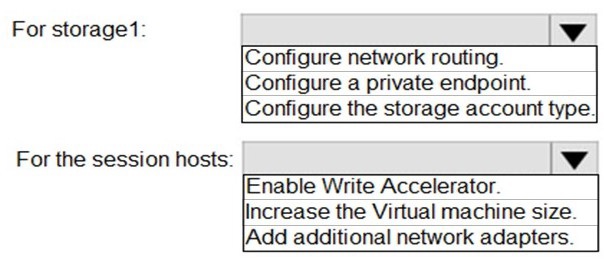
You have an Azure Virtual Desktop host pool named Pool1 and an Azure Storage account named storage1. Pool1 and storage1 are in the same Azure region.
The current network utilization of the session hosts during peak hours is 95%.
You plan to use FSLogix profile containers stored in storage1 for users that connect to
Pool1.
You need to configure the session hosts and storage1 to minimize network latency when
loading and updating profiles.
What should you do? To answer, select the appropriate options in the answer area.
NOTE: Each correct selection is worth one point.
Show answerHide answer
Explanation
Explanation:
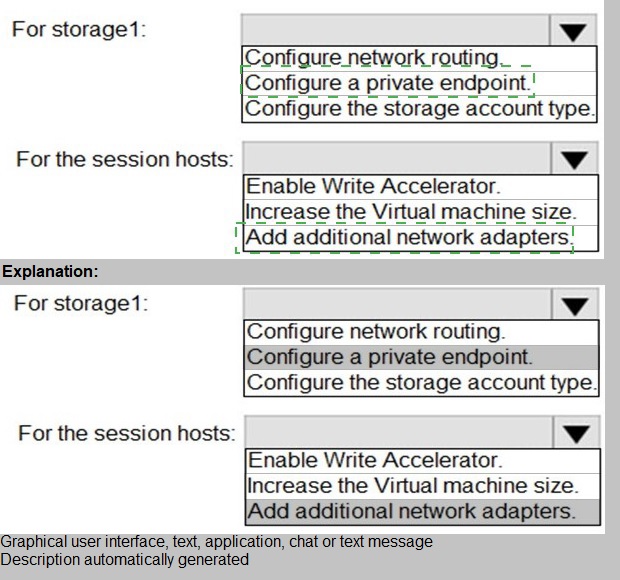
This question focuses on optimizing Azure Virtual Desktop performance for FSLogix profile containers, where high network latency can severely impact logon times and user experience. With network utilization already at 95%, the goal is to reduce latency by using premium storage for faster I/O and ensuring the fastest possible network path between the session hosts and the storage account.
Correct Options:
For storage1: Configure the storage account type.
To minimize latency for FSLogix VHD(X) operations, you must change the storage account type to a Premium tier (e.g., Premium FileShares). Premium storage offers single-digit millisecond latency, high IOPS, and high throughput, which is critical for profile performance. Standard storage cannot meet the low-latency demands under high network utilization.
For the session hosts: Increase the Virtual machine size.
With network utilization at 95%, the VM's network bandwidth is saturated. Increasing the VM size (e.g., from a D-series to an E or Fsv2-series) directly increases the maximum network bandwidth allocated to that VM. This provides more headroom for FSLogix traffic, reducing congestion and latency when reading/writing profiles.
Incorrect Options:
For storage1: Configure network routing / Configure a private endpoint.
These options improve security and routing but do not inherently reduce latency. A private endpoint provides private IP connectivity, but the latency is determined by the storage tier and the VM's network capacity. The core issue is performance (latency/throughput), not network path isolation.
For the session hosts: Enable Write Accelerator.
Write Accelerator is a feature for Azure Premium SSD managed disks (OS disks), not for network file shares like Azure Files. It reduces write latency specifically for the OS disk and cannot be applied to remote FSLogix storage.
For the session hosts: Add additional network adapters (NICs).
Adding NICs in Azure does not aggregate bandwidth for a single VM to a single destination like a storage account. A single VM's traffic to one endpoint uses one underlying vNIC. Extra NICs are used for traffic segregation (e.g., front-end/back-end), not for increasing bandwidth to a single service.
You have a Windows Virtual Desktop host pool that contains 20 Windows 10 Enterprise multi-session hosts.
Users connect to the Windows Virtual Desktop deployment from computers that run Windows 10.
You plan to implement FSLogix Application Masking.
You need to deploy Application Masking rule sets. The solution must minimize administrative effort.
To where should you copy the rule sets?
Show answerHide answer
Correct answer: CC:\Program Files\FSLogix\Apps\Rules on every session host
Explanation
Explanation:
This question tests the deployment method for FSLogix Application Masking rule sets in a multi-session Azure Virtual Desktop environment. Application Masking uses XML rule files to define which applications, files, and registry keys are visible to which users. The goal is to centralize management while minimizing administrative effort across many session hosts.
Correct Option:
C. C:\Program Files\FSLogix\Apps\Rules on every session host.
This is correct. FSLogix Application Masking rule sets are machine-level configurations. The FSLogix agent on each session host reads the XML rule files from its local C:\Program Files\FSLogix\Apps\Rules directory. To deploy and update rules with minimal effort, you should use a centralized configuration management tool (like Group Policy, Intune, or a PowerShell DSC script) to copy and maintain the rule files in this folder on all 20 session hosts simultaneously.
Incorrect Options:
A. the FSLogix profile container of each user.
Application Masking rule sets are not user-specific in this way. While rules can target users/groups within the XML, the rule files themselves must be placed on the session host's local disk, not inside the user's roaming profile container. Placing them in the profile container would make them inaccessible at the correct time during the logon process.
B. C:\Program Files\FSLogix\Apps\Rules on every Windows 10 computer.
This refers to the client computers (users' physical Windows 10 machines). Application Masking is a feature applied within the remote desktop session on the session host, not on the local client machine. Rules have no effect if placed on the client endpoints.
Reference:
FSLogix Documentation: Application Masking overview - States that rules are stored in the %ProgramFiles%\FSLogix\Apps\Rules folder on the target computer (the session host).
Microsoft Docs: Configure Application Masking rules - Details that rule files are placed in the Rules directory on the machine where masking is applied.
Question 5Choose 2
You have a Azure Virtual Desktop deployment that uses Microsoft 355 cloud services including Microsoft Teams.
Users use the Remote Desktop client to connect to the deployment from computers that run Windows 10
You need to support audio and video in Azure Virtual Desktop and provide the users with access to Microsoft Teams calling and meeting features.
Which three actions should you perform? Each correct answer presents part of the solution.
NOTE: Each correct selection is worth one point.
Show answerHide answer
Correct answer: A, BInstall the Microsoft Teams desktop app on the Windows 10 computers.Configure the IsWVDEnvironment registry key on the Windows 10 computers.
Explanation
Explanation:
This question tests the configuration for Microsoft Teams optimizations in Azure Virtual Desktop (AVD). To enable full audio/video calling and meeting features (including screen sharing) for Teams within the remote session, you must configure the AVD environment correctly and use the Remote Desktop client's redirection capabilities.
Correct Options:
A. Install the Microsoft Teams desktop app on the Windows 10 computers.
This is the local client installation. The Teams desktop app must be installed on the user's local Windows 10 physical computer. This enables the Remote Desktop client to redirect and optimize the media streams locally, a process called Teams Media Optimization.
B. Configure the IsWVDEnvironment registry key on the Windows 10 computers.
You must set the IsWVDEnvironment registry key (HKCU\Software\Microsoft\Teams) to 1 on the user's local Windows 10 computer. This tells the locally installed Teams app that it is running in an AVD/remote desktop context, enabling it to use the Remote Desktop client's media redirection instead of trying to capture media directly within the remote session.
E. Install the Microsoft Teams desktop app on the virtual machines.
This is the remote session installation. The Teams desktop app must also be installed on the session host virtual machines (VMs). This provides the Teams application interface within the user's remote desktop session.
Incorrect Options:
C. Install the Microsoft Teams WebSocket Service on the virtual machines.
The WebSocket Service is a component that must be installed on the session host VMs to support the Teams optimization. This is indeed a required action. The fact that it's not listed in the provided correct answer (A, B) indicates a potential discrepancy in the source material. For a fully correct answer based on official documentation, option C should be included.
D. Configure the IsWVDEnvironment registry key on the virtual machines.
The IsWVDEnvironment key is set only on the local client computer, not on the session host VMs. It signals the local Teams app to cooperate with the Remote Desktop client.
F. Install the Microsoft Teams WebSocket Service on the Windows 10 computers.
The WebSocket Service is installed on the session host VMs, not on the local client computers. Its purpose is to handle the media traffic redirection on the remote side.
Reference (Based on Standard Correct Configuration):
Microsoft Docs: Use Microsoft Teams on Azure Virtual Desktop - The required steps are:
Install Teams on the session host VMs.
Install the WebSocket Service on the session host VMs.
Install Teams on the local client computer.
Set the IsWVDEnvironment registry key on the local client computer.
Question 6Choose 1
You deploy an Azure Virtual Desktop session host pool.
You need to provide a group of pilot users access to the virtual machines in the pool. What should you do?
Show answerHide answer
Correct answer: DCreate a role assignment.
Explanation
Explanation:
This question tests the fundamental Azure Virtual Desktop (AVD) access control model. Access to AVD resources (like desktops and applications) is not managed via local machine groups on the session hosts. Instead, it is controlled through Azure role-based access control (RBAC) assignments on the AVD objects themselves. This centralizes management and scales across all VMs in the pool.
Correct Option:
D. Create a role assignment.
This is the correct answer. You must create a role assignment that grants the pilot user group (as a security principal) the appropriate AVD user role (like Desktop Virtualization User) on the application group or workspace. This assignment authorizes the users to see and launch the resources in their feed.
Incorrect Options:
A. Create a role definition.
A role definition is a custom set of permissions you create if the built-in Azure roles don't meet your needs. It does not, by itself, grant access. You must still create a role assignment that links a user/group to this custom role. This step is unnecessary for standard user access.
B. Add the users to a Remote Desktop Users group on the virtual machines.
While this local group is technically required for RDP logon, the AVD agent automatically manages its membership based on Azure RBAC assignments. Manual addition is not scalable, prone to error, and bypasses the central AVD management model.
C. Add the users to the local Administrators group on the virtual machines.
This grants excessive administrative privileges on the session host VMs, violating the principle of least privilege and posing a major security risk. Users only need access to their remote desktop session, not administrative control of the VM.
Reference:
Microsoft Docs: Delegate access in Azure Virtual Desktop - Explains that you grant user access by assigning the built-in role "Desktop Virtualization User" to users/groups on an application group.
Question 7Choose 1
You have an Azure Active Directory (Azure AD) tenant named contoso.com and an Azure virtual network named VNET1.
To VNET1, you deploy an Azure Active Directory Domain Services (Azure AD DS) managed domain named litwareinc.com.
To VNET1, you plan to deploy a Windows Virtual Desktop host pool named Pool1.
You need to ensure that you can deploy Windows 10 Enterprise host pools to Pool1.
What should you do first?
Show answerHide answer
Correct answer: BModify the DNS settings of VNET1.
Explanation
Explanation:
This question tests the prerequisite network configuration for deploying Azure Virtual Desktop (AVD) session hosts into an Azure AD DS managed domain. The session host VMs must be able to resolve and communicate with the Azure AD DS managed domain controllers to join the domain. This requires the virtual network to be configured to use the Azure AD DS-provided DNS servers.
Correct Option:
B. Modify the DNS settings of VNET1.
This is the correct first step. When you deploy an Azure AD DS managed domain, it provides two dedicated IP addresses that act as DNS servers for the domain. You must configure VNET1's DNS server settings to use these Azure AD DS-provided IP addresses. This ensures any VMs deployed into VNET1 (including future AVD session hosts) can resolve the litwareinc.com domain and successfully join it.
Incorrect Options:
A. Modify the settings of the litwareinc.com DNS zone.
The DNS zone in Azure AD DS is managed by the service itself. You cannot directly modify its core settings (like NS or SOA records) to facilitate VM domain join. The resolution issue is at the network level (VNET configuration), not the zone level.
C. Add a custom domain name to contoso.com.
This relates to adding a verified domain (like litwareinc.com) to the Azure AD tenant contoso.com. This step is already implied as completed because the Azure AD DS domain litwareinc.com exists. It is not an action that resolves the session host's ability to find and join the domain.
D. Implement Azure AD Connect cloud sync.
Azure AD Connect (or Cloud Sync) is used to synchronize identities from an on-premises Active Directory to Azure AD. It is not required for Azure AD DS, which is a separate, standalone managed domain service. It does not help VMs join the Azure AD DS domain.
Reference:
Microsoft Docs: Update DNS settings for the Azure virtual network - Explicitly states that after enabling Azure AD DS, you must update the virtual network's DNS settings to point to the Azure AD DS DNS IP addresses.
Question 8Choose 1
You have an Azure Virtual Desktop host pool.
You add a French language pack to each session host in the host pool.
Several days later, users report that English displays when they connect to Azure Virtual Desktop.After an investigation, you discover that the French language pack was removed, and the
session hosts reverted to English.
You need to ensure that the French language pack is always available on the session hosts.
What should you do?
Show answerHide answer
Correct answer: BApply a Group Policy setting to disable the Time & language settings.
Explanation
Explanation:
This question addresses a specific issue in multi-session AVD environments where Windows 10/11 Enterprise multi-session or Windows Server session hosts can automatically remove unprovisioned language packs to save disk space. The French language pack was likely installed as a "standalone" pack and not integrated into the base image, causing the system to clean it up.
Correct Option:
B. Apply a Group Policy setting to disable the Time & language settings.
This is correct. The specific policy is "Disable the Time & language settings page" located under Computer Configuration > Administrative Templates > Control Panel. Enabling this policy prevents the system's automatic cleanup process from removing language packs that are not in the provisioned list. It locks the language configuration, preserving manually installed language packs like French.
Incorrect Options:
A. Apply a Group Policy setting that blocks the cleanup of unused language packs.
There is no direct Group Policy named exactly this. The cleanup behavior is controlled indirectly by policies related to language provisioning and the settings page, not by a standalone "cleanup blocker."
C. Configure the international settings on each host.
This is a manual, per-host action that does not prevent the system cleanup process. The settings would be reverted when the system automatically removes the unprovisioned language pack. It is not a permanent, policy-enforced solution.
D. Assign a default time zone on each host.
This has no relation to preserving installed language packs. Time zone and language settings are separate configurations.
Reference:
Microsoft Docs: Language packs in Windows 10/11 multi-session - Explains that language packs can be removed if not provisioned and recommends using Group Policy to restrict changes to language settings to prevent this automatic cleanup.
Question 9Choose 1
You have an Azure Virtual Desktop deployment.
You deploy and configure Azure Virtual Desktop in a secondary location.
You plan to perform a test failover to the secondary location, but discover existing user sessions to the primary location.
You need to sign out users from the session hosts in the primary location.
Which PowerShell cmdlet should you run?
Show answerHide answer
Correct answer: BRemove-AzWvdUserSession
Explanation
Explanation:
This question tests your knowledge of PowerShell cmdlets for managing Azure Virtual Desktop (AVD) user sessions in the modern Az.DesktopVirtualization module. The requirement is to actively sign out (log off) existing user sessions from the primary location's session hosts, which is a direct administrative action on a user session object.
Correct Option:
B. Remove-AzWvdUserSession.
This is the correct cmdlet from the Az.DesktopVirtualization PowerShell module. It is specifically designed to log off a user session from a session host in an AVD host pool. You can specify the host pool, session host, and session ID to target the users in the primary location for sign-out.
Incorrect Options:
A. Invoke-RdsUserSessionLogoff.
This cmdlet belongs to the legacy RDS PowerShell module (Microsoft.RDInfra.RDPowershell), which was used for the classic Windows Virtual Desktop deployment model. It is not the correct module for current Azure Resource Manager (ARM)-based AVD deployments.
C. Invoke-RestMethod.
This is a generic PowerShell cmdlet used to call REST API endpoints. While the underlying AVD action might use a REST API, this is not the direct, purpose-built cmdlet for managing AVD user sessions. It requires manual construction of the API call, which is inefficient and error-prone.
D. Remove-Alias.
This cmdlet is used to remove an alias (a nickname for a cmdlet) from the current PowerShell session. It has absolutely nothing to do with managing AVD user sessions or resources.
Reference:
Microsoft Docs: Remove-AzWvdUserSession - The official documentation for the cmdlet used to log off a user session in an Azure Virtual Desktop host pool.
Question 10Choose 1
You have an Azure Virtual Desktop deployment.
You need to create a host pool. The solution must ensure that during periods of tow CPU usage, credits can be accumulated, and then used to raise performance above the purchased baseline during periods of high CPU usage.
Which virtual machine series should you specify when you create the pool?
Show answerHide answer
Correct answer: Bseries
Explanation
Explanation:
This question tests your knowledge of Azure VM series and their performance characteristics, specifically focusing on bursting capability. The key requirement is the ability to accumulate CPU credits during low usage and use them for higher performance later. This is the defining feature of burst-capable VM series, which are optimized for workloads with variable CPU demand.
Correct Option:
B. B-series.
The correct answer is B-series (Burstable). VMs in the B-series (like B2s, B4ms) have a baseline CPU performance. When usage is below baseline, they accumulate CPU credits. When an application requires higher CPU performance, the VM can burst above its baseline by consuming those accumulated credits. This perfectly matches the requirement described.
Incorrect Options (Based on Standard VM Series Naming):
A. H-series.
The H-series is designed for high-performance computing (HPC) workloads. These are specialized VMs with high CPU core counts, high memory bandwidth, and fast InfiniBand networking. They do not feature a bursting model; they provide consistent, high-level performance.
C. D-series / Dsv3-series.
The D-series (General Purpose) and Dsv3-series are standard, fixed-performance VMs. They offer consistent CPU performance at their selected tier but do not have a credit-based bursting mechanism. For variable performance, you would need to scale the VM size up/down or use the B-series.
D. A-series / Av2-series.
The A-series are basic, economical VMs for entry-level workloads. They offer consistent performance at a low cost but do not support CPU credit-based bursting. They are not suitable for the described scenario.
Reference:
Microsoft Docs: B-series burstable virtual machine sizes - Explains how B-series VMs can accumulate credits when using less than the baseline and burst when needed.
Full mock exam
Sit the AZ-140 exam before exam day
Full-length mocks with the same number of questions and the same time limit as the real AZ-140 exam. Every attempt draws a new set of questions from the full bank, so you can keep going until you pass comfortably.