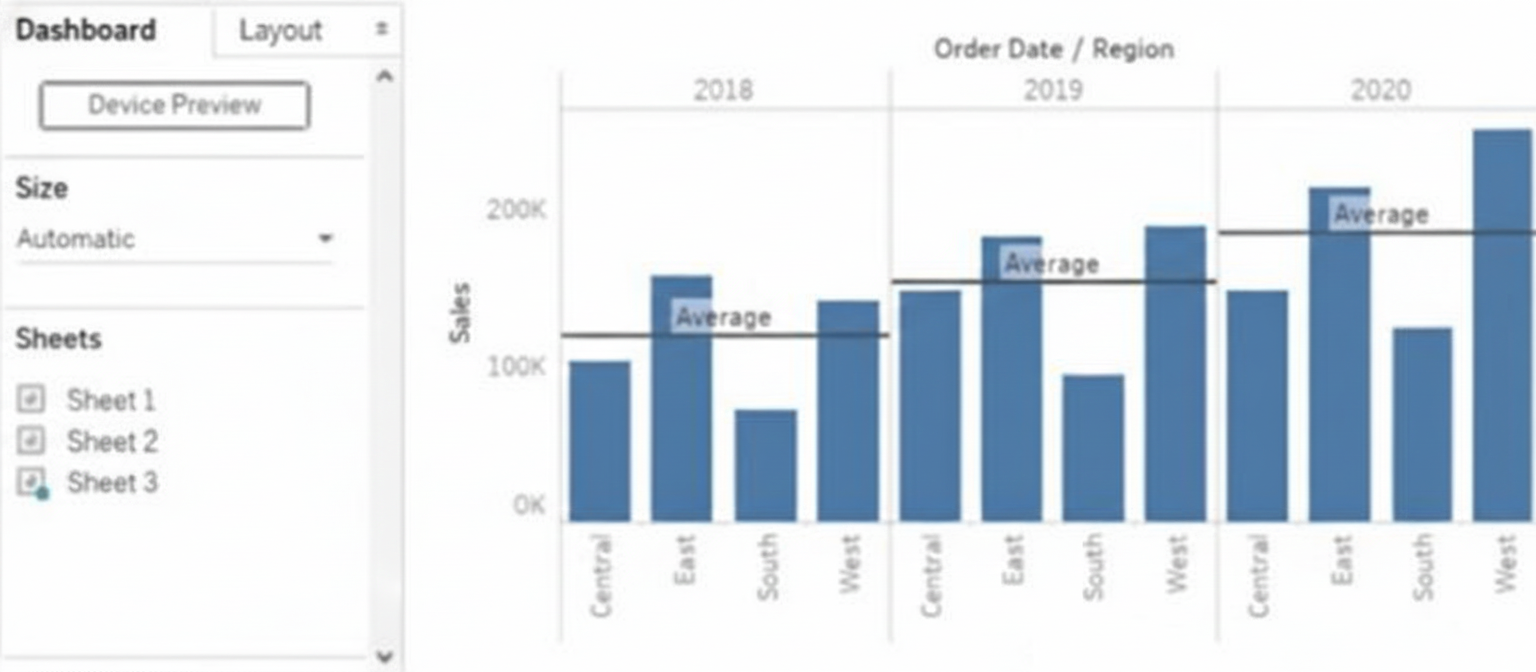
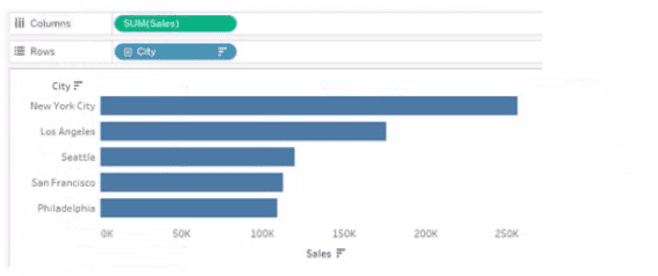
A Data Analyst has the following tiled dashboard that has one sheet called Sheet 3.
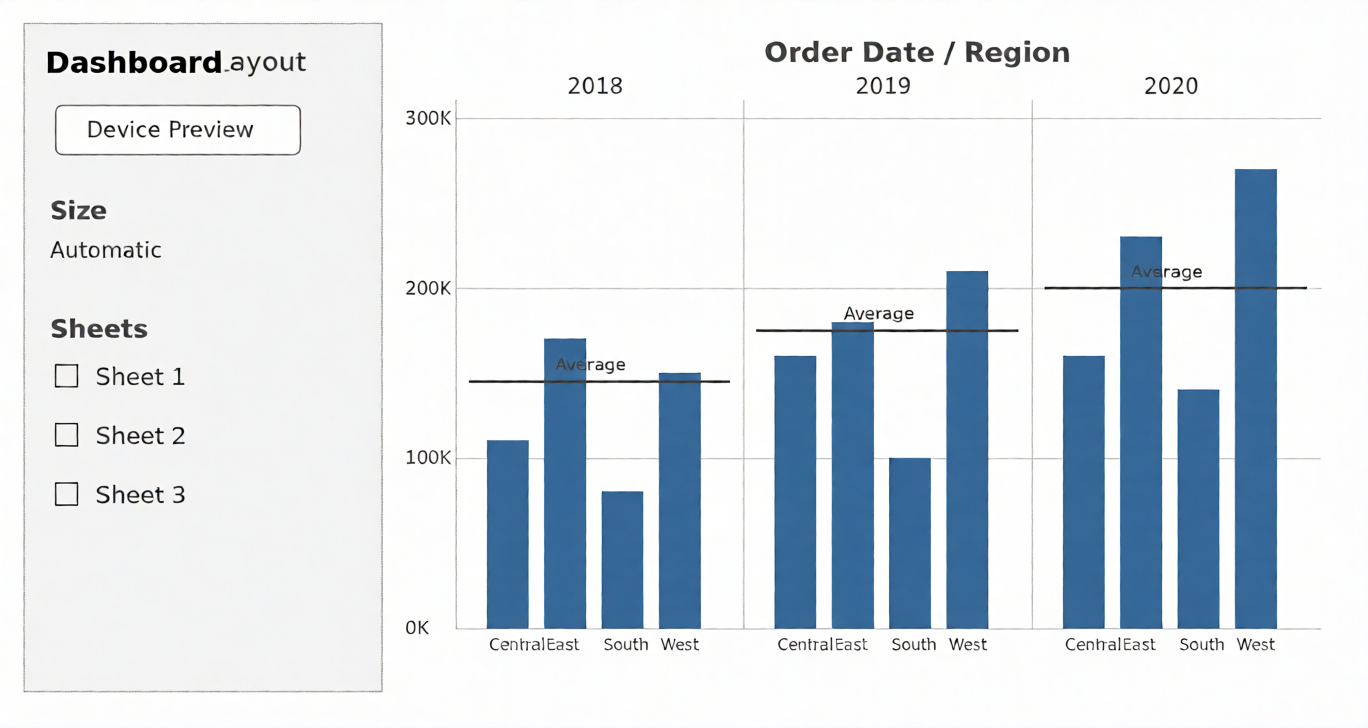
The analyst wants to replace the sheet with Sheet 2.
What should the analyst do?
The analyst wants to replace the sheet with Sheet 2.
What should the analyst do?
Show answerHide answer
Correct answer: D Select Sheet 3 on the dashboard and click the Swap Sheet button next to Sheet 2.
Explanation
ExplanationThe correct answer is D. Select Sheet 3 on the dashboard and click the Swap Sheet button next to Sheet 2. In Tableau Desktop, when a dashboard contains a worksheet that needs to be replaced, the analyst can select the existing sheet on the dashboard (Sheet 3) and then locate the desired replacement sheet (Sheet 2) in the Sheets list on the left side of the Dashboard pane. A "Swap Sheet" button will appear next to Sheet 2. Clicking this button replaces Sheet 3 with Sheet 2 while preserving the position and layout within the tiled container. This makes option D the correct answer.
Why the other options are incorrect:
A. Select Remove Dashboard Item from the context menu of Sheet 3
– This removes Sheet 3 from the dashboard but leaves an empty space. It does not insert Sheet 2 in its place, requiring the analyst to manually add Sheet 2 afterward and reconfigure the layout.
B. Right-click Sheet 2 and select Add to Dashboard
– This adds Sheet 2 as a new tiled item, potentially creating a second container or disrupting the existing layout. It does not replace Sheet 3; both sheets would appear on the dashboard.
C. Select Deselect from the context menu of Sheet 3
– The "Deselect" option is unrelated to replacing a sheet. It simply removes the current selection from the sheet and has no effect on swapping worksheets.
Reference:
Tableau Desktop Specialist and Tableau Data Analyst content areas on Dashboards — specifically replacing worksheets using the Swap Sheet button, managing tiled dashboard layouts, and preserving container structure when substituting sheets.