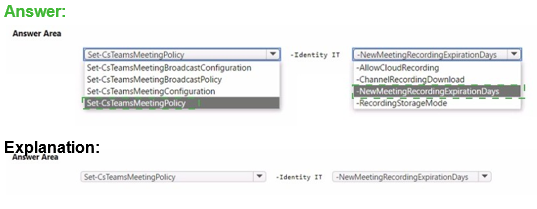
You need to configure a policy for the IT department to meet the technical requirements for training videos.
How should you complete the PowerShell cmdlet? To answer, select the appropriate options in the answer area.
NOTE: Each correct selection is worth one point.
You need to prevent guest users from calling your company's Teams users.
Show answerHide answer
Explanation
Answer: See the solution in the explanation below:
Explanation:
To prevent guest users from calling your company’s Teams users, you need to turn off the calling capability for guests in the Teams admin center. Here are the steps to follow:
Sign in to the Teams admin center with your admin credentials.
Go to Users > Guest access.
Turn off the Make private calls setting.
This will disable the peer-to-peer calling feature for guests.
Click Save to apply the changes
Question 93
Task 9
You need to deploy the Microsoft Viva Connections app to Teams and install the app as the first item on the app bar of the Teams client for all users.
Show answerHide answer
Explanation
Answer: See the solution in the explanation below:
Explanation:
To deploy the Microsoft Viva Connections app to Teams and install the app as the first item on the app bar of the Teams client for all users, you need to use the Teams admin center and PowerShell. Here are the steps to follow:
Sign in to the Teams admin center with your Microsoft 365 username and
password1.
In the left navigation, go to Teams apps > Manage apps.
Click Upload and then select the Viva Connections app package that you created using PowerShell2. If you have not created the app package yet, you can follow the instructions in this article to do so.
After uploading the app package, click on the app name and then click Publish. In the left navigation, go to Teams apps > Setup policies.
Select an existing policy or create a new one by clicking Add.
In the Setup policy pane, under Installed apps, click Add apps and then select the Viva Connections app from the list.
Drag and drop the Viva Connections app to reorder it as the first item on the app bar.
Click Save and then Close.
To assign the setup policy to all users, you can use PowerShell to run the following cmdlet:
Replace “YourPolicyName” with the name of the policy that you created or modified in step 6.
Note: It may take up to 24 hours for the changes to take effect.
Now, you have deployed and installed the Microsoft Viva Connections app to Teams as the first item on the app bar for all users.
Question 94
Task 7
You need to prevent users from deleting messages posted in private chats and channels.
Show answerHide answer
Explanation
Answer: See the solution in the explanation below:
Explanation:
To prevent users from deleting messages posted in private chats and channels, you need to manage the messaging policies in Teams. Here are the steps to follow:
Sign in to the Teams admin center with your admin credentials.
Go to Teams apps > Messaging policies.
Select the policy that you want to modify, such as the global (Org-wide default) policy or a custom policy.
Turn off the following settings: Owners can delete sent messages, Users can delete sent messages, and Users can edit sent messages.
Click Save to apply the changes.
Question 95
Task 3
Adele Vance Is a member of your company s technology adoption team.
You need to provide only Adele with the ability to turn on and off Teams preview features.
Show answerHide answer
Explanation
Answer: See the solution in the explanation below:
Explanation:
To provide only Adele Vance with the ability to turn on and off Teams preview features, you need to create and assign a custom update policy for her. Here are the steps to do so:
Sign in to the Microsoft Teams admin center with your Microsoft 365 username
and password1.
In the left navigation, go to Teams > Teams Update policies.
Select Add to create a new policy or select an existing policy to open Update policy.
Name the update policy, add a description, and select Enabled from the drop- down menu for Allow public preview. This option enables Teams Public Preview regardless of whether a user is enrolled in Office Current Channel (Preview). The end user must also opt in to Teams public preview in their Teams app2.
Click Save and then Close.
In the left navigation, go to Users and then search for Adele Vance from the list of users.
In the user details page, go to Policies and then click Edit next to Assigned policies.
In the Assigned policies pane, under Update policy, select the policy that you created or modified in step 4 from the drop-down menu.
Click Apply and then Close.
Now, Adele Vance can turn on and off Teams preview features by following these steps in her Teams app3:
Select the three dots to the left of your profile to display the Teams menu. Select About > Public preview.
Select Switch to Public preview or Switch back to standard version.
Question 96
Task 12
A company named Contoso, Ltd, plans to deploy Teams Phone with location-based emergency dialing.
You need to ensure that when users dial emergency numbers, the call is routed based on the user's current location
You do NOT need to configure networks and locations at this time.
Show answerHide answer
Explanation
Explanation:
To ensure that when users dial emergency numbers, the call is routed based on the user’s current location, you need to enable the external location lookup mode in Teams. This mode allows Teams to use the location services of the device’s operating system to suggest an emergency address for the user. The user can then confirm, edit, or enter a new address, which will be used to route the emergency call to the appropriate Public Safety Answering Point (PSAP). Here are the steps to follow:
Sign in to the Teams admin center with your admin credentials.
Go to Voice > Emergency policies. Select Add.
Enter a name for the emergency calling policy, for example, “E911WFH”. Turn on External location lookup mode.
Select Apply to create the policy.
To assign the policy to the users who need it, go to Users on the left menu and select the users that you want to apply the policy to. You can use the filters or the search box to find them.
On the right pane, under Policies, select Edit next to Emergency calling policy. Choose the policy that you created from the drop-down list and click Apply.
Question 97
Task 11
You need to ensure that users can perform the following actions:
•Record Teams calls and Teams meeting.
•Transcribe Teams calls and Teams meeting.
Show answerHide answer
Explanation
Answer: See the solution in the explanation below:
Explanation:
To ensure that users can perform the following actions: Record Teams calls and Teams meeting.
Transcribe Teams calls and Teams meeting.
You need to do the following:
Turn on the recording and transcription settings in the Teams admin center. This will allow users to start and stop recording and transcription during a meeting or call. The recording and transcription will be stored in OneDrive or SharePoint and available in the meeting chat or channel conversation. For more details,
see Record a meeting in Microsoft Teams.
Turn on the transcription and captions settings in the Teams admin center. This will enable automatic transcription and captions for meeting recordings. Users can play back the recordings with closed captions and review the transcript in the Recording & Transcripts tab in Teams. For more details, see Configure transcription and captions for Teams meetings.
Turn on the live transcription settings in the Teams admin center. This will allow users to view live transcription during a meeting or call. Users can also download the transcript after the meeting or call. For more details, see View live transcription in Microsoft Teams meetings.
Question 98
Task 5
You need to prevent incoming Teams call notifications when users are already on a Teams call or in a Teams meeting. The solution must NOT reject the call.
Show answerHide answer
Explanation
Answer: See the solution in the explanation below:
Explanation:
To prevent incoming Teams call notifications when users are already on a Teams call or in a Teams meeting, you can use the Teams admin center to enable the Mute notifications during meetings and calls option. This option will suppress the incoming call notifications without rejecting the call. The caller will still hear the ringing tone and the callee can still answer the call from the Teams app or the taskbar. Here are the steps to enable this option:
Sign in to the Teams admin center with your Microsoft 365 username and password1.
In the left navigation, go to Teams > Teams update policies.
Select an existing policy or create a new one by clicking Add.
In the Update policy pane, under Meetings and calls, turn on the toggle for Mute notifications during meetings and calls.
Click Save and then Close.
Note: You can assign different update policies to different users or groups of users. For more information, see Manage update policies in Microsoft Teams2.
That's the last free question
You've seen the free 30% (98 of 334 questions). Full access unlocks every question and full-length MS-700 mock exams, a different mock on every attempt.
Full-length mocks with the same number of questions and the same time limit as the real MS-700 exam. Every attempt draws a new set of questions from the full bank, so you can keep going until you pass comfortably.